Features
Process tree and process list
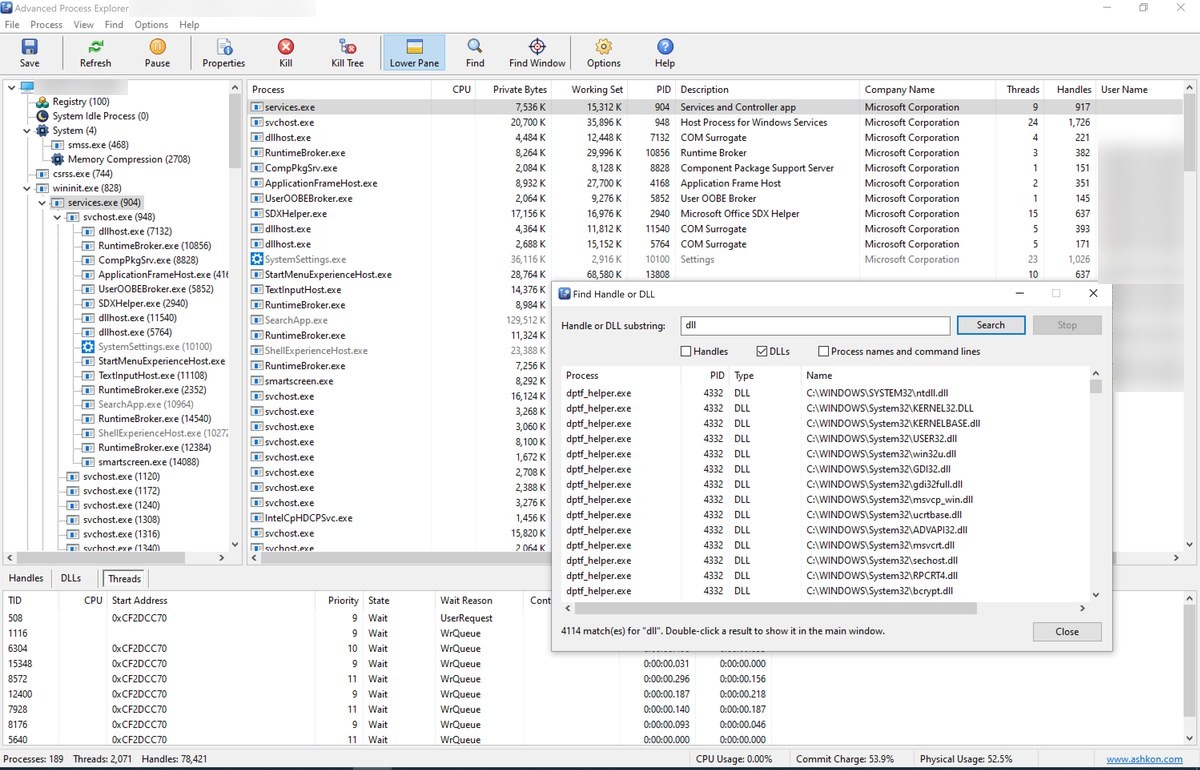
- Process tree on the left shows which process started which, from the computer name down to every child process, with process icons and PIDs; expand all or collapse all with one command.
- Process list on the right shows the processes of the selected branch with 26 columns to choose from: Process, CPU, Private Bytes, Working Set, PID, Description, Company Name, Threads, Handles, User Name, Parent PID, Session, Priority, Architecture (x86 / x64 / ARM64), Integrity level, Image Path, Command Line, Start Time, CPU Time, Peak Working Set, Peak Private Bytes, Virtual Size, Page Faults, Page Fault Delta, I/O Delta and Version.
- Select Columns dialog; drag column headers to change their order; sort by any column. Columns, widths, order and sort order are remembered.
- Flicker-free automatic refresh every 0.5, 1, 2, 5 or 10 seconds; Pause updates (Space) to study a snapshot, Refresh Now (F5) at any time.
- Change highlighting: newly started processes are shown in green and exited processes in red for a configurable time before they are removed.
- Status bar with the number of processes, threads and handles, total CPU usage, commit charge and physical memory usage.
- Exact 64-bit process information on 64-bit Windows, even though the program itself is a small 32-bit executable.
Lower pane: Handles, DLLs and Threads
- Handles (Ctrl+H): type, name, handle value and access mask of every object a process has open — files, folders, registry keys, events, mutexes, sections, semaphores, processes, threads, tokens and more; unnamed handles can be shown or hidden.
- DLLs (Ctrl+D): name, description, company name, full path, version, base address and image size of every loaded module.
- Threads (Ctrl+T): thread ID, CPU usage, start address (module!function+offset), priority, base priority, state, wait reason, context switch delta, kernel time, user time and creation time.
- Show or hide the lower pane with one click (Ctrl+L); its columns can be chosen and are remembered as well.
- Right-click a DLL to open its location, view its file properties or search for it online; right-click a thread to kill, suspend or resume it.
Find Handle or DLL, Find Window
- Find Handle or DLL (Ctrl+F) searches all processes for a handle name, a DLL, or a process name or command line containing the text you enter — the quick way to find out which program has a file locked.
- Results show the process, PID, type and full name; the search runs in the background and can be stopped; double-click a result to select that process in the main window.
- Find Window: drag the crosshair from the toolbar onto any window on the screen to select the process that owns it.
Process control
- Kill Process (Del) and Kill Process Tree (Shift+Del) with optional confirmation; you are warned before killing critical system processes.
- Suspend and Resume a process — freeze an application without closing it.
- Restart a process with the same command line.
- Set Priority: Real Time, High, Above Normal, Normal, Below Normal or Idle.
- Set Affinity: choose which CPUs a process may run on (Select All / Clear All).
- Open File Location, File Properties, Search Online and Copy from the right-click menu.
- Run as Administrator from the File menu to see the details of system and service processes.
Process Properties
- Image: description, company, version and product name; full path with Explore, Copy Path, File Properties and Search Online buttons; file size and date; command line (with Copy Command Line); current directory; parent process; user; start time; 32-bit or 64-bit image type; process protection; DEP status; and digital signature verification showing the signer.
- Performance: base priority, CPU usage, kernel, user and total time, CPU cycles, elapsed time; private bytes, virtual size and their peaks, page faults, paged and nonpaged pool; working set, private, shareable and peak working set; I/O reads, writes and other operations and bytes; handles, threads, GDI and USER objects, session.
- Threads: all threads with their details; kill, suspend or resume a thread.
- DLLs: all loaded modules with Open Location, Properties and Search Online.
- TCP/IP: TCP and UDP endpoints (IPv4 and IPv6) of the process with local and remote addresses, ports and connection state.
- Environment: all environment variables of the process.
- Services: Windows services hosted by the process (svchost.exe and others) with display name, state, start type and description.
- Security: user, SID, session, logon session, integrity level, elevation, virtualization, AppContainer and protection, plus the token’s groups and privileges with their flags.
- Strings: printable text strings found in the executable file; save them to a text file.
Save, copy and options
- Save (Ctrl+S) or Save As the process list to a text (.txt) or CSV (.csv) file.
- Copy rows of any list to the clipboard.
- Options: refresh interval, green/red highlighting and its duration, confirmation before killing, unnamed handles, Always on Top.
- Window position and size, splitters, lower pane view and all column settings are remembered between sessions.
The display is refreshed automatically without flicker. Newly started processes are briefly highlighted in green and exited processes in red, so you can see at a glance what has just changed. Kill, suspend, resume or restart a process, kill a whole process tree, or change its priority and CPU affinity with a right mouse click. Advanced Process Explorer is a single small executable that also inspects 64-bit processes on 64-bit Windows.
How to find which process is locking a file on Windows
- Download and install the free 30-day trial of Advanced Process Explorer. Choose File > Run as Administrator, so the search covers the handles and DLLs of every process, including services and other users’ programs.
- Search: choose Find > Find Handle or DLL (Ctrl+F), type part of the file, folder or DLL name and click Search.
- Read the results: each row shows the process, its PID, the handle type and the full name. Double-click a row to select that process in the main window.
- Release the file: close the file in that program, or right-click the process and choose Kill Process (Del). Then delete, rename or move the file again.
When you need to know which program has a file open
- A file or folder cannot be deleted, renamed or moved because Windows says it is open in another program.
- A USB drive cannot be ejected because it is still in use: search for its drive letter, for example
E:\, to see which processes have files open on it.
- A DLL is in use and an installer or update cannot replace it: Find Handle or DLL lists every process that has loaded it.
- An unknown process uses CPU or memory: sort by CPU, then open Properties to see its path, command line, parent process, services and digital signature.
- A window or pop-up you do not recognize: drag the Find Window crosshair from the toolbar onto it to select the process that owns it.
- A program hangs: suspend it, restart it with the same command line, or kill the whole process tree.
Main window
The process tree is on the left, the process list is on the top right, and the lower pane shows the threads of the selected process. The Find Handle or DLL window in front lists every process that has a DLL with "dll" in its name loaded.
Read the full Advanced Process Explorer User Guide: the process tree and list, handles, DLLs and threads, finding locked files, process control, properties and options.
Frequently asked questions
How do I find which process is locking a file?
Choose Find > Find Handle or DLL (Ctrl+F), type part of the file name and click Search. Every process that has the file open is listed with its PID and the full file name. Double-click a result to select the process in the main window.
How do I find which program has a DLL loaded?
Search for the DLL name with Find Handle or DLL. To see all DLLs of one process, select it and switch the lower pane to DLLs (Ctrl+D).
Why does the search not find the program that uses my file?
Without administrator rights, the handles of system processes, services and other users' programs cannot be read. Choose File > Run as Administrator and search again.
How do I unlock a file that is in use?
Close the file in the program that has it open. If that does not work, right-click the process and choose Kill Process. Unsaved work in that program is lost when it is killed.
How do I find out which process owns a window?
Drag the Find Window crosshair from the toolbar onto the window. The process that owns it is selected in the main window.
Does Advanced Process Explorer work on 64-bit Windows 11?
Yes. It shows exact information for 64-bit processes on 64-bit Windows 10 and 11, even though the program itself is a small 32-bit executable.
Is there a free trial?
Yes. The free 30-day evaluation version lets you try Advanced Process Explorer before you buy. A license is $19.95.
Ordering
After a completed secure online order, an unlocking key file is emailed to you within two business days. Questions about ordering or registration: order@ashkon.com. Prices for all products are on the Order page.