Advanced Hash Calculator - Check SHA-256, MD5 and Other File Hashes

Advanced Hash Calculator computes cryptographic hashes and checksums for many files at once. Add files or whole folders, pick one of 32 hash algorithms — from MD5, SHA-1 and SHA-256 to SHA-3, BLAKE3, xxHash3 and Streebog — and get the hash of every file in a single list, ready to copy or export.

Download free trial Buy now – $19.95
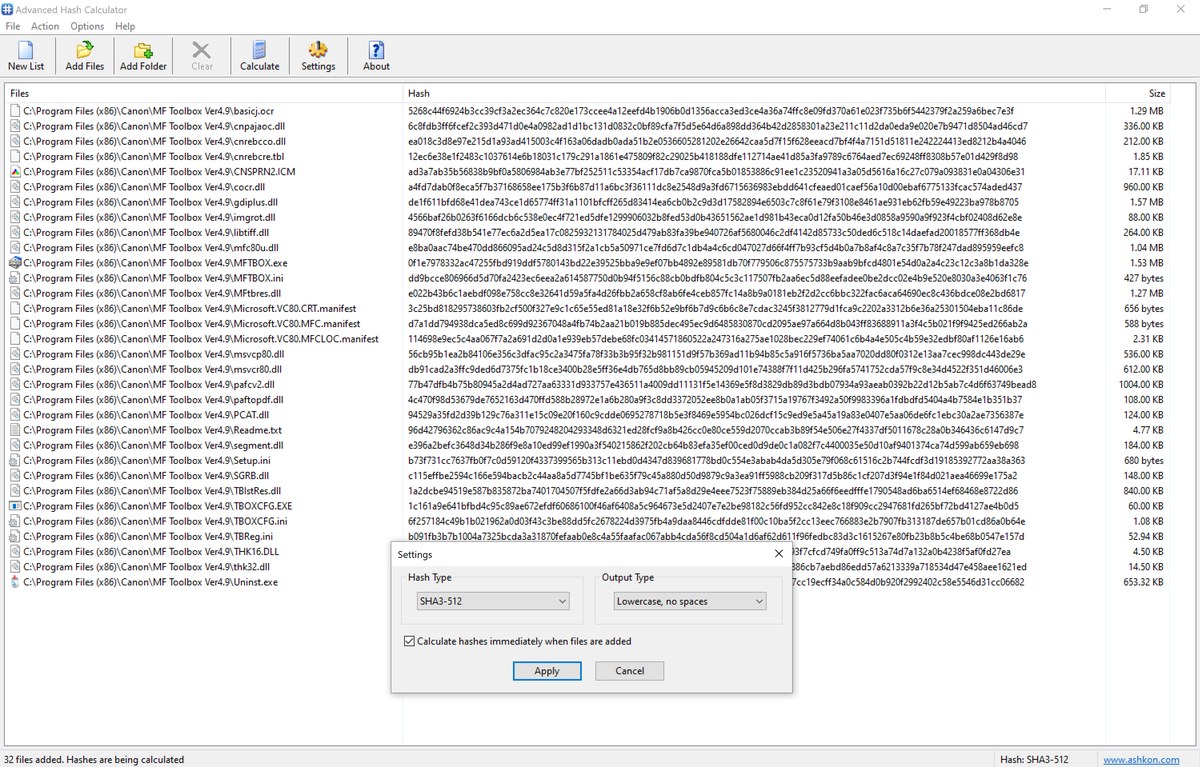
Advanced Hash Calculator main window

Features

32 hash and checksum algorithms

  • Cryptographic hashes: MD2, MD4, MD5, SHA-1, SHA-224, SHA-256, SHA-384, SHA-512, SHA3-224, SHA3-256, SHA3-384, SHA3-512, BLAKE2b, BLAKE2s, BLAKE3, RIPEMD-160, Tiger, Tiger2, Whirlpool, GOST 34.11-94, Streebog-256, Streebog-512 and SM3.
  • Checksums and fast hashes: CRC32, CRC32C, CRC64, Adler-32, xxHash32, xxHash64, xxHash3, MurmurHash3 and FNV-1a.
  • Standard variants are used (for example BLAKE2b-512, BLAKE3-256, CRC-64/XZ, 64-bit xxHash3), so the values can be compared directly with published checksums.

Add files and folders

  • Add Files (Ctrl+O) with a multi-select Open dialog.
  • Add Folder: adds every file in a folder, including all nested subfolders.
  • Drag and drop files and folders from Windows Explorer onto the list.
  • Large folders are loaded in the background: files appear in the list in batches while the window stays usable, and loading can be stopped at any time (Ctrl+X).
  • Size column shows each file's size in bytes, KB, MB or GB.
  • Long paths (longer than 260 characters) and Unicode file names are supported.

Fast, multi-threaded hashing

  • Five hashing threads work in parallel, so many files are processed at the same time.
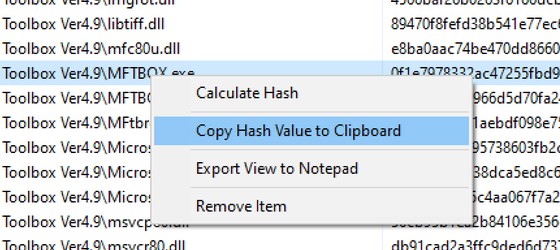
  • You decide when to calculate: click Calculate (Ctrl+H) to hash the whole list, or right-click selected files and choose Calculate Hash to hash only those. Turn on "Calculate hashes immediately when files are added" to hash files as soon as they are added.
  • The status of every file is updated live in the list; Stop (Ctrl+X) cancels at any time.
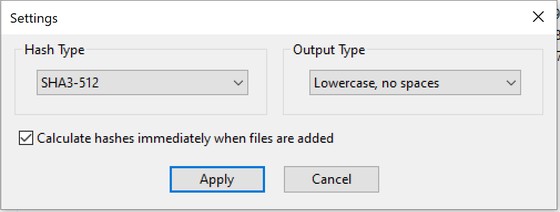
  • Switch the algorithm or output format in Settings at any time and click Calculate to re-hash the list.

Output and export

  • Four output formats: lowercase or uppercase, with or without spaces between byte groups, to match any reference format.
  • Copy Hash Value to Clipboard from the right-click menu.
  • Export View to Notepad: the full list of file names and hash values as a UTF-8 text report.
  • Double-click a file to open the File Info window with the full path and hash in selectable text fields.
  • Window size, position, column widths, algorithm and output format are remembered between sessions.

Hash page in the file Properties dialog

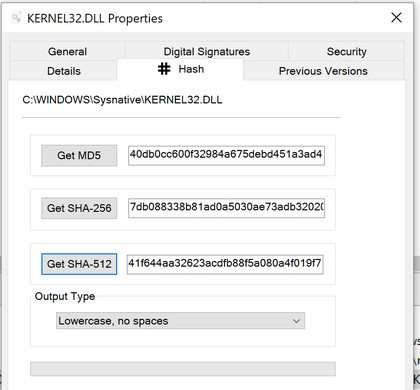
  • Right-click a file, choose Properties and open the Hash tab to calculate MD5, SHA-256 and SHA-512 without starting the main program.
  • Choose the output format; a progress bar shows the progress for large files.
  • Optional: select "Add Hash page to the file Properties dialog" during setup. Uninstall removes it, together with all program settings.

Use it to verify downloads against published checksums, confirm that backups and file transfers are complete, find corrupted or modified files, and produce checksum lists for software distribution. Hashes are calculated by a pool of five worker threads, so large batches finish quickly and the program stays responsive while it works. An optional Hash page in the file Properties dialog gives you MD5, SHA-256 and SHA-512 of a single file without opening the program.

How to check the SHA-256 or MD5 hash of a file on Windows

  1. Choose the algorithm: open Options > Settings, pick the hash type (for example SHA-256 or MD5) and the output format, and click Apply.
  2. Add files: choose File > Add Files (Ctrl+O) or Add Folder, or drag files and folders from Windows Explorer onto the list.
  3. Calculate: with “Calculate hashes immediately when files are added” turned on, hashing starts at once; otherwise click Calculate (Ctrl+H). The hash of every file appears in the list.
  4. Compare: right-click a file and choose Copy Hash Value to Clipboard, or double-click it to see the full hash in the File Info window, and compare it with the checksum published on the download page.
  5. Save the list: right-click and choose Export View to Notepad to keep a text report of file names and hash values.

When you need to calculate a file hash

  • Verify a download: an ISO image, an installer or a firmware file comes with a published SHA-256 or MD5 checksum, and you want to make sure the file is complete and has not been changed.
  • Check a backup or a file copy: hash the original and the copy and compare the values to confirm that every file was copied without errors.
  • Find duplicate or modified files: files with the same hash have the same content; a different hash shows that a file has changed.
  • Publish checksums for your own software or data files, in the lowercase or uppercase format your users expect.
  • Hash a whole folder with all its subfolders in one run, instead of typing one command per file.
  • Quick check of one file: the Hash tab in the file Properties dialog shows MD5, SHA-256 and SHA-512 without starting the program.

Downloaded a file in parts? Easy File Joiner rejoins split .001, .002 files and checks the joined file against its checksum file.

Main window

The list shows the full path of each file, its hash value and its size. The toolbar has the most frequently used commands, and the status bar shows the progress and the selected hash algorithm. In the screenshot below 32 files are hashed with SHA3-512.
Screenshots

Advanced Hash Calculator settings
Settings
Advanced Hash Calculator windows explorer context menu
Windows Explorer context menu
Advanced Hash Calculator hash page in file properties
Hash page in file Properties

Frequently asked questions

How do I check the SHA-256 checksum of a file on Windows?

Open Options > Settings, choose SHA-256 and click Apply. Add the file with File > Add Files or drag it onto the list, and click Calculate (Ctrl+H). Compare the hash in the list with the published checksum. You can also right-click the file in Explorer, choose Properties and open the Hash tab.

How do I compare the hashes of two files?

Add both files, calculate them with the same algorithm, and compare the two values in the list. If the hashes are identical, the files have the same content.

Which hash algorithms are supported?

32 algorithms, including MD5, SHA-1, SHA-256, SHA-512, SHA-3, BLAKE2, BLAKE3, RIPEMD-160, Whirlpool, Streebog, SM3, CRC32, CRC64, xxHash and MurmurHash3.

Can I hash all files in a folder and its subfolders?

Yes. File > Add Folder adds every file in the folder, including all nested subfolders. You can also drag a folder from Windows Explorer onto the list. Five worker threads hash the files in parallel.

Can I save the list of hashes to a text file?

Yes. Right-click the list and choose Export View to Notepad. You get a UTF-8 text report with the file names and their hash values.

Does Advanced Hash Calculator work on Windows 11?

Yes. It runs on Windows 7, 8, 8.1, 10 and 11 (32-bit and 64-bit).

Is there a free trial?

Yes. You can use the program free for 30 days. A license is $19.95.

Ordering

After a completed secure online order, an unlocking key file is emailed to you within two business days. Questions about ordering or registration: order@ashkon.com. Prices for all products are on the Order page.