
Advanced Process Explorer
Advanced Process Explorer User Guide
This guide explains how to use Advanced Process Explorer to see what is running on your computer, find out which program has a file or DLL open, look inside a process, and stop or control a process that misbehaves.
Contents
- What Advanced Process Explorer does
- Before you start
- The main window
- The process tree and the process list
- Choosing columns
- The lower pane: handles, DLLs and threads
- Refresh, pause and highlighting
- Finding which process has a file or DLL open
- Finding the process behind a window
- Killing and controlling processes
- Process properties
- Saving and copying
- Options
- Keyboard shortcuts
- Troubleshooting - questions and answers
- Where Advanced Process Explorer keeps its settings
- Registration and support
1. What Advanced Process Explorer does
Advanced Process Explorer is a detailed replacement for Task Manager. It shows:
- every running process, arranged in a tree that shows which process started which;
- details of each process: CPU and memory use, user, command line, file version, integrity level, start time and more;
- everything a process has open: files, folders, registry keys and other objects (handles), the DLLs it has loaded, and its threads;
- its network connections, environment variables, security token, the services it hosts and the text strings in its program file.
It also lets you search all processes for a file or DLL name, find the process behind any window on the screen, and kill, suspend, restart or reprioritize processes.
2. Before you start
Evaluation (trial) version
Until you register, a window appears at start-up that shows which day of the 30-day evaluation period it is. You can continue the trial, register, or quit. When the 30 days are over, the program tells you that the trial has expired and opens the product page.
Normal user or administrator
Advanced Process Explorer runs without administrator rights. As a normal user you see every process, but the details (handles, DLLs, command line, memory counters) of system processes, services and programs of other users are hidden from you by Windows.
To see everything, choose File > Run as Administrator. Windows asks for permission, and the program starts again with full access.
32-bit and 64-bit Windows
Advanced Process Explorer is a single small 32-bit program, but on 64-bit Windows it shows exact information for 64-bit processes as well.
3. The main window
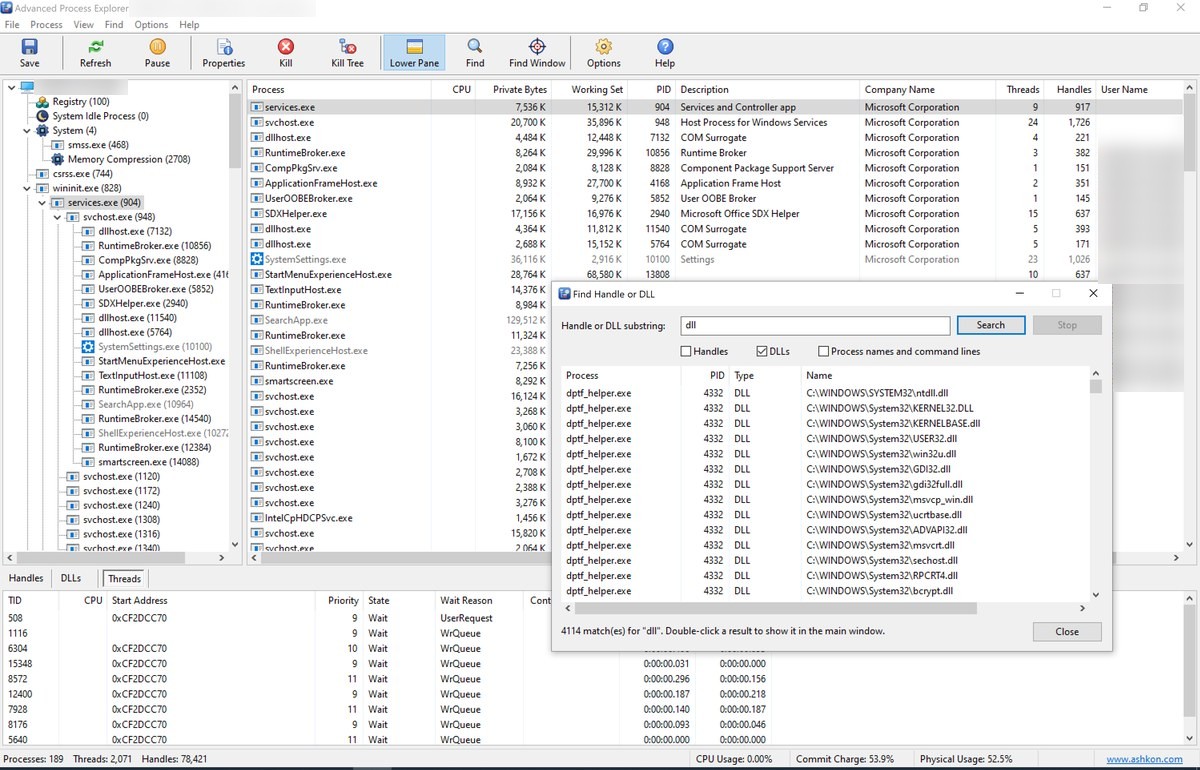
| Part | What it is for |
|---|---|
| Menu bar | File, Process, View, Find, Options and Help. |
| Toolbar | Save, Refresh, Pause, Properties, Kill, Kill Tree, Lower Pane, Find, Find Window (the cross), Options and Help. Hold the mouse over a button to see what it does. |
| Process tree (left) | Every process under the computer name, each one below the process that started it. |
| Process list (right) | The processes of the branch selected in the tree, with the columns you choose. |
| Lower pane | The handles, DLLs or threads of the selected process. |
| Status bar | The number of processes, threads and handles, total CPU use, commit charge and physical memory use. |
Drag the splitter bars to resize the tree and the lower pane. The window size, its position, the splitters and the lower pane view are remembered for next time.
4. The process tree and the process list
The tree
- Click the computer name at the top to list every process; click a process to list it and all of the processes it started.
- View > Expand All and View > Collapse All open or close every branch.
- A process whose parent has already exited appears at the top level of the tree.
The list
- Click a column heading to sort by that column; click it again to reverse the order.
- Drag a column heading to move the column, or drag its edge to change its width.
- Select a process to see its handles, DLLs or threads in the lower pane.
- Double-click a process or press Enter to open its properties.
- Right-click a process for the commands described in section 10.
5. Choosing columns
Choose View > Select Columns..., tick the columns you want and click OK. Defaults brings back the standard set. You can choose from 26 columns:
| Group | Columns |
|---|---|
| Identity | Process, PID, Parent PID, Description, Company Name, Version, Image Path, Command Line |
| Account and security | User Name, Session, Integrity, Architecture (x86, x64 or ARM64) |
| CPU | CPU, CPU Time, Start Time, Priority, Threads |
| Memory | Private Bytes, Peak Private Bytes, Working Set, Peak Working Set, Virtual Size, Page Faults, Page Fault Delta |
| Other | Handles, I/O Delta |
"Delta" columns show the change since the previous refresh, so they point to the processes that are busy right now. The lower pane's lists have their own Select Columns... on their right-click menu. All column choices, widths, order and sorting are remembered.
6. The lower pane: handles, DLLs and threads
Show or hide the lower pane with View > Show Lower Pane (Ctrl+L). Switch its view with the buttons above it, or with the keyboard:
| View | What it lists |
|---|---|
| Handles (Ctrl+H) | Every object the process has open: files, folders, registry keys, events, mutexes, sections, semaphores, processes, threads, tokens and more, with the type, name, handle value and access mask. Unnamed handles are hidden unless you turn them on in Options. |
| DLLs (Ctrl+D) | Every module the process has loaded, with its description, company, full path, version, base address and size. |
| Threads (Ctrl+T) | Every thread, with its ID, CPU use, start address (module!function+offset), priority, state, wait reason, context switches, kernel and user time and creation time. |
Right-click in the lower pane for more:
- DLLs: Open File Location, File Properties... and Search Online...;
- Threads: Suspend Thread, Resume Thread and Kill Thread;
- all views: Copy (Ctrl+C) and Select Columns...
Killing or suspending a single thread can make the process unstable or lose data, and doing it in a critical system process can stop Windows. The program asks before it does either.
7. Refresh, pause and highlighting
- The views refresh automatically, by default once a second. Change the interval in Options: 0.5, 1, 2, 5 or 10 seconds.
- Space (View > Pause Updates) freezes the display so you can study it; press Space again to resume.
- F5 (View > Refresh Now) refreshes immediately, also while paused.
- A process that has just started is shown in green, and one that has just exited in red, for half a second by default before it is removed. You can turn this off or change the duration in Options.
8. Finding which process has a file or DLL open
When Windows says "The action can't be completed because the file is open in another program", this is how to find that program:
- Choose Find > Find Handle or DLL... or press Ctrl+F.
- Type part of the name: a file or folder name, a registry key, an object name or a DLL name.
- Choose where to look: Handles, DLLs, and Process names and command lines.
- Click Search.
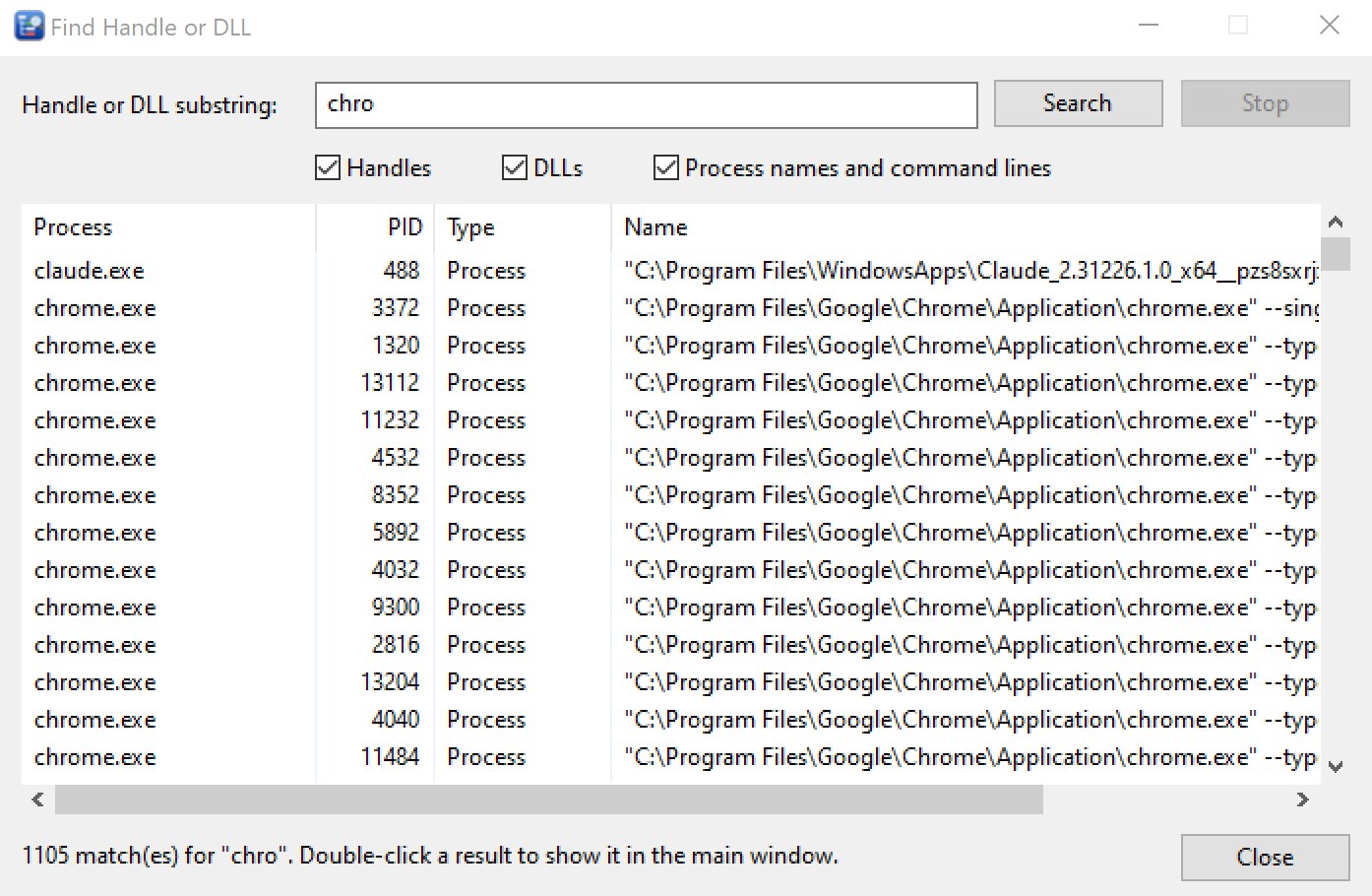
The results show the process, its PID, the type of match and the full name. The search runs in the background; click Stop to end it early. Double-click a result to select that process in the main window, with the lower pane showing its handles or DLLs.
Once you know the process, close the file in that program, or kill the process if it has hung.
Without administrator rights, the handles and DLLs of system processes, services and other users' programs cannot be searched. Use File > Run as Administrator to search every process.
9. Finding the process behind a window
To find out which program owns a window, a dialog box or a pop-up:
- Press and hold the mouse button on the Find Window button (the cross) on the toolbar.
- Drag the cross over the window. The status bar names the process under it.
- Release the mouse button. That process is selected in the main window.
Press Esc while dragging to cancel.
10. Killing and controlling processes
Select a process and use the Process menu, or right-click it:
| Command | What it does |
|---|---|
| Kill Process (Del) | Ends the process at once. Unsaved work in it is lost. |
| Kill Process Tree (Shift+Del) | Ends the process and every process it started, and theirs. If Advanced Process Explorer itself is part of the tree, it is left running. |
| Set Affinity... | Chooses which processors the process may run on. Select All and Clear All help with many processors; at least one must stay selected. |
| Set Priority | Real Time (24), High (13), Above Normal (10), Normal (8), Below Normal (6) or Idle (4). The program warns you before Real Time, which can make the whole computer unresponsive. |
| Restart | Kills the process and starts it again with the same command line, under the same account. |
| Suspend / Resume | Freezes every thread of the process without closing it, and lets it run again. |
| Open File Location | Opens the folder of the program file in File Explorer, with the file selected. |
| File Properties... | The Windows Properties window of the program file. |
| Search Online... | Searches the web for the process name: a quick way to learn what an unfamiliar process is. |
| Copy | Copies the process's row to the clipboard. |
| Properties... (Enter) | Opens the properties window. |
Safety checks
- With Confirm before killing processes on (the default), every kill asks first.
- Killing a critical system process (such as csrss.exe or wininit.exe) stops Windows immediately with a blue screen. The program always warns you about this, even with confirmation turned off.
- Commands that cannot work on a process (for example Restart for the System process, or for Advanced Process Explorer itself) are greyed out.
11. Process properties
Double-click a process, press Enter, click Properties on the toolbar or choose Process > Properties... The window has a tab for each kind of information. It can be resized, and it updates while it is open.
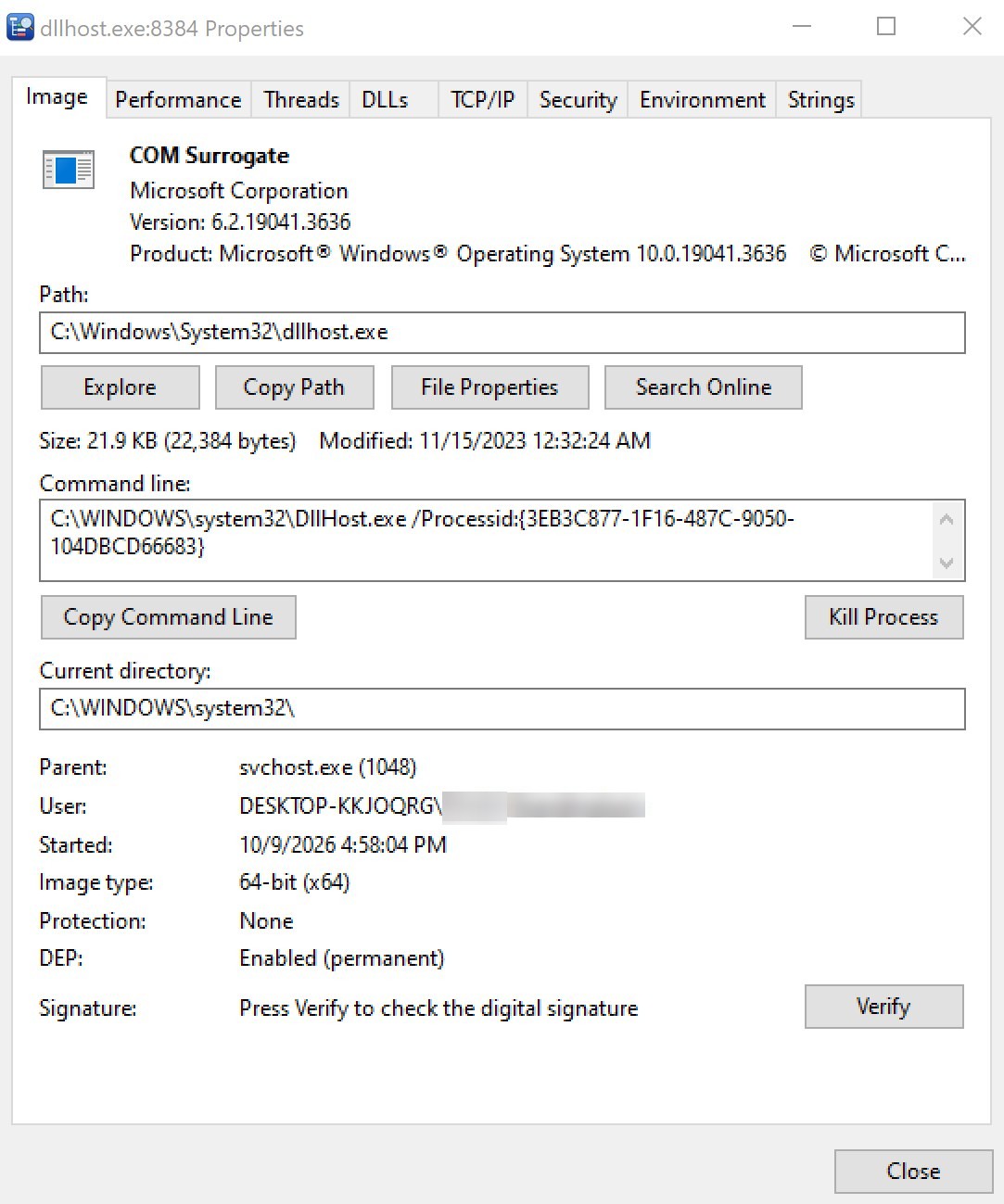
| Tab | What it shows |
|---|---|
| Image | The program's description, company, version and product name; its full path with Explore, Copy Path, File Properties and Search Online buttons; file size and date; the command line (with Copy Command Line); current directory; parent process; user; start time; 32-bit or 64-bit; protection; DEP; and a Kill Process button. Click Verify to check the file's digital signature and see who signed it. |
| Performance | CPU: priority, CPU use, kernel, user and total time, cycles. Virtual memory: private bytes, virtual size and their peaks, page faults, paged and nonpaged pool. Physical memory: working set, private, shareable and peak. I/O: reads, writes and other operations and bytes. Handles, threads, GDI and USER objects. |
| Threads | All threads of the process, with kill, suspend and resume on the right-click menu. |
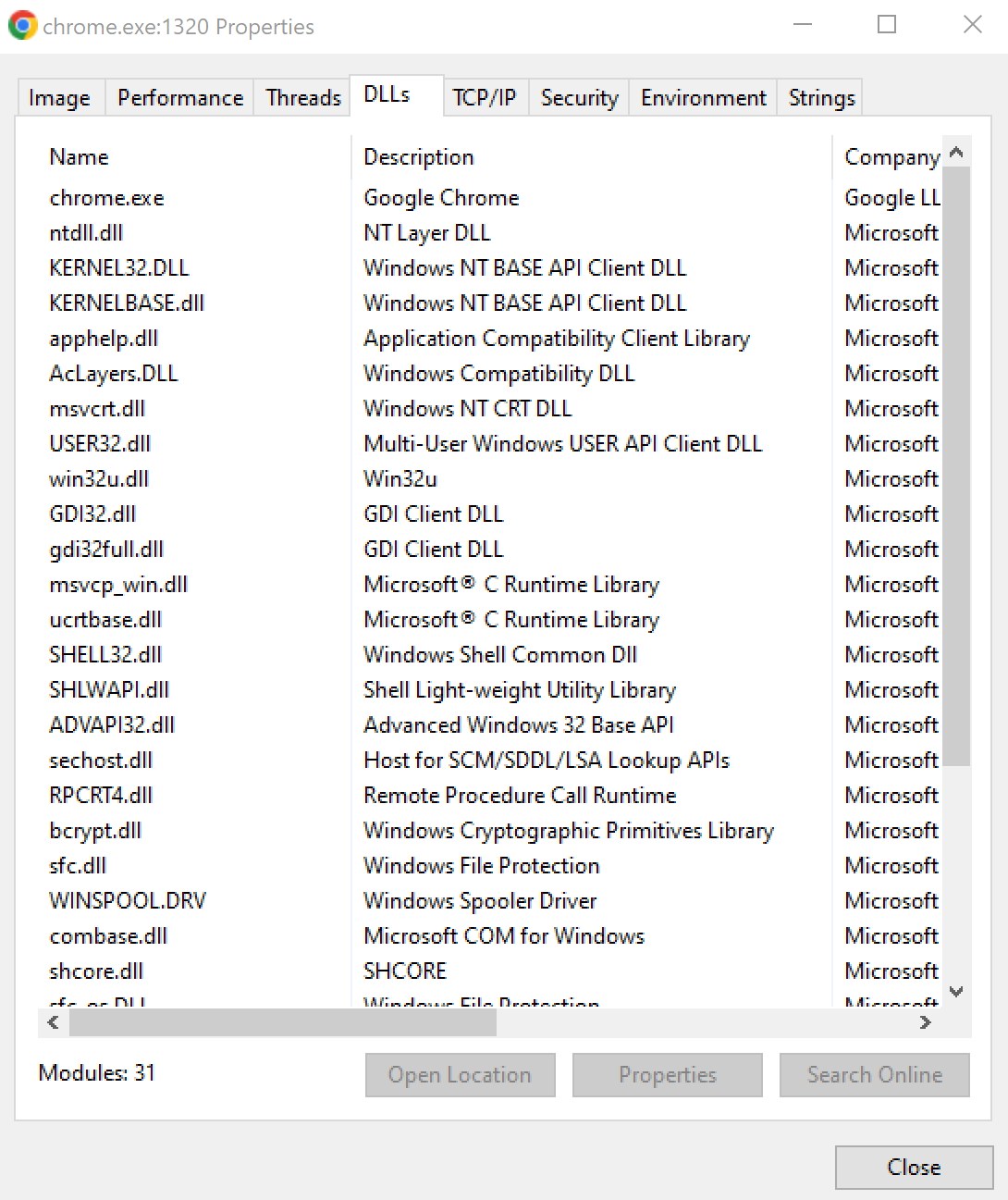
| DLLs | All loaded modules, with Open Location, Properties and Search Online buttons. |
| TCP/IP | The process's TCP and UDP endpoints, IPv4 and IPv6: local and remote address and port, and connection state. |
| Security | User, SID, session, logon session, integrity level, elevation, virtualization, AppContainer and protection; the groups and privileges of its token, with their flags. |
| Environment | All environment variables of the process. |
| Services | Shown only for processes that host Windows services (such as svchost.exe): each service's name, display name, state, start type and description. |
| Strings | Readable text (at least 4 characters, ASCII and Unicode) found in the program file. Often reveals web addresses, file names or messages of an unknown program. Save writes them to a text file. |
If a tab says the information "cannot be read (access denied or protected process)", run the program as administrator. Some Windows processes are protected and stay closed even then.
12. Saving and copying
- File > Save (Ctrl+S) saves the process list and the contents of the lower pane to a text file.
- File > Save As... saves to a new file. Choose Text Files (*.txt) for a readable table, or CSV Files (*.csv) to open the list in Excel.
- Files are saved as UTF-8, so names in any language are kept.
- Right-click a process and choose Copy, or select rows in the lower pane and press Ctrl+C, to paste them into an email or a document.
13. Options
Choose Options > Options... or click Options on the toolbar.
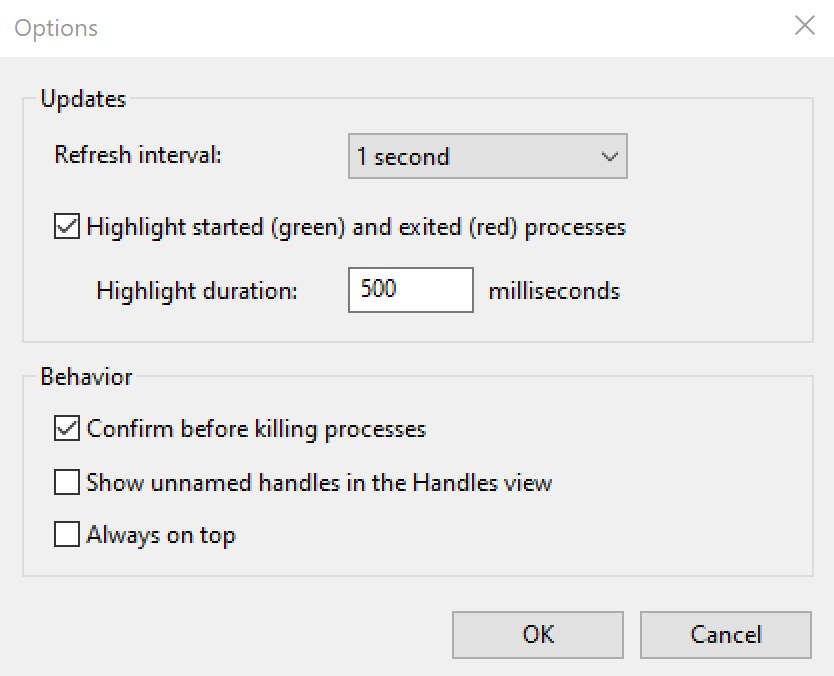
| Option | What it does | Default |
|---|---|---|
| Refresh interval | How often the views update: 0.5, 1, 2, 5 or 10 seconds. A longer interval uses less CPU. | 1 second |
| Highlight started (green) and exited (red) processes | Marks changes in the process list. | On |
| Highlight duration | How long the colors stay: 100 to 10,000 milliseconds. | 500 |
| Confirm before killing processes | Asks before Kill and Kill Tree. Critical system processes are always confirmed. | On |
| Show unnamed handles in the Handles view | Also lists handles that have no name. There are usually many, so they are hidden by default. | Off |
| Always on top | Keeps the window above other windows. Also on the Options menu. | Off |
14. Keyboard shortcuts
| Key | Action |
|---|---|
| F5 | Refresh now |
| Space | Pause or resume updates |
| Enter | Properties of the selected process |
| Del | Kill process |
| Shift+Del | Kill process tree |
| Ctrl+F | Find handle or DLL |
| Ctrl+L | Show or hide the lower pane |
| Ctrl+H / Ctrl+D / Ctrl+T | Lower pane: handles / DLLs / threads |
| Ctrl+C | Copy the selected rows of the lower pane |
| Ctrl+S | Save |
| F1 | Help |
15. Troubleshooting - questions and answers
Columns are empty for some processes, or the lower pane says "access denied".
Windows hides the details of system processes, services and other users' programs from normal users. Choose File > Run as Administrator.
Find Handle or DLL does not find a file I know is locked.
The program that holds it may be a service or run as administrator. Run Advanced Process Explorer as administrator and search again. Search for a short, distinctive part of the name, for example just the file name without its folder.
A process cannot be killed.
Run as administrator. Protected processes (for example antivirus components) and the System process cannot be ended by any program. A process stuck waiting for a driver may only end after a restart.
Restart is greyed out.
Restart needs the program file of the process; it is not available for system processes or for Advanced Process Explorer itself.
Set Affinity shows only some of my processors.
As a 32-bit program, Advanced Process Explorer can set the first 32 processors. The dialog tells you when the computer has more.
The CPU use of Advanced Process Explorer itself is high.
Choose a longer refresh interval in Options, or hide the lower pane when you do not need it.
16. Where Advanced Process Explorer keeps its settings
| What | Where |
|---|---|
| Options, columns, window layout | Windows Registry:
HKEY_CURRENT_USER\Software\Filesland\APExplorer\Settings |
| Registration | Windows Registry:
HKEY_CURRENT_USER\Software\Filesland\APExplorer |
17. Registration and support
| Register (buy a license) | Help > Register, or order Advanced Process Explorer online |
| Online help | Help > Contents (F1) |
| Program version | Help > About Advanced Process Explorer... |
| Product page | Advanced Process Explorer |
| Contact | Contact Us - questions about ordering: order@ashkon.com |