Keywords Search Tool
FreewareFree keyword research tool: suggestions from Google, Bing, DuckDuckGo, YouTube, Amazon and Wikipedia for 16 countries, with meta tags and Ads keywords.

Website Thumbnail Capture takes screenshots of websites in batches. Enter or load a list of up to thousands of URLs, choose the browser resolution and output format, click one button, and every page is captured and saved to your hard disk as a full-page screenshot, a thumbnail or a PDF. It is built on the Microsoft Edge (Chromium) WebView2 engine, so pages render exactly as they do in a modern browser, and up to 20 pages are captured in parallel. A “must have” tool for webmasters, web directories, SEO and QA work.
Download free trial Buy now – $19.95 Pay with PayPalSecure checkout: credit or debit card, Apple Pay, Google Pay, Link or Amazon Pay (Stripe), or PayPal.
Need a screenshot of part of the screen? AreaZoom magnifies any area of the screen and saves the zoomed image, and IP Monitoring Tool checks that your websites and servers stay online.
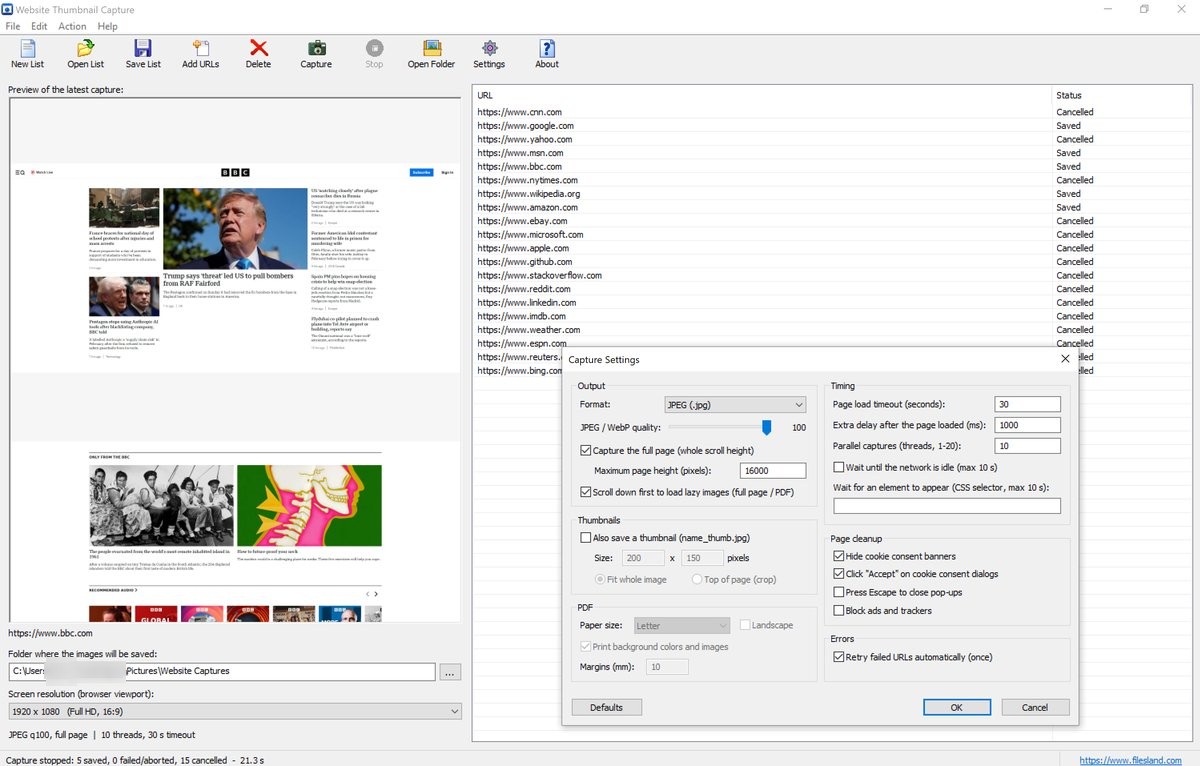
The URL list with capture status is on the right, a preview of the latest capture on the left. Choose the output folder and the browser viewport size below the preview.
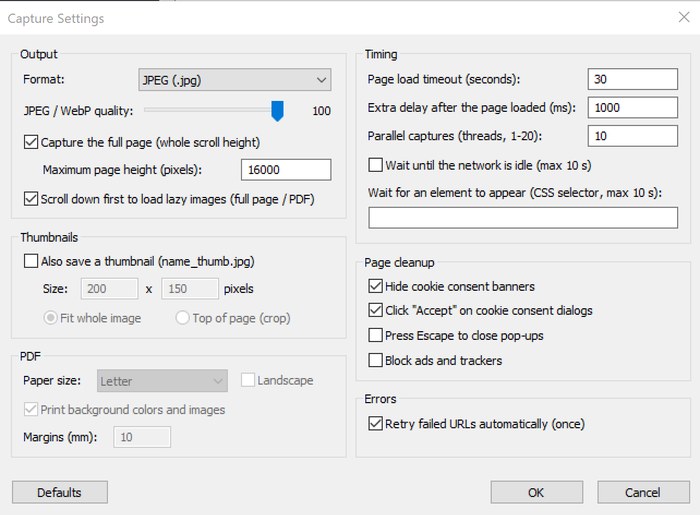
Open Action > Capture Settings, turn on Capture the full page (whole scroll height), add the URL and choose Action > Start Capture. The whole page is saved as one image, up to the maximum page height you set. Turn on Scroll down first to load lazy images, so images that load on scroll are included.
Yes. Paste a list of addresses into Edit > Add URLs, or load a text file with one URL per line, and start the capture. Up to 20 pages are captured in parallel, and every URL shows its own status.
Yes. Choose PDF as the output format in Capture Settings, with paper size Letter, A4, Legal, A3, A5 or Tabloid, portrait or landscape, adjustable margins, and with or without background colors and images.
Choose 390 x 844 (Mobile, portrait) as the screen resolution. The page is rendered and captured at that browser viewport size. 17 preset resolutions are available, from mobile to 4K.
In Capture Settings, turn on Hide cookie consent banners or Click Accept on cookie consent dialogs. You can also press Escape to close pop-ups and block ads and trackers.
It uses the Microsoft Edge WebView2 Runtime to render the pages, so sites look as they do in a modern browser. WebView2 is preinstalled on most Windows 10 and 11 computers.
Yes. You can use the program free for 30 days. A license is $19.95.
Pay securely by credit or debit card, Apple Pay, Google Pay, Link or Amazon Pay (processed by Stripe), or with PayPal. After a completed order, an unlocking key file is emailed to you within two business days. Questions about ordering or registration: order@ashkon.com. Prices for all products are on the Order page.
Free keyword research tool: suggestions from Google, Bing, DuckDuckGo, YouTube, Amazon and Wikipedia for 16 countries, with meta tags and Ads keywords.
Free sound recorder: record from a microphone or any input to WAV files with a live level meter, automatic file naming and a built-in player.
Desktop translator for Windows: translate text and text files between 144 languages with automatic language detection, up to 50,000 characters at once.