Advanced Email Migrator: Move Your Old Mail into Gmail or Outlook.com
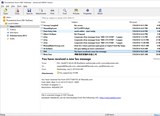
Advanced Email Migrator moves e-mail from Outlook PST and OST files, Outlook Express DBX folders and MBOX mailboxes (Thunderbird, Apple Mail, Google Takeout) into your Gmail or Outlook.com / Hotmail account. Open your old mail files, see the folders of your online mailbox next to them, and drag messages or whole folders across. No Outlook, no mail server, no upload to anyone but Google or Microsoft.
Prerelease version. This build still includes logging and debugging dialogs. Please be patient while we polish it, and send any problems or suggestions to support@ashkon.com.
Features
Your old mail, from any of these sources
Outlook PST and OST files — Outlook 97 to Microsoft 365, ANSI and Unicode. Outlook does not have to be installed.
Outlook Express DBX folders (Folders.dbx and the folder files) from old Windows XP computers and backups.
MBOX mailboxes: Mozilla Thunderbird folders and profiles, Apple Mail exports, Google Takeout archives, Eudora, SeaMonkey and Unix mail.
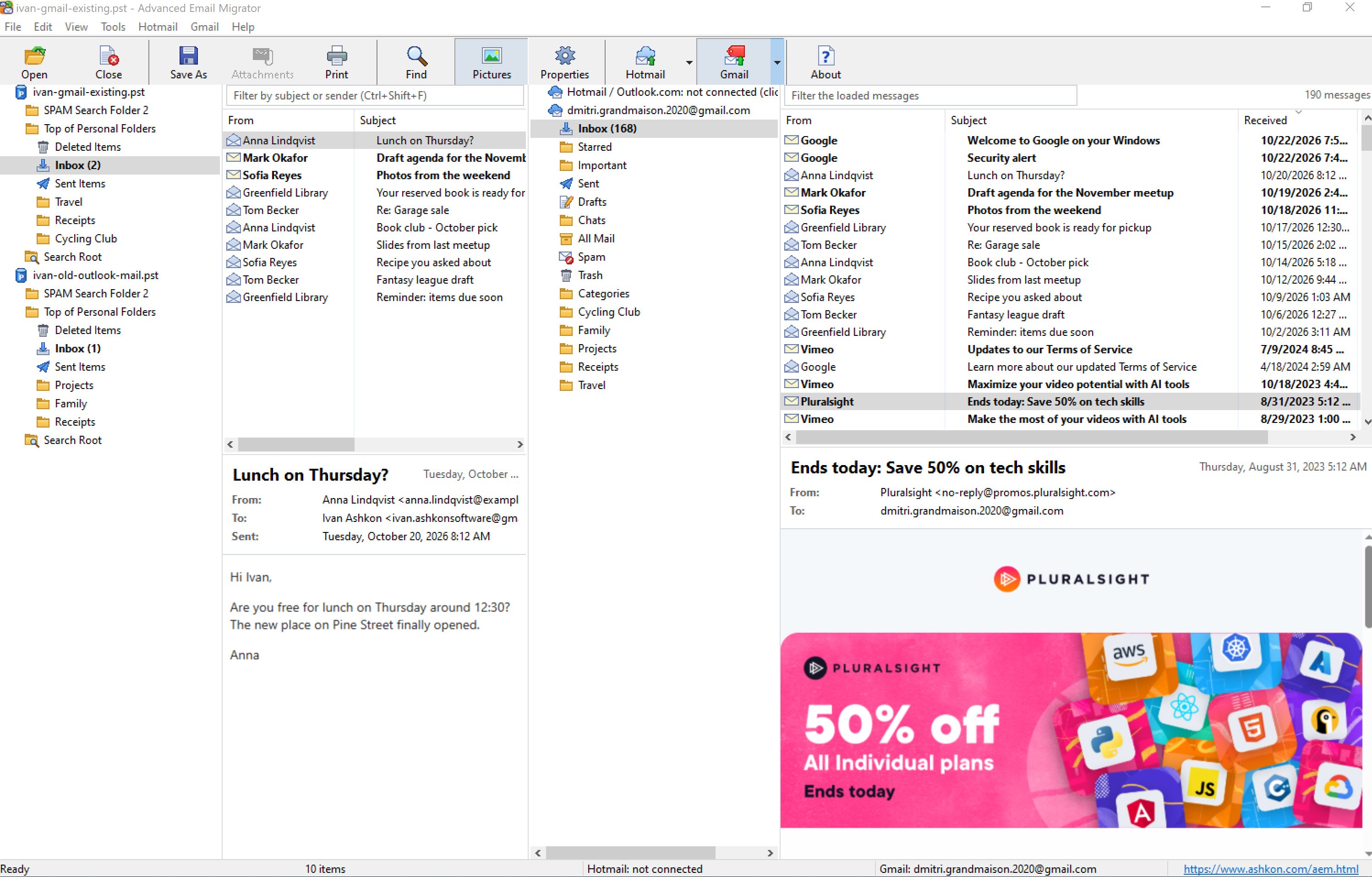
Several sources open at once in one folder tree, read-only — your original files are never changed.
Built-in viewer: read messages with their formatting and attachments, search across all sources, and check exactly what you are about to move.
Into your online mailbox
Gmail (personal Gmail and Google Workspace): your folders become Gmail labels, including nested folders; messages can also go to Inbox, Sent, Starred or Important.
Outlook.com / Hotmail (also Live.com and MSN accounts): folders are created as real folders; Inbox, Sent Items, Deleted Items and other special folders are matched to their Outlook.com counterparts.
Your mailbox’s folder or label tree, message list and reading pane are shown right next to the source, so you see the result immediately.
Simple drag and drop
Drag messages — one or many — from the source list onto a Gmail label or Outlook.com folder.
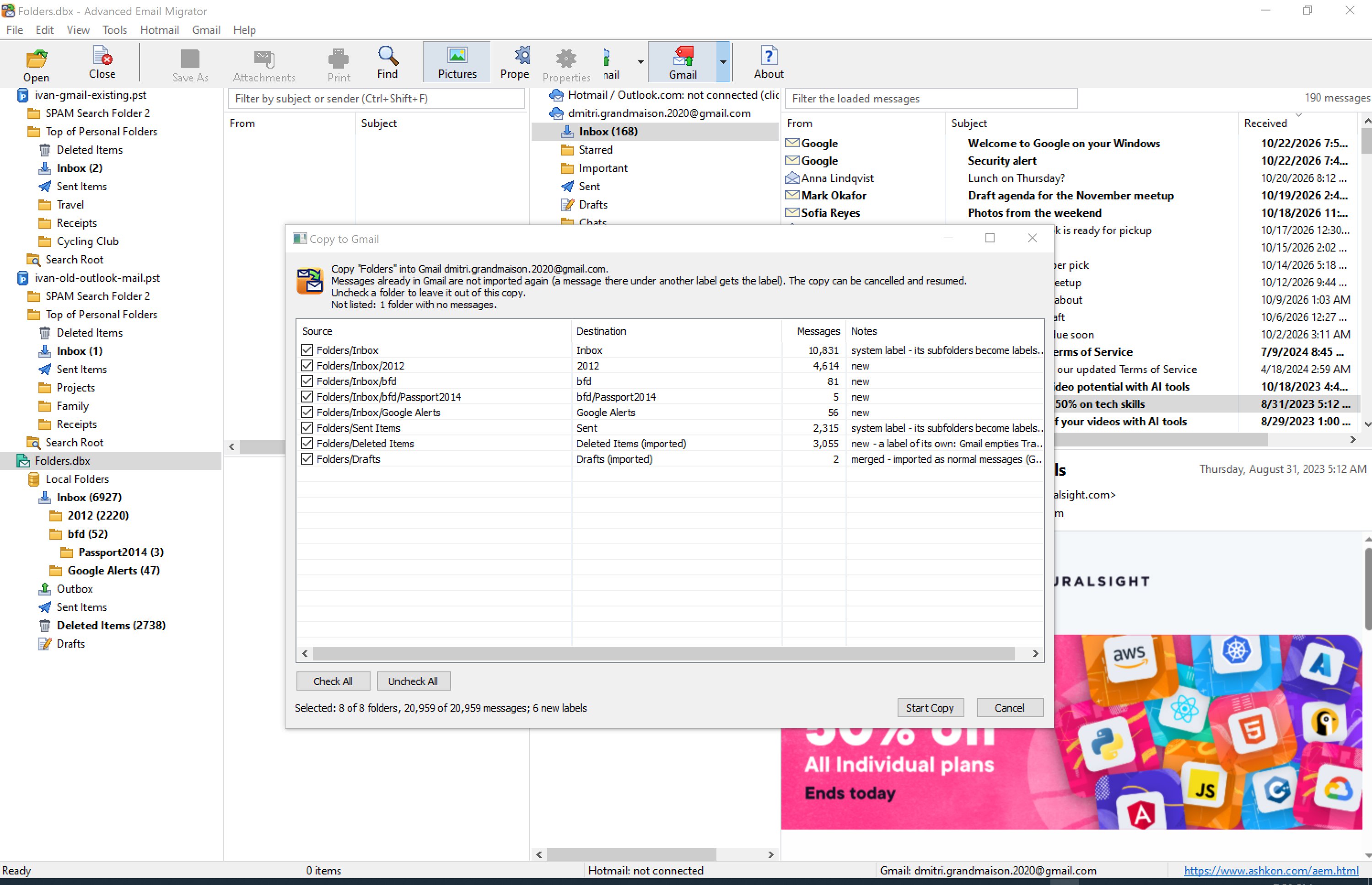
Drag whole folders with all their subfolders; the folder structure is recreated in the destination.
Original dates, senders, recipients, HTML formatting and attachments are kept; read and unread state is carried over.
Progress window with message counts; you can stop at any time.
Safe for large migrations
No duplicates: messages that were already copied are recognized and skipped, so running a migration twice does not double your mail. In Gmail, a message that already exists under another label simply gets the new label added.
Resumes where it stopped: if the connection drops, the computer restarts or the power goes out, the migration continues from the last copied message.
Automatic retries when Google or Microsoft ask the program to slow down.
Secure sign-in, private by design
You sign in on Google’s or Microsoft’s own page in your web browser, with two-step verification, passkeys or phone prompts as usual. The program never sees your password.
The sign-in is stored on your PC encrypted with Windows Data Protection; Sign Out removes it and revokes access.
Advanced Email Migrator runs entirely on your computer. Your mail goes directly from your PC to your own Gmail or Outlook.com mailbox and is never sent to Ashkon Software or anyone else.
Coming later
Calendar and contacts migration.
How it works
Open your old mail. Choose a PST, OST, DBX or MBOX file, or a whole Thunderbird or Outlook Express folder.
Connect your account. Click the Gmail or Hotmail button and sign in with Google or Microsoft in your browser.
Drag and drop. Drag messages or folders onto the destination folder or label and watch them arrive.
How Advanced Email Migrator uses your Google and Microsoft data
Advanced Email Migrator asks for access to your Gmail or Outlook.com mailbox only to do what you tell it to do:
Your e-mail address — to show which account is connected.
Labels and folders — to show your mailbox’s folder tree as the destination and to create the labels or folders for the mail you migrate.
Messages — to import the messages you choose, to show the messages in the destination folder, to recognize messages that were already copied, and to add a label to an existing message instead of importing it twice.
The program does not send e-mail on your behalf and does not permanently delete messages. Advanced Email Migrator is a desktop application with no server component: your Gmail and Outlook.com data is accessed directly from your computer and is never sent to, processed on or stored on any Ashkon Software server or any third-party server. All data stays on your computer and in your own mailbox. Details are in our Privacy Policy. Advanced Email Migrator’s use and transfer to any other app of information received from Google APIs will adhere to the Google API Services User Data Policy, including the Limited Use requirements.