PingTrace
$19.95Ping and traceroute side by side, with continuous MTR mode, per-hop loss, jitter and latency, ASN lookup, Whois and TCP port check.

GetNetworkInfo finds every device connected to your home or office network and tells you what it is. Click Scan and the program lists each device with its IP address, name, MAC address, manufacturer, device type, response time, open ports and UPnP model — your router, computers, phones and tablets, smart TVs and streaming boxes, game consoles, printers, IP cameras, NAS drives, smart speakers and smart home gadgets.
Download free trial Buy now – $19.95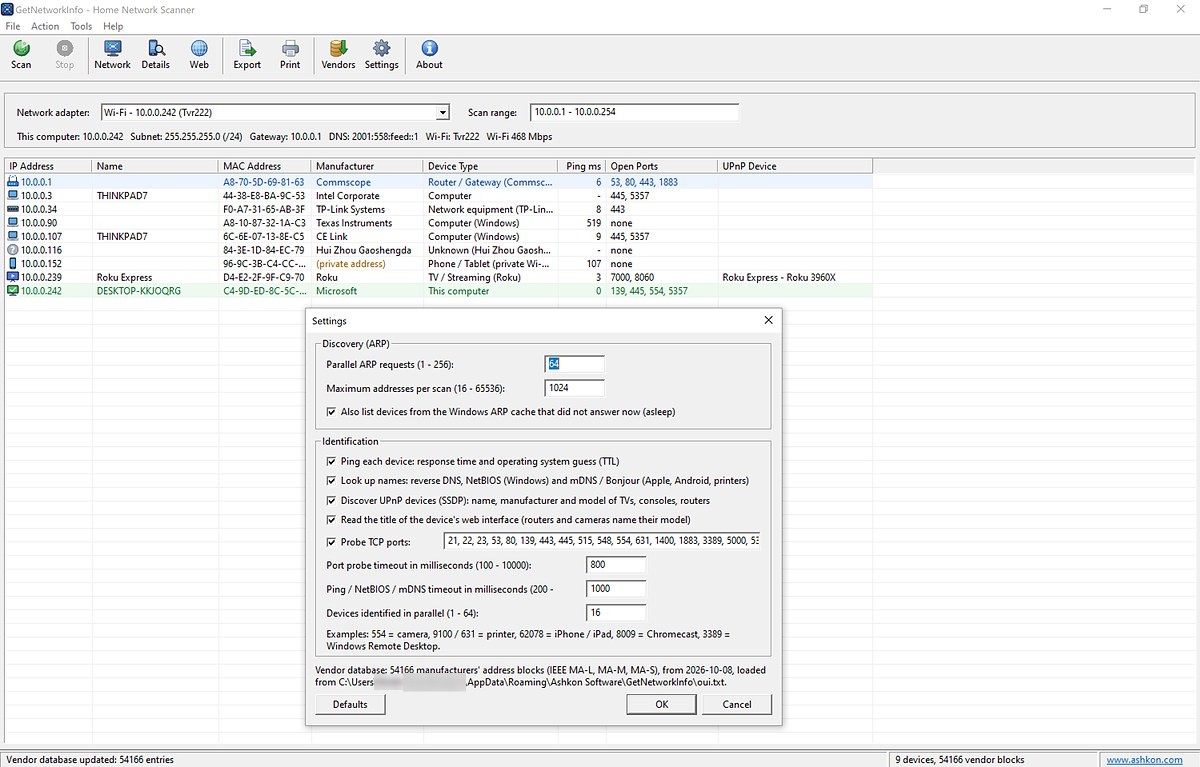
Devices are discovered with ARP requests, so even a phone or a PC whose firewall blocks ping is found. Each device is then identified with a combination of methods: the manufacturer from the IEEE MAC address registry, names from DNS, NetBIOS and mDNS / Bonjour, model information from UPnP, open TCP ports, the title of its web interface and an operating system guess from ping. Use it to see who is on your Wi-Fi, find the IP address of a printer or camera, spot an unknown device, or check the settings of your own network adapters, including your public IPv4 and IPv6 address. For a full help guide please see the GetNetworkInfo Help page.
Each row of the list is one device on the network. Select the network adapter and the scan range at the top; the line below shows this computer's address, subnet, gateway, DNS server and Wi-Fi connection. In the screenshot below a home Wi-Fi network has been scanned; the Settings dialog is open on top of the results.
After a completed secure online order, an unlocking key file is emailed to you within two business days. Questions about ordering or registration: order@ashkon.com. Prices for all products are on the Order page.
Ping and traceroute side by side, with continuous MTR mode, per-hop loss, jitter and latency, ASN lookup, Whois and TCP port check.
Visual traceroute for Windows with min/avg/max RTT, packet loss and a latency graph per hop, plus host name, ASN and country of every router.
Website, server and uptime monitor: HTTP/HTTPS status, content changes, keywords, ping, TCP ports and DNS, with Windows notifications and TLS expiry warnings.