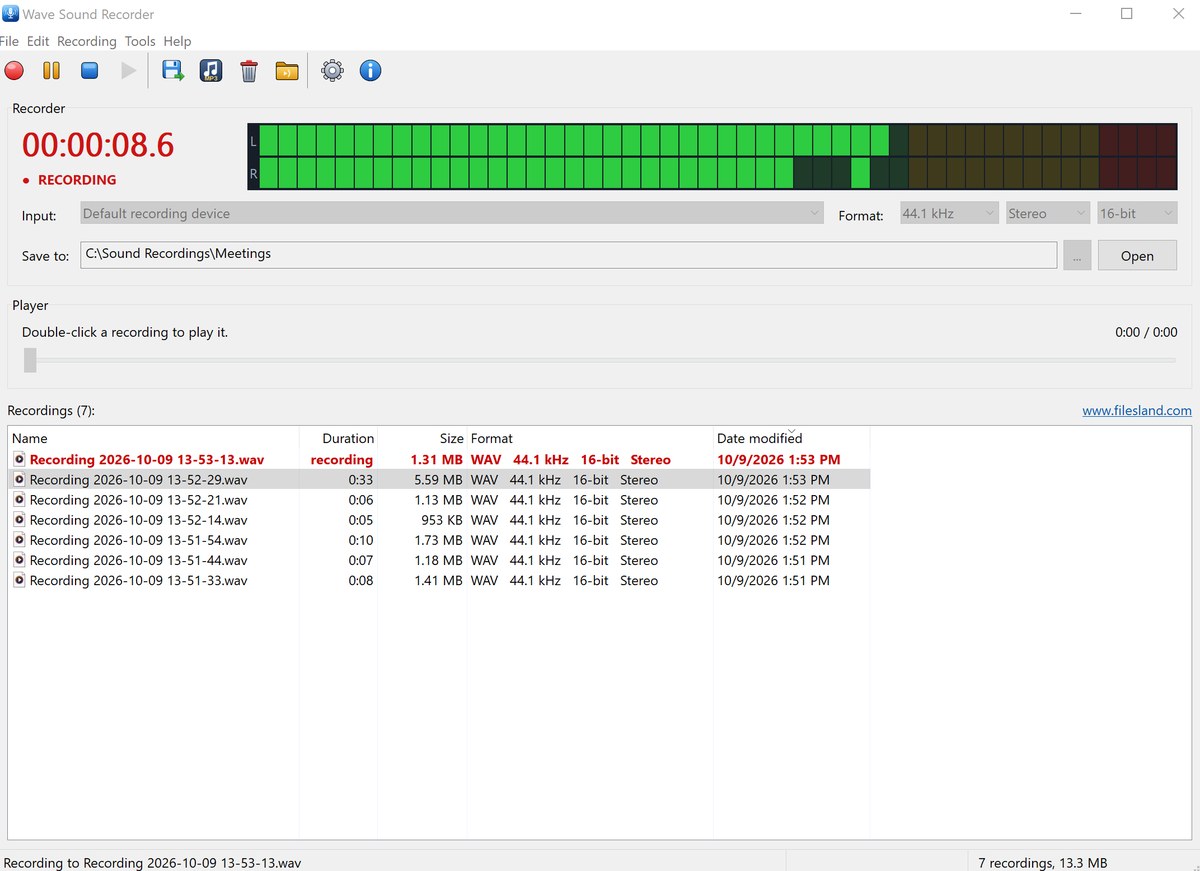
Wave Sound Recorder is a simple, free sound recording program for Windows. Click Record and it captures sound from your microphone or any other recording device and saves it as a WAV file, with optional automatic conversion to MP3. A large timer and a stereo level meter show that recording is in progress and how loud the input is, so you always know that the sound is actually being recorded.
Record, Pause/Resume and Stop from the toolbar, the menu or the keyboard (Ctrl+R, Ctrl+P, Ctrl+T).
Recorded straight to disk, so recordings of any length are safe. The WAV header is updated every 2 seconds, so even after a crash or power cut the file is still playable.
Large recording timer (hours, minutes, seconds and tenths) with a clear recording indicator.
Stereo peak level meter in dBFS with peak hold, so you can see the input level and avoid recording silence or distortion.
Input: record from the default recording device or choose another microphone or line input.
The computer is kept awake while recording; recording stops automatically at the 4 GB WAV file size limit.
Convert to MP3 (Ctrl+M) selected recordings, or Save Copy As WAV or MP3.
Optionally convert every new recording to MP3 automatically, and delete the WAV file after a successful conversion.
Constant bitrate from 96 to 320 kbps.
Conversions run in a background queue with progress in the status bar, so you can keep recording; the queue can be cancelled at any time.
Uses the MP3 encoder built into Windows, with no extra codecs or DLLs to install.
Recordings manager
Every recording is saved automatically with a date and time file name, for example Recording 2026-10-09 13-52-29.wav, so nothing is overwritten. The file name prefix can be changed in Settings.
The Recordings list shows the Name, Duration, Size, Format and Date of every file in the folder. Click a column to sort; type a name to jump to it. The list refreshes automatically when files in the folder change.
Right-click menu: Play, Open with Default Player, Show in Folder, Convert to MP3, Save Copy As, Copy (paste into Explorer or an e-mail), Copy To Folder, Move To Folder, Rename (F2), Delete and Properties.
Deleted recordings go to the Recycle Bin (Shift+Del deletes permanently).
Drag and drop recordings from the list to Windows Explorer or other programs.
Playback
Play WAV and MP3 recordings in the built-in player: double-click a recording or press Enter.
Drag the position slider to move through the recording; the current position and total length are displayed.
Notification area (system tray) and hotkeys
Notification area icon shows a red dot while recording and blinks while paused; its tooltip shows the elapsed time.
Minimize to tray, keep recording when the window is closed, start hidden, and start with Windows.
Global hotkeys work even when the window is hidden: Ctrl+Alt+R record / stop, Ctrl+Alt+P pause / resume.
Notifications when a recording is saved, an MP3 is ready or an error occurs.
Convenience
Resizable window; size, position, column widths and sort order are remembered.
Sharp toolbar icons on high-DPI displays.
Single instance: starting the program again brings the running window to the front.
Every recording is saved automatically to the folder you choose, with a file name made from the date and time, and appears in the Recordings list with its duration, size, format and date. Double-click a recording to play it. Use it to record voice notes, lectures, interviews, meetings, music practice or anything else you can hear through your recording device.
Main window
The Recorder area at the top shows the timer, the level meter, the input device, the format and the folder where recordings are saved. Below it are the Player and the list of recordings. In the screenshot below a new recording is in progress while six earlier recordings are listed.
Desktop translator for Windows: translate text and text files between 144 languages with automatic language detection, up to 50,000 characters at once.