
Stock Ticker Application Bar 2.4.3.7
Stock Ticker Application Bar User Guide
This guide explains how to set up and use Stock Ticker Application Bar: adding stocks, ETFs and market indices, reading the scrolling line, using the mouse, the menus and the player controls, choosing colors and fonts, setting floor and ceiling price alerts, and what to do when a quote does not appear.
Contents
- What Stock Ticker Application Bar does
- Installing, upgrading and uninstalling
- Getting started in five steps
- Reading the ticker bar
- Mouse, controls and menus
- Settings: Symbols tab
- Settings: Display tab
- Settings: Alerts tab and price alerts
- Quote sources and updates
- Symbol directory and autocomplete
- Free trial and registration
- Messages
- Troubleshooting – questions and answers
- Version and license
1. What Stock Ticker Application Bar does
Stock Ticker Application Bar (Stock Ticker for short) is a Windows program that shows a moving line of stock quotes across the top of the screen, like the ticker tape on a trading floor or a financial TV channel. The bar is registered with Windows as an application bar, the same kind of desktop toolbar as the taskbar: Windows reserves the strip for it, and maximized windows end just below it instead of covering it.

For each security on your list the bar shows the company name and/or the ticker symbol, the last price, the change since the previous close and the percent change. The list holds up to 100 items: up to 97 US stocks and ETFs, plus the Dow Jones Industrial Average, the NASDAQ Composite and the S&P 500, which you switch on with check boxes. Quotes are real-time and come from free internet sources; no account, subscription or API key is needed.
| Area | What you can do |
|---|---|
| Quotes | Up to 97 stocks and ETFs plus three indices; price, change and percent change; updates every 5 to 600 seconds. |
| Alerts | Floor and ceiling price per symbol; alert color on the bar, sound and Windows popup notification. |
| Symbol entry | Autocomplete by symbol or company name from a directory of 13,000+ US-listed symbols; paste lists; edit company names. |
| Navigation | Click a company to open its quotelinks.com page; hover to pause; drag to scroll by hand; right-click menu; tray menu. |
| Appearance | Dark, Light or Custom colors (9 colors), any font, speed, direction, optional update time, controls, separators and underlines. |
2. Installing, upgrading and uninstalling
Download appbar2.exe (also available from the
quotelinks.com mirror) and run it. Setup
needs administrator rights and installs the program in C:\Program Files (x86)\Ashkon Technology\Stock Ticker.
Stock Ticker runs on Windows 7, 8, 8.1, 10 and 11, 32-bit and 64-bit.
Setup options
| Option | Default | What it does |
|---|---|---|
| Create a desktop shortcut | On | Puts a Stock Ticker icon on your desktop. |
| Start Stock Ticker when Windows starts | Off | Adds a shortcut to your Startup folder, so the bar appears every time you sign in to Windows. |
| Launch Stock Ticker | On | Starts the program when Setup finishes. |
| View online information | Off | Opens this product's web page. |
The Start menu folder Stock Ticker Application Bar contains the program, its help file, a link to ashkon.com and the uninstaller.
Where your settings are kept
- Settings, the symbol list, edited company names and price alerts are stored per Windows user in the registry under
HKEY_CURRENT_USER\Software\Ashkon_Technology\StockTickerPro. - The downloaded symbol directory is cached in
%LOCALAPPDATA%\Ashkon Software\Stock Ticker.
Upgrading
Run the new Setup over the old version. Setup closes a running Stock Ticker automatically, installs into the same folder and keeps your symbols, alerts and colors. Settings of version 2.4.x and earlier are read and converted (for example, an old update interval in minutes becomes the same interval in seconds).
Uninstalling
Use Settings > Apps in Windows (or Control Panel > Programs and Features) and remove Stock Ticker Application Bar. The uninstaller closes the bar if it is running and removes the program, its settings and the symbol cache. See also Uninstall Instructions.
3. Getting started in five steps
- Start the program. The bar appears at the top of the screen and a tray icon appears near the clock.
- Open Settings. Click Controls on the right end of the bar, or right-click the bar and choose Settings.
- Add your stocks. On the Symbols tab type a symbol or a company name, for example nvidia, pick it from the drop-down list and press Enter. Remove the symbols you do not want.
- Choose the look. On the Display tab set the speed, the update interval, the font and the color scheme. The preview at the bottom shows the result at once.
- Click OK. The bar loads fresh quotes for the new list right away.
Tip: to set a price alert, open the Alerts tab and double-click a symbol. See Settings: Alerts tab.
4. Reading the ticker bar

Items on the line
The indices come first (Dow Jones, NASDAQ, S&P 500, if checked), followed by your stocks in the order of your list. Each item reads:
Company name SYMBOL price change percent change
The Show check boxes on the Symbols tab decide whether the symbol, the company name or both are shown, and whether the percent change is added. At least one of symbol and company name is always shown.
Colors
| Part | Dark scheme | Meaning |
|---|---|---|
| Symbol / company name | White | The security. Changes to the alert color (gold by default) when its price is above the ceiling or below the floor you set. |
| Price | Light gray | Last trade price. |
| Change and percent change | Green / red / blue | Gain, loss or unchanged since the previous close. |
| Update time | Gold | Time of the last successful quote update (left end of the bar). |
| Separators and border | Gray | Vertical lines with small triangles between items, and the lines along the top and bottom edge. |
The update time and its indicator
The panel on the left shows when quotes were last updated. Behind the time, a small indicator reports on the last update:
| Indicator | Meaning |
|---|---|
| Green (briefly) | An update is in progress. |
| No color | The last update succeeded from the selected source. |
| Amber | In Auto mode, the first source failed and the quotes came from the second source. |
| Red | No quotes could be loaded from any source. The bar keeps showing the last known values. Check your internet connection. |
Click the update time to update quotes immediately.
N/F – not found
A stock shows is N/F when the data source returned no quote for it, usually because the symbol is misspelled, delisted, or not a US-listed stock or ETF. An index that fails keeps its last value; it shows N/F only if it has never been loaded.
5. Mouse, controls and menus
On the scrolling line
| Action | Result |
|---|---|
| Point at a company or symbol | The cursor becomes a hand, the line stops scrolling while the mouse rests on it, and the item is underlined (if Hyperlinks is checked). |
| Click a company or symbol | Opens its quotelinks.com page (quote, chart, financials and news) in your web browser. Indices are not links. |
| Drag the line left or right | Scrolls it by hand. Scrolling resumes when you release the button. |
| Right-click | Opens the bar menu (below). |
Player controls
The panel on the right end of the bar (shown when Controls is checked on the Display tab) works like a media player:
| Control | Action |
|---|---|
| ◀ Left arrow | Hold to scroll fast to the left. When released, the line keeps scrolling left at normal speed. |
| ❚❚ Pause | Stops the line; click again to resume. |
| ▶ Right arrow | Hold to scroll fast to the right. When released, the line keeps scrolling right at normal speed. |
| Controls | Opens Settings. |
| ✖ Close box | Exits Stock Ticker. Settings and alerts are saved. |
Bar menu (right-click)
| Command | What it does |
|---|---|
| Research | A sub-menu with all your stocks; choose one to open its quotelinks.com page. |
| Scrolling > Left / Right / Pause | Sets the scrolling direction or stops the line. The current state is checked. |
| Settings | Opens the Settings window. |
| Update | Loads fresh quotes now. |
| Software! | Opens the Ashkon Software product list. |
| Help | Opens the help file installed with the program. |
| About | Version number and registration status. |
| Exit | Closes the program. |
Tray icon
Click or right-click the Stock Ticker icon in the notification area for Update Quotes, Hide Bar / Show Bar and Exit. A hidden bar gives its screen strip back to other windows and keeps running, so price alerts still work. If the icon is not visible, look under the “Show hidden icons” arrow next to the clock.
6. Settings: Symbols tab
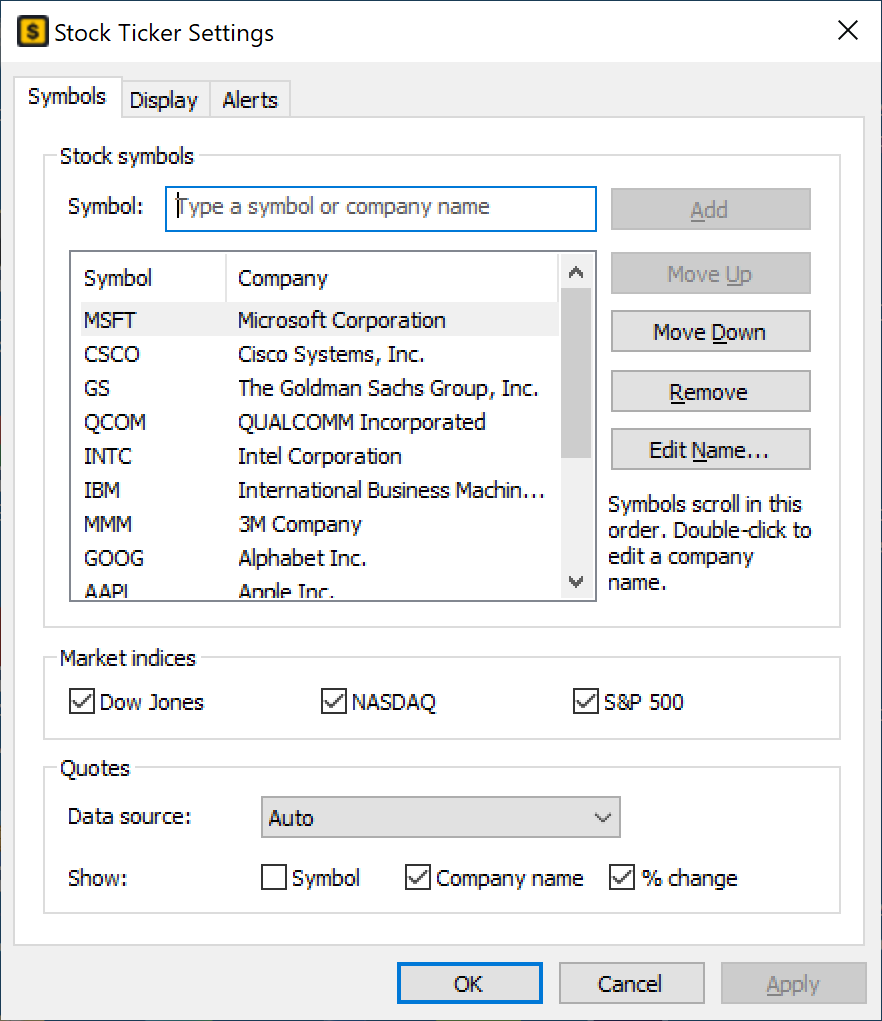
Stock symbols
| Control | What it does |
|---|---|
| Symbol box | Type a ticker (msft) or part of a company name (goldman). Matching companies drop down; see Symbol directory and autocomplete. You can also type or paste several symbols separated by commas or semicolons, such as AAPL, NVDA, MSFT. |
| Add | Adds the typed symbol(s) to the end of the list. A symbol that is already listed is selected instead of being added twice. Enter does the same. |
| Symbol list | Shows Symbol and Company in the order they scroll on the bar. |
| Move Up / Move Down | Moves the selected symbol one place. |
| Remove | Removes the selected symbol (or press Delete). |
| Edit Name… | Changes the company name shown for the selected symbol (also by double-click, F2 or the right-click menu of the list). |
Editing a company name
Official names can be long (“International Business Machines Corporation”). In the Edit Company Name window type a shorter name, such as IBM, up to 100 characters. The window also shows the default name. Leave the box empty, or click Restore Default, to use the default name again. Edited names are used both in the list and on the bar.
Market indices
Check Dow Jones, NASDAQ and S&P 500 to show those indices at
the start of the line. Indices are added only with these check boxes; typing ^DJI and similar index
symbols in the Symbol box is not accepted.
Quotes
| Control | What it does |
|---|---|
| Data source | Auto (recommended), Real Time #1 or Real Time #2. See Quote sources and updates. |
| Show: Symbol | Shows the ticker symbol on the bar. |
| Show: Company name | Shows the company name on the bar. If both are checked, the name comes first, followed by the symbol. |
| Show: % change | Adds the percent change after the change in dollars. |
7. Settings: Display tab
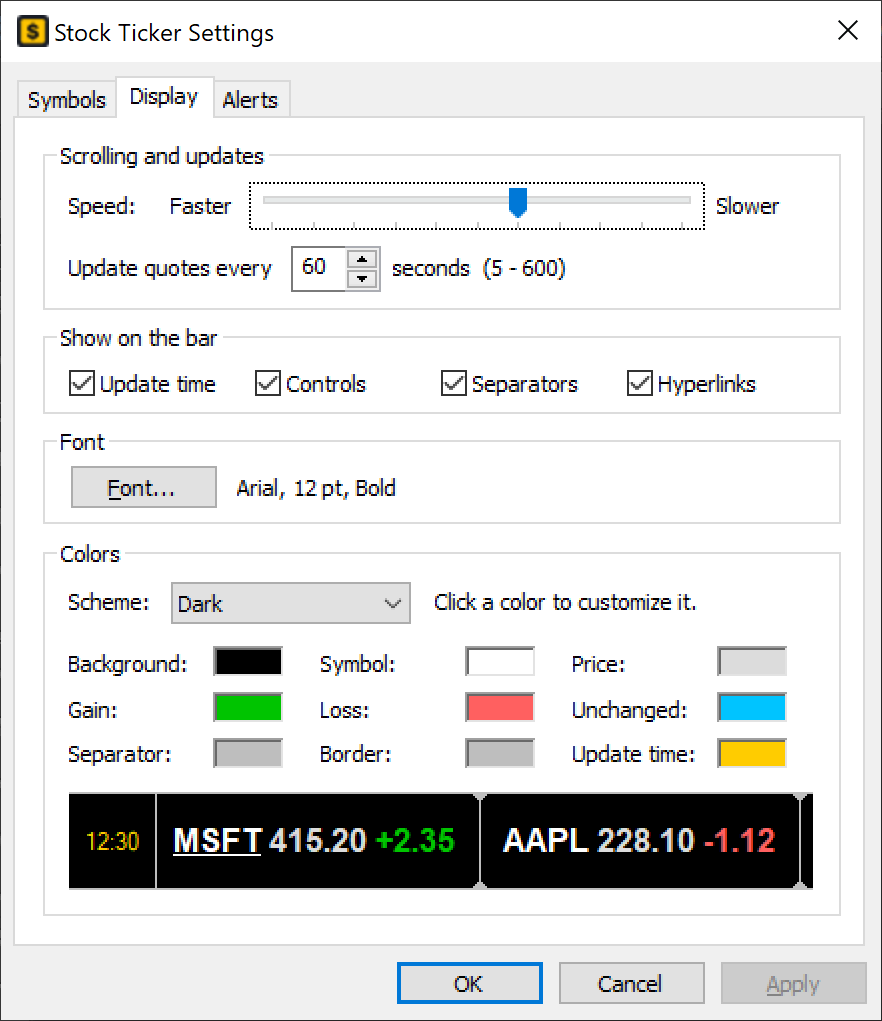
Scrolling and updates
| Control | What it does |
|---|---|
| Speed | Drag the slider toward Faster or Slower. Scrolling is synchronized with your monitor's refresh, so the line moves smoothly at every speed. |
| Update quotes every | 5 to 600 seconds; the default is 60. Short intervals give fresher prices but use more network traffic. |
Show on the bar
| Check box | What it shows |
|---|---|
| Update time | The time of the last update and the status indicator on the left end. |
| Controls | The player controls on the right end. |
| Separators | Vertical lines between items. |
| Hyperlinks | Underlines the company under the mouse. Clicking opens the quote page either way. |
Font
Click Font… to choose any installed font, style and size. The current choice is shown next to the button, for example Arial, 12 pt, Bold.
Colors
Choose Dark (black background) or Light (white background), or click any of the nine color boxes to set your own color; the scheme then switches to Custom.
| Color | Used for |
|---|---|
| Background | The bar. A dark background selects the dark version of the player controls, a light one the light version. |
| Symbol | Company names and symbols. |
| Price | Last price. |
| Gain / Loss / Unchanged | Change and percent change. |
| Separator | Lines between items. |
| Border | Lines along the top and bottom edge. |
| Update time | The update time on the left. |
The preview shows the bar with your font and colors before you click OK or Apply.
8. Settings: Alerts tab and price alerts
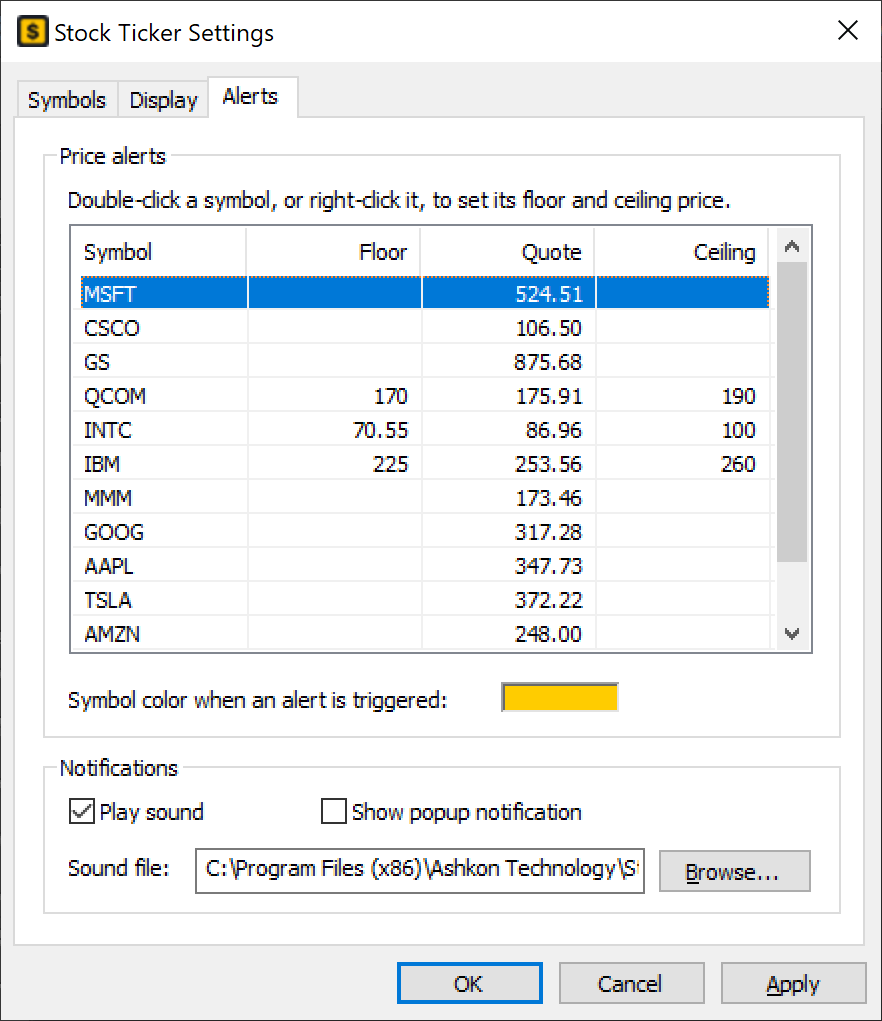
A price alert watches one stock for a price below a floor or above a ceiling. You can set either or both.
Setting an alert
- Open Settings > Alerts. The table lists all your stocks with the current quote.
- Double-click a symbol, or right-click it and choose Add Alert.
- In the Edit Alert window enter the Floor and/or Ceiling price. The current price is shown between them for reference.
- Click OK, then OK or Apply in Settings.
To remove an alert, right-click the symbol and choose Delete Alert, or clear both prices. Prices must be numbers, such as 170 or 70.55.
What happens when an alert is triggered
- Alert color: the symbol and company name on the bar are drawn in the color shown next to Symbol color when an alert is triggered (gold by default). Click the color box to change it. The color stays while the price is outside the range.
- Play sound: plays the selected WAV file at each quote update while the price stays outside the range.
Click Browse… to choose another file;
alert.wavandalarm.wavare installed with the program. If the file cannot be played, Windows' default click sound is used. - Show popup notification: shows a Windows notification near the clock, such as QCOM price above 190.00. Several alerts triggered by the same update appear in one notification. Each alert pops up once; it pops up again only after the price has returned inside the range and broken out again, or after Stock Ticker is restarted.
Alerts are checked at every quote update, also while the bar is hidden in the tray. They are informational only – always confirm prices with your broker before trading.
9. Quote sources and updates
Stock Ticker gets real-time quotes from free internet sources and does not need an account or API key.
| Data source | Behavior |
|---|---|
| Auto | Uses Real Time #1. If it fails, Real Time #2 is used in the same update and the indicator turns amber. Real Time #1 is tried first again at the next update. |
| Real Time #1 | Uses only the first source. |
| Real Time #2 | Uses only the second source. Covers US stocks and ETFs. |
The three indices are always loaded separately, whatever stock source is chosen, so a problem with one never affects the other. Updates run in the background: the line keeps scrolling smoothly while new quotes are downloaded, and the new values appear without the line jumping back.
Quotes and other information are provided for informational purposes only and are not intended for trading purposes.
10. Symbol directory and autocomplete
Stock Ticker keeps a local directory of more than 13,000 symbols listed on NASDAQ, the NYSE, NYSE American, NYSE Arca, Cboe and IEX. It supplies the company names on the bar and in the Symbol list, and the suggestions in the Symbol box.
- A copy installed with the program is used on the first run, so company names work even offline.
- The directory is downloaded again automatically when it is older than 3 days (checked at startup and every hour). Newly listed companies appear without updating the program.
Using autocomplete
| Key / action | Result |
|---|---|
| Type 1 or more characters | Up to 10 matches appear: exact symbol first, then symbols starting with the text, then company names starting with it, then names containing a word that starts with it. Common stocks are listed before ETFs. |
| ↑ ↓ PgUp PgDn | Move through the suggestions. |
| Enter or click | Adds the highlighted company. An exact symbol is highlighted automatically, so msft Enter adds MSFT. |
| Esc | Closes the list. |
- Symbols already in your list are grayed and marked (added).
- Warrants, rights, units, preferred shares and notes appear only when you type their exact symbol.
- If nothing matches locally and you typed 3 or more characters, Stock Ticker looks the text up online once.
- A symbol that is not in the directory can still be added as typed; it is shown without a company name.
- Class shares can be typed with a dot, dash or slash: BRK.B, BRK-B and BRK/B are the same symbol.
11. Free trial and registration
The download is a fully functional evaluation version for 10 days. During the trial a reminder at startup shows the day of the evaluation period and offers to register now or continue the trial. After 10 days the program reports that the evaluation copy has expired.
A personal license is $19.95, and a site license for unlimited installations in one organization is $299.95. Order securely with PayPal on the product page or the Order page. An unlocking key file is emailed to you within two business days. After registration, About shows the name the program is registered to. Questions: order@ashkon.com.
12. Messages
| Message | Meaning and what to do |
|---|---|
| Stock Ticker is already running | Only one copy can run at a time. Use the tray icon to show the hidden bar. |
| Maximum number of symbols is limited at 100. | The list (including the three indices) is full. Remove a symbol first. |
| The symbol is too long. / Invalid ticker format, spaces are not allowed. | Text that cannot be a symbol was added as a symbol. To find a company by name, type part of the name and choose it from the drop-down list. |
| Symbol contains invalid character! | Symbols cannot contain + or &. |
| Use the Dow Jones / NASDAQ / S&P 500 checkbox below… | Indices are switched on with the check boxes under Market indices. |
| Enter a numeric value for the floor (ceiling) alarm | Alert prices must be numbers. |
| Scrolling message length has exceeded system limit. | The line is too long to draw. Choose a smaller or non-bold font, remove some symbols, or uncheck Company name or % change. |
13. Troubleshooting – questions and answers
A stock shows “is N/F”.
No quote was returned for that symbol. Check the spelling with autocomplete. Stock Ticker covers US-listed stocks and ETFs; foreign listings, mutual funds and delisted symbols are not available. In Auto mode both sources were already tried.
The update time indicator is red.
No source could be reached. Check your internet connection, firewall or proxy, then click the update time to try again. The bar keeps the last known prices in the meantime.
The indicator is amber.
The first source did not answer and the second source supplied the quotes. No action is needed.
The bar stopped scrolling.
The mouse may be resting on a company (scrolling holds while you point at it), or the line is paused. Click the pause control, or right-click the bar and choose Scrolling > Left or Right.
The bar disappeared.
It may be hidden in the tray. Click the tray icon and choose Show Bar. If the program is not running, start it from the Start menu.
Windows overlap the bar.
Maximized windows end below the bar. Windows that were already open, or that set their own position, may need to be maximized again or moved once.
I do not hear the alert sound.
Check that Play sound is on, that the sound file exists, and that the system volume is not muted.
Choose alert.wav from the program folder with Browse… to test.
I do not see popup notifications.
Check that Show popup notification is on, and that notifications are allowed and Focus assist / Do not disturb is off in Windows settings.
Company names are missing or outdated.
The directory refreshes every 3 days when the computer is online. To shorten or correct a name now, use Edit Name… on the Symbols tab.
How do I start Stock Ticker with Windows?
Run Setup again and check Start Stock Ticker when Windows starts, or put a shortcut to
sticker.exe in your Startup folder (press Win+R and type shell:startup).
14. Version and license
| Current version | 2.4.3.7 (October 2026) |
| Program file | sticker.exe |
| Price | $19.95; site license $299.95 |
| Program version | Right-click the bar > About |
| Product page | Stock Ticker Application Bar |
| Support | Technical Support |