
Advanced MBOX Viewer
Advanced MBOX Viewer User Guide
Advanced MBOX Viewer reads MBOX mailboxes – the mail files of Mozilla Thunderbird, Google Takeout (Gmail), Apple Mail, Eudora, SeaMonkey and Unix mail – on Windows without the program that wrote them. This guide covers every feature: opening mailboxes, reading and searching mail, exporting to Outlook PST, PDF and other formats, merging and splitting mailboxes, extracting addresses and attachments, recovering deleted messages and the forensic tools.
Contents
- Opening MBOX files and folders
- Google Takeout (Gmail) archives
- Layout of the program window
- Reading messages
- Opening and saving attachments
- Searching for messages
- Columns, sorting and date groups
- Saving and printing a single message
- Exporting messages and folders
- Converting MBOX to Outlook PST
- File name patterns
- PDF files, page numbers and Bates numbers
- Splitting and merging MBOX files
- Extracting e-mail addresses
- Exporting the message list to CSV
- Extracting attachments in bulk
- Hashes, export log and chain of custody
- Internet headers and message properties
- Recovering deleted messages
- Toolbar, menus and shortcuts
- Solving common problems
- Requirements and licensing
1. Opening MBOX files and folders
An MBOX file holds a whole mail folder: all its messages, one after another, in a single file. Advanced MBOX Viewer opens a single file or a whole tree of them.
Open a single mailbox
- Choose File > Open (Ctrl+O) or click Open. When Thunderbird is installed, the dialog starts in your Thunderbird profiles folder.
- Select an .mbox, .mbx or .mbs file, a Thunderbird folder file (these have no extension: Inbox, Sent, Trash), or a Thunderbird .msf file – the folder file of the same name is opened.
- The mailbox appears in the folder tree, with its Thunderbird subfolders (the Inbox.sbd folder next to it) below it.
Open a whole folder
Choose File > Open Folder (Ctrl+Shift+O), or drag a folder onto the window, to open every mailbox in it and below it. Use this for:
- a Thunderbird profile folder, or its Mail\Local Folders or ImapMail\<server> folders;
- a folder of exported .mbox files from any mail program;
- an Apple Mail export: a Name.mbox package with the mailboxes nested inside it.
Files are recognized by their content, not their name, and the other files of a Thunderbird profile (databases, settings, cache) are skipped. Empty Thunderbird folders are shown too.
Other ways to open
- Drag files or folders from Windows Explorer onto the program window.
- Pick a mailbox from the recent files list in the File menu.
- Right-click an .mbox or .mbx file and choose Open with > Advanced MBOX Viewer (added by the installer when the option is checked).
- Command line:
AdvancedMboxViewer.exe "D:\Takeout\Mail\All mail Including Spam and Trash.mbox".
Several mailboxes, read-only
Each mailbox or folder you open becomes one more top-level entry in the folder tree. Close the selected one with File > Close (Ctrl+F4) or the Close command on its right-click menu; File > Close All closes everything. Files are opened read-only and shared – nothing is ever written to them, and Thunderbird can keep them open at the same time.
PST, OST, DBX and EML files are not MBOX files and are refused with an explanation.
2. Google Takeout (Gmail) archives
Google Takeout exports all of your Gmail as one file, All mail Including Spam and Trash.mbox. Gmail has labels instead of folders, and every message carries its labels in the file. When you open this file, Advanced MBOX Viewer shows all messages, plus a Gmail Labels folder with one folder per label: Inbox, Sent and your own labels, with nested labels such as Work/Projects shown as subfolders. Read and starred state come from Gmail as well. A message with several labels appears in each of those folders, but merge and export never write it twice.
3. Layout of the program window
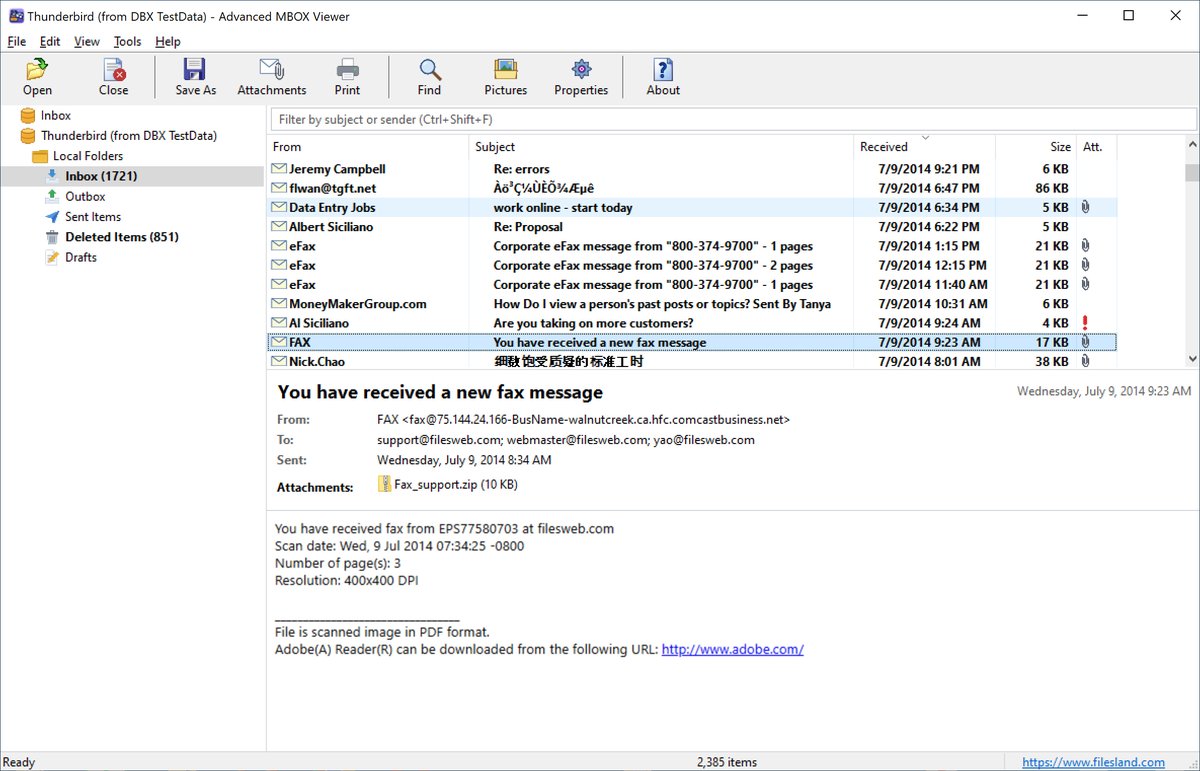
| Folder tree (left) | All open mailboxes with icons for Inbox, Sent, Drafts, Trash and the other special folders, and Gmail label folders. Folders with unread messages are bold with the unread count in brackets. Recovered Items appears after a recovery (see section 19). |
| Quick filter (top right) | Narrows the message list as you type. |
| Message list (top right) | The messages of the selected folder. Even multi-gigabyte mailboxes are indexed in seconds; message text is read only when a message is shown. |
| Reading pane (bottom right) | Subject, sender, recipients, dates, newsgroups, the attachment strip and the message text. |
| Status bar | The number of messages in the list. |
Drag the splitters to resize the panes. Window position, splitters, columns and sort order are restored at the next start. View > Toolbar and View > Status Bar show or hide those bars.
4. Reading messages
Click a message to show it in the reading pane; double-click it or press Enter to open it in its own window (each of several selected messages opens in a window). A message window has its own Message menu; Esc closes it.
- HTML messages are shown by Microsoft Edge WebView2 with their inline pictures.
- Plain text messages are shown as text with clickable addresses; format=flowed text is reflowed.
- uuencoded attachments inside the text are listed as normal attachments.
- Messages in any character set display correctly.
- Newsgroup articles (Thunderbird news folders) show their newsgroups; signed messages show their text.
Privacy
Pictures from the Internet, including tracking pixels, are blocked. Click Download pictures in the yellow bar for one message, or turn on View > Download Pictures from the Internet (toolbar Pictures) for all. Scripts never run, pop-ups and downloads are refused, links open in your browser, and the real address of a link is shown on hover.
Attached messages
A forwarded message attached to another one appears in the attachment strip; double-click it to open it in its own window.
5. Opening and saving attachments
Right-click an attachment in the strip for Open (with the program Windows uses for that type, from a temporary read-only copy), Save As and Save All Attachments. File > Save Attachments (Ctrl+Shift+S) and the Attachments toolbar button save all attachments of the message. Programs and scripts (.exe, .js, .vbs, .bat …) are opened only after confirmation. For many messages at once, see section 16.
6. Searching for messages
Quick filter
Click the box above the list or press Ctrl+Shift+F and type: only messages whose subject or sender contains the text remain. Clear the box to see all messages again.
Find Messages
Choose Edit > Find Messages (Ctrl+E) or click Find. For one folder and its subfolders, right-click it and choose Find in This Folder.
| Option | Meaning |
|---|---|
| Find messages that contain | The word or phrase to look for |
| Match case / Whole words only | Exact capitalization; no matches inside longer words |
| Subject | Look in the subject line |
| People | Look in names and addresses: sender and recipients, sender only, or recipients only |
| Message text | Look in the body of every message (slower) |
| Attachment names | Find messages with a matching attachment file name |
| All folders / Selected folder and its subfolders | Where to search |
| Date from … to | Only messages from this period |
| Only messages with attachments | Skip messages without attachments |
| Size in KB, at least … at most | Only messages in this size range |
The results replace the message list and show the folder of each message. The search text can stay empty to search by the conditions alone. Messages opened from the results have every hit highlighted in yellow – in the text, subject, From / To / Cc lines and attachment names – and the reading pane scrolls to the first one.
7. Columns, sorting and date groups
Click a column header to sort; click again to reverse. Right-click the headers or use View > Columns to choose from From, Subject, Received, Size, Attachment, To, Cc, Sent, Importance, Flag, Categories, MD5 and SHA-256. Drag headers to reorder columns and their edges to resize them.
View > Group by Date divides the list into Today, Yesterday, Earlier This Week, Last Week, Earlier This Month, Last Month and Older. Unread messages are bold; select with Ctrl/Shift+click or Ctrl+A.
8. Saving and printing a single message
Select a message and choose File > Save Message As (Ctrl+S):
| Format | Result |
|---|---|
| E-mail message (.eml) | The original message with all attachments; opens in Outlook, Thunderbird and Windows Mail |
| Web page (.html) | One HTML file with the header, the text and embedded pictures |
| Text (.txt) | Header lines and plain text |
| PDF (.pdf) | A PDF that looks like the message on screen |
File > Print (Ctrl+P) prints the message with a header block (subject, from, sent, to, cc, attachments).
9. Exporting messages and folders
Start an export with File > Export Selected Messages (Ctrl+Shift+E) for the selected messages, or File > Export Folder (also on the folder’s right-click menu) for a folder and its subfolders. Select a top-level entry to export a whole mailbox or profile.
| Format | Result |
|---|---|
| E-mail messages (.eml) | One file per message, attachments included |
| Web pages (.html) | One file per message with its pictures |
| Text files (.txt) | One file per message |
| PDF documents (.pdf) | One PDF per message, or all messages in one PDF (see section 12) |
| MBOX mailbox (.mbox) | One mailbox per folder, one mailbox for everything, or split files (see section 13) |
| Outlook data file (.pst) | One PST with all folders (see section 10) |
Export options
- Include subfolders.
- Recreate the folder structure – a folder on disk for every mail folder.
- Skip duplicate messages – a message with the same Message-ID (or, without one, the same content) is written only once. Useful when the same mail is in several folders or several backups.
- Write an export log and a chain-of-custody report – see section 17.
Exports run in the background with a progress bar and Cancel.
10. Converting MBOX to Outlook PST
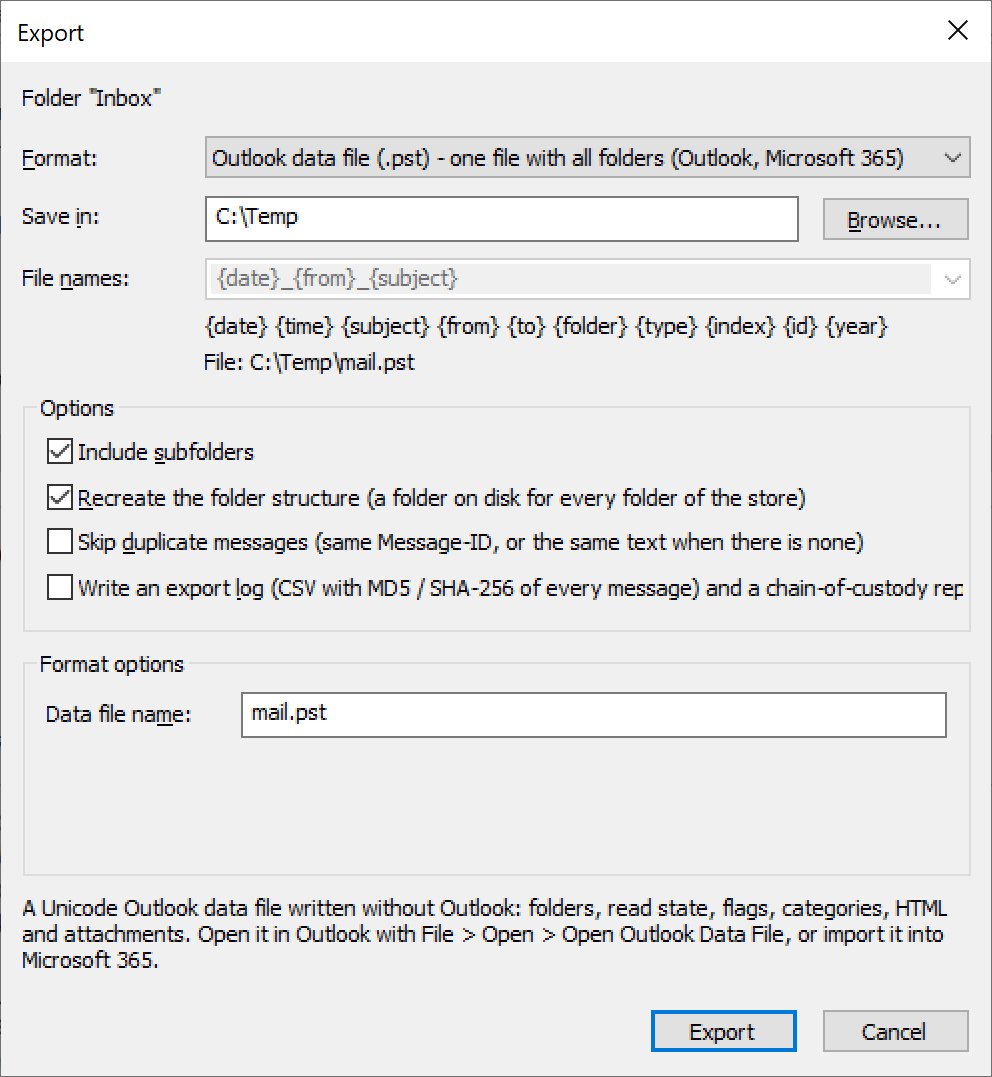
Moving from Thunderbird, Gmail or Apple Mail to Outlook or Microsoft 365? Advanced MBOX Viewer writes the Outlook data file itself – Outlook does not have to be installed on the PC.
- Select the mailbox or folder in the tree (a top-level entry for everything).
- Choose File > Export Folder to Outlook PST – or Export Selected to Outlook PST for selected messages.
- Choose the destination folder and the Data file name; keep Include subfolders checked.
- Click Export.
- In Outlook choose File > Open & Export > Open Outlook Data File, or import the file into your Microsoft 365 mailbox.
The PST keeps the folder tree, sender, recipients, dates, read / replied / forwarded / flagged state, categories, HTML and plain text, the Internet header and the attachments of every message. Gmail label folders become Outlook folders.
11. File name patterns
Exports with one file per message name the files with an editable pattern such as {date}_{from}_{subject}. Tokens: {date}, {time}, {year}, {month}, {day}, {subject}, {from}, {to}, {folder}, {type}, {index} (running number) and {id}. Invalid characters are replaced, long names are shortened to the Windows path limit, and duplicates are numbered.
12. PDF files, page numbers and Bates numbers
- File > Save Selected as PDF – one PDF per selected message.
- File > Save Selected as One PDF – all selected messages in one PDF document; each message starts on a new page.
- File > Export Folder as PDF – every message of a folder and its subfolders.
In the Export dialog with the PDF format, Combine all messages into one PDF file and Page numbers are available:
| Page numbers | “Page 1 of 12” at the foot of each page |
| Bates numbers | A prefix, a first number and a number of digits, e.g. ABC000001. Numbering continues from one PDF file to the next, as legal document production requires. |
Page and Bates numbers need WebView2 Runtime 131 or later, which current Windows updates install. Pictures from the Internet are included only when Download Pictures from the Internet is on.
13. Splitting and merging MBOX files
Split a large mailbox
Export a folder in MBOX format and set Split files to By size (enter the MB per file), By year or By month. Smaller files are easier to import, archive and send. One mailbox file for all folders does the opposite and writes every exported folder into a single mailbox.
Merge MBOX files
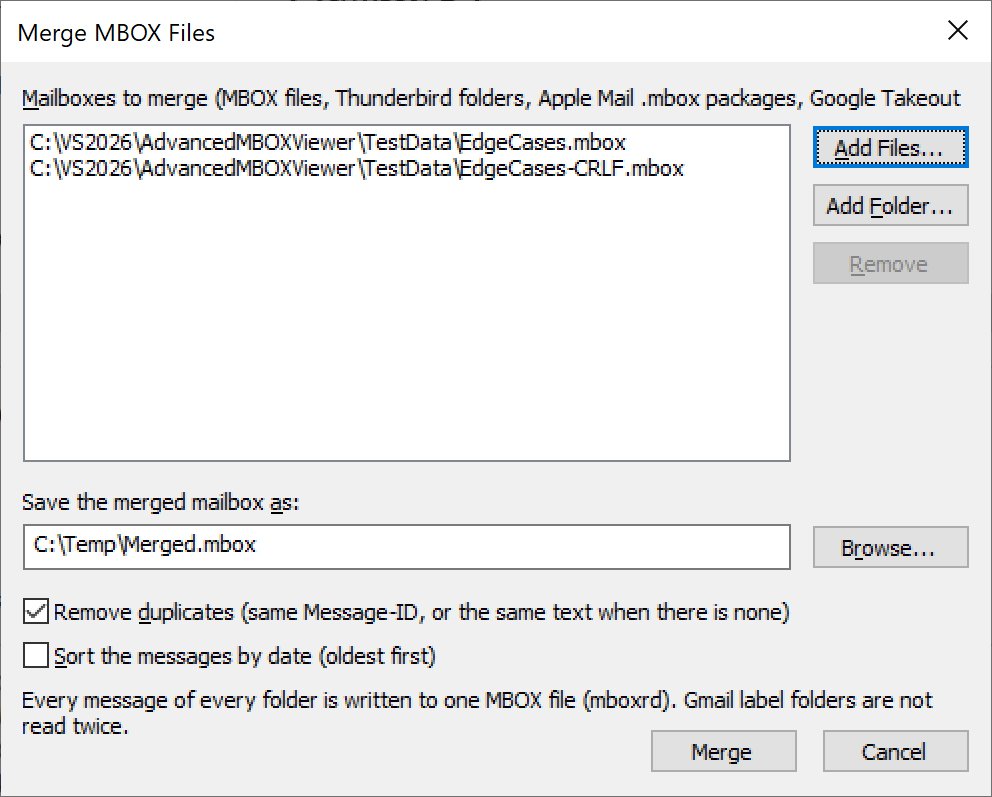
- Choose Tools > Merge MBOX Files.
- Add mailboxes with Add Files (MBOX files, Apple Mail packages, Google Takeout files) or Add Folder (Thunderbird folders and profiles).
- Enter the name of the merged mailbox.
- Check Remove duplicates to keep each message once, and Sort the messages by date to put them in date order, oldest first.
- Click Merge.
Every message of every folder goes into one MBOX file. Gmail label folders are not read twice.
14. Extracting e-mail addresses
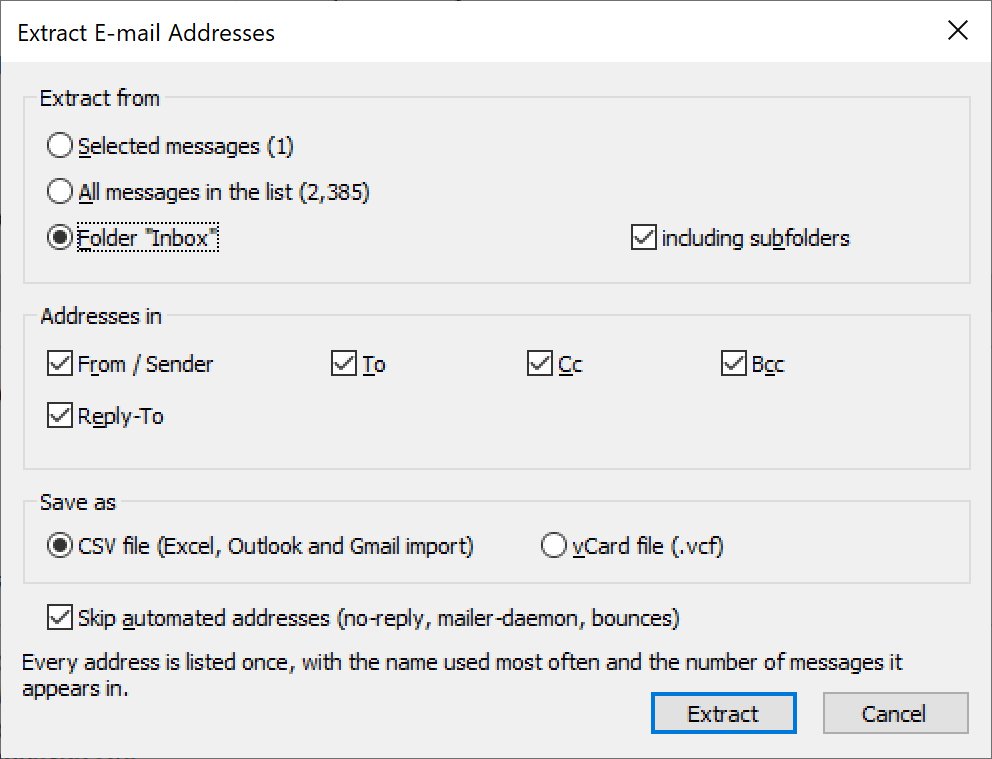
Tools > Extract E-mail Addresses builds a contact list from your mail:
- Extract from the selected messages, all messages in the list, or a folder with or without subfolders.
- Addresses in From / Sender, To, Cc, Bcc and Reply-To – choose any combination.
- Save as a CSV file (opens in Excel, imports into Outlook and Gmail) or a vCard file (.vcf).
- Skip automated addresses such as no-reply, mailer-daemon and bounce addresses.
Each address is listed once, with the name used most often for it, the number of messages it appears in and the first and last date it was seen.
15. Exporting the message list to CSV
File > Export List to CSV saves the messages of the list (or only the selected ones) as a UTF-8 CSV file for Excel: folder, subject, sender, recipients, dates, size, flags, attachments, Message-ID, MD5 and SHA-256 and more. Use it for reports, audits and eDiscovery reviews.
16. Extracting attachments in bulk
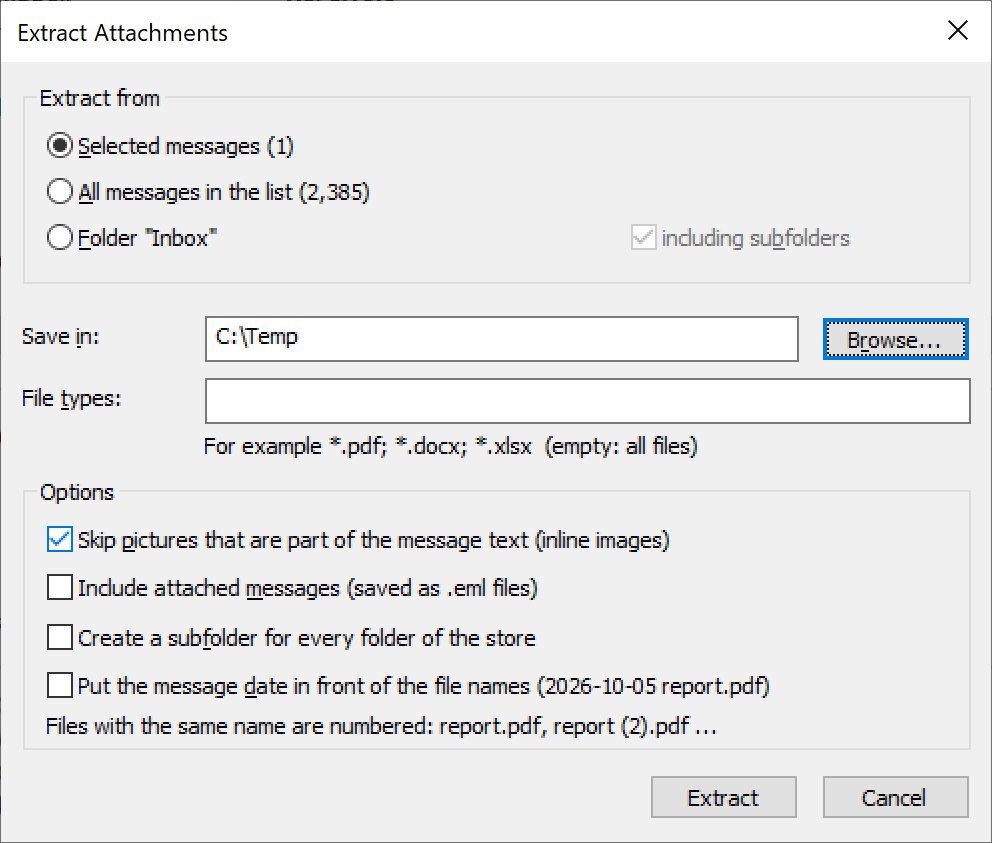
Tools > Extract Attachments (also on the right-click menus) saves the attachments of many messages at once:
- Extract from the selected messages, the whole list, or a folder including subfolders.
- File types: e.g.
*.pdf; *.docx; *.xlsx; empty for all files. - Skip pictures that are part of the message text (logos, inline images).
- Include attached messages as .eml files.
- Create a subfolder for every folder of the mailbox.
- Put the message date in front of the file names, e.g. 2014-07-09 invoice.pdf.
Files with the same name are numbered: report.pdf, report (2).pdf …
17. Hashes, export log and chain of custody
- Every message has an MD5 and SHA-256 hash, shown in the list (View > Columns), the Properties window and the CSV export. The hash covers the message itself, not its position in the file, so it is the same in the original mailbox, a merged mailbox and an export – a reliable way to prove that a message was not changed.
- The export option Write an export log and a chain-of-custody report creates an Export Log CSV with one row per message (folder, subject, sender, date, Message-ID, source hashes, output file and its SHA-256, Bates range, status) and an Export Report text file with the user, computer, time, source file and its SHA-256, the options, counts, output files with their SHA-256 and the SHA-256 of the log itself.
- Tools > File Information describes the open mailbox.
18. Internet headers and message properties
View > Internet Headers (Ctrl+H) shows the full message header with its Received trace. View > Message Properties (Alt+Enter, toolbar Properties) shows the mailbox fields of the message – file, position and length in the file, the separator line, X-Mozilla-Status, Status, Gmail labels and thread ID – every header field (decoded and as stored) and the MIME structure; double-click a part to see it. Copy puts it on the clipboard.
19. Recovering deleted messages
When you delete a message in Thunderbird, it is only marked as deleted and stays in the MBOX file until the folder is compacted. Tools > Recover Deleted Messages lists all such messages in a Recovered Items folder, together with message text found in damaged parts of a file. Read, search and export them like any other messages.
20. Toolbar, menus and shortcuts
Toolbar
| Open | Open an MBOX file |
| Close | Close the mailbox selected in the tree |
| Save As | Save the message as EML, HTML, text or PDF |
| Attachments | Save the attachments of the message |
| Print the message | |
| Find | Find messages |
| Pictures | Download pictures from the Internet (on / off) |
| Properties | Mailbox fields, header fields and MIME structure |
| About | Version and registration information |
Keyboard shortcuts
| Keys | Command |
|---|---|
| Ctrl+O | Open an MBOX file |
| Ctrl+Shift+O | Open a folder of mailboxes |
| Ctrl+F4 | Close the selected mailbox |
| Ctrl+S | Save message as |
| Ctrl+Shift+S | Save attachments |
| Ctrl+Shift+E | Export selected messages |
| Ctrl+P | |
| Ctrl+E | Find messages |
| Ctrl+Shift+F | Quick filter |
| Ctrl+A | Select all |
| Enter | Open the message in a new window |
| Alt+Enter | Message properties |
| Ctrl+H | Internet headers |
| Esc | Close a message window |
| F1 | Online help |
Right-click menus
Messages: Open, Save As, Export Selected Messages, Save as PDF, Save as One PDF, Export to Outlook PST, Export to CSV, Save Attachments, Extract Attachments, Extract E-mail Addresses, Print, Properties, Internet Headers, Select All. Folders: Find in This Folder, Export Folder, Export as PDF, Export to Outlook PST, Extract Attachments, Extract E-mail Addresses, Close. Attachments: Open, Save As, Save All Attachments.
21. Solving common problems
Where are my Thunderbird mailboxes?
In %APPDATA%\Thunderbird\Profiles\<profile>\Mail\Local Folders for local mail and ImapMail\<server> for IMAP accounts (paste %APPDATA%\Thunderbird into the Explorer address bar). The easiest way is File > Open Folder on the profile folder. In Thunderbird, Help > Troubleshooting Information > Profile Folder shows the location.
How do I get my Gmail as MBOX?
Use Google Takeout (takeout.google.com), select only Mail, and download the archive. Unzip it and open the .mbox file inside the Takeout\Mail folder.
HTML messages are shown as plain text
The Microsoft Edge WebView2 Runtime is missing. Install the Evergreen runtime from Microsoft and restart the program.
Page or Bates numbers are missing in PDFs
They need WebView2 Runtime 131 or later. Update Windows or install the current runtime from Microsoft.
Deleted messages still appear in Thunderbird’s file size
Thunderbird keeps deleted messages until the folder is compacted. Use Tools > Recover Deleted Messages to see them.
Exported file names are cut short
Windows limits the length of a path. Export to a folder near the root, such as C:\Export, or use a shorter pattern.
22. Requirements and licensing
| Operating system | Windows 10 and 11 |
| Supported files | MBOX files (.mbox, .mbx, .mbs and Thunderbird folder files), Thunderbird profiles and Local Folders, Google Takeout archives, Apple Mail .mbox packages, and MBOX files of Eudora, SeaMonkey, Unix mail and other programs |
The free trial has every feature and runs for 30 days. Each start shows how many days are left: Continue keeps evaluating, Register opens the order page. After you order, an unlocking key file is e-mailed to you; it turns the trial into the full version. Questions about ordering or registration: order@ashkon.com.