
Easy File Joiner 2.1.2.4
Easy File Joiner User Guide
This guide explains how to use Easy File Joiner to put split files back together, rebuild spanned ZIP
archives, merge ZIP archives, join MP3 and WAV recordings, and combine text, log and CSV files. It also
covers the checks Easy File Joiner runs before it writes anything, checksum verification, the Explorer
context menu and the efjoin command-line program for scripts.
Contents
- What Easy File Joiner does
- Installing, upgrading and uninstalling
- Joining files step by step
- The main window
- Adding files and setting their order
- Rejoining split files
- Checksum verification
- ZIP and RAR archives
- Joining MP3 files
- Joining WAV files
- Joining text, log and CSV files
- Checks and warnings before joining
- What happens while joining
- Menus and keyboard shortcuts
- Command line: efjoin.exe
- Troubleshooting - questions and answers
- Version history and license
1. What Easy File Joiner does
Easy File Joiner reads a list of files from top to bottom and writes them into one new file. For most files it copies the bytes exactly as they are. For formats where a plain copy would give a broken result, it understands the format and builds a correct file instead:
| You have | You get |
|---|---|
Parts of a split file: movie.mpg.001, .002, … or data.part1, … | The original file, byte for byte, verified against a checksum file if one is present |
A spanned ZIP archive: backup.z01, backup.z02, …, backup.zip | One standard ZIP archive that any program can open |
| Several complete ZIP archives | One ZIP archive with the files of all of them |
| MP3 recordings, audio book chapters | One MP3 file that shows the full length and seeks correctly |
| WAV recordings | One WAV file with a correct header |
| Text files, logs, CSV exports | One text file with clean line breaks; for CSV, optionally one header row |
Easy File Joiner never modifies, moves or deletes the files you join. The result is always a new file. It is freeware and runs on Windows 7, 8, 8.1, 10 and 11, 32-bit and 64-bit.
2. Installing, upgrading and uninstalling
Download efjoiner.exe and run it. Setup installs Easy File Joiner for every user of the computer,
so Windows asks for administrator permission. The default folder is
C:\Program Files (x86)\Ashkon Software\Easy File Joiner (C:\Program Files\... on
32-bit Windows), and the Start menu gets shortcuts for the program, its help and the uninstaller.
| Installed file | Purpose |
|---|---|
EasyFileJoiner.exe | The program with the window |
efjoin.exe | The command-line program (section 15) |
EasyFileJoiner.chm | Built-in help |
License.txt | The license agreement |
No runtime libraries are installed or needed.
Setup options
| Option | Default | Effect |
|---|---|---|
| Add “Join files with Easy File Joiner” to the Explorer context menu | On | Adds the command for files and folders in Windows Explorer, for all users (see below). |
| Add Easy File Joiner to the “Send to” menu | On | Adds a Send to entry for the user who runs Setup. |
| Add the command-line program efjoin.exe to the PATH | Off | Lets you type efjoin in any folder. Open a new Command Prompt afterwards; windows that were already open keep the old PATH. |
| Create a desktop shortcut | Off | Puts an Easy File Joiner icon on the desktop. |
When Setup finishes, it can start Easy File Joiner. It is started with normal user rights on purpose: the Explorer command and Send to cannot pass files to a copy that runs as administrator.
Upgrading
Run the Setup of the new version over the old one. It closes a running Easy File Joiner, replaces the program in the same folder, and keeps your settings and the list of joined files. An option you clear during the upgrade (for example the PATH entry) is removed.
Uninstalling
Use Settings > Apps, Control Panel > Programs and Features, or
Uninstall Easy File Joiner in the Start menu. The program files, shortcuts, Explorer command,
Send to entry and PATH entry are removed; your files and joined files stay where they are. Your settings
remain in HKEY_CURRENT_USER\Software\Ashkon Software\Easy File Joiner - delete that key in the
Registry Editor if you want them gone too.
Running without Setup
Copy EasyFileJoiner.exe, efjoin.exe and EasyFileJoiner.chm to any
folder, for example on a USB drive. Everything works except the Explorer context menu, which needs Setup.
3. Joining files step by step
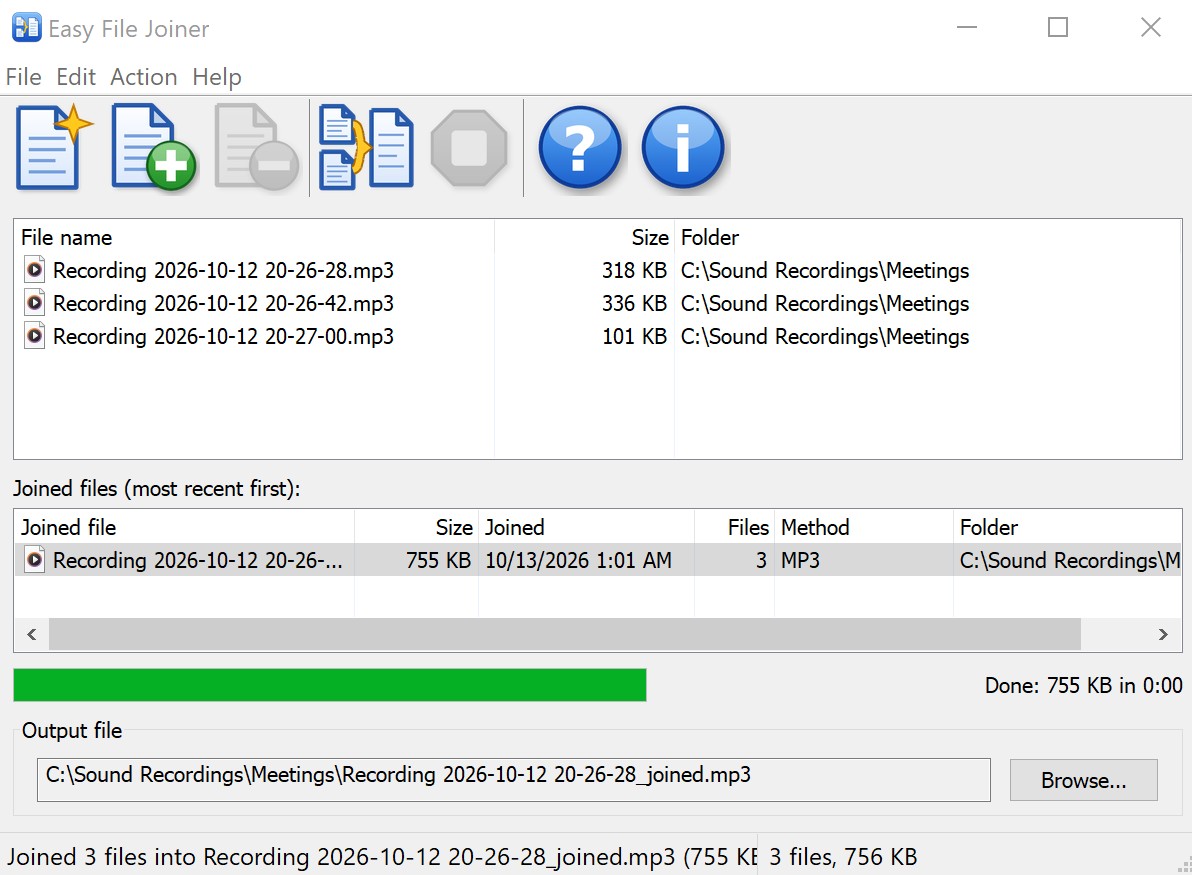
- Add the files. Drop them from Windows Explorer onto the list, or click Add
(Ctrl+O) and pick them. You can add files in several batches and from different folders.
Each batch is sorted by name in natural order, so
part2comes beforepart10. - Check the order. The file at the top of the list is written first. Drag files to change the
order, press Ctrl+Up / Ctrl+Down, or click a column header to sort.
Be careful with names that differ only by a suffix such as “(2)”:
Recording 20-27-00.mp3sorts afterRecording 20-27-00 (2).mp3, even if it was recorded first. Names that start with the date and time, like the recordings in the picture, are already in the right order. - Choose the output file. Click Browse... (Ctrl+S).
A name based on the first file is suggested:
If you skip this step, Easy File Joiner asks for the output file when you start joining.
First file in the list Suggested output movie.mpg.001movie.mpgbackup.zip.part3backup.zipbackup.z01backup_joined.zip(becausebackup.zipis the last volume and already exists)Recording 20-26-28.mp3Recording 20-26-28_joined.mp3 - Join. Click Join on the toolbar or press F5. For some kinds of files you are asked a question first - for example whether MP3 files should be joined as MP3 (see section 12). The progress bar shows the percentage, speed and time left; click Stop to cancel. At the end a message shows the output file and its size, with extra details for ZIP, MP3 and WAV results and for checksum verification.
4. The main window
From top to bottom the window holds the toolbar, the list of files to join, the list of joined files, the progress bar, the output file box and the status bar. You can resize and maximize it; its size, position and column widths are remembered.
Toolbar

| Button | What it does | Shortcut |
|---|---|---|
| New | Empties the list to start over (asks first). Files on disk are not touched. | Ctrl+N |
| Add | Adds files to the end of the list. | Ctrl+O, Insert |
| Remove | Takes the selected files off the list. Files on disk are not touched. | Delete |
| Join | Writes the files in the list into the output file. | F5 |
| Stop | Cancels a running join. Enabled only while joining. | |
| Help | Opens the built-in help. | F1 |
| About | Shows the version and copyright. |
A grayed-out button can’t be used right now - for example, Remove needs a selection.
File list
Shows the File name (with its Windows icon), Size and Folder of every file to join. Click a column header to sort by it, and again to reverse the order; an arrow marks the sort column. When you move files by hand, the arrow disappears because the list is now in your own order.
Joined files
The second list keeps a history of your joins, newest first, up to 100 entries, and is kept between sessions.
| Column | Shows |
|---|---|
| Joined file | The name of the output file |
| Size | Its size, or (deleted) in gray if the file no longer exists |
| Joined | Date and time of the join |
| Files | How many files went into it |
| Method | Byte for byte, ZIP rebuilt, ZIP merged, MP3, WAV, Text or Text (CSV) |
| Folder | Where the output file is |
Double-click an entry or press Enter to open the file. Right-click for more commands (section 14). Joining to the same output file again moves its entry to the top.
Progress
While joining, the bar below the joined-files list fills up, and the text next to it shows the percentage, the current speed and the time left, for example 42% · 85.3 MB/s · 0:37 left. If checksums are checked after the copy, the bar restarts with Verifying:. At the end it shows the size, the time taken and the average speed, such as Done: 755 KB in 0:00. The Easy File Joiner button on the taskbar shows the same progress.
Output file and status bar
The Output file box shows the full path of the file that will be created; Browse... changes it. The status bar shows messages on the left (files added, the file being copied, the result of the last join) and the number of files in the list and their total size on the right.
5. Adding files and setting their order
Ways to add files
- Drag and drop files or folders from Windows Explorer onto the list. This works even when Easy File Joiner runs as administrator.
- Add (Ctrl+O or Insert) opens a file dialog in the folder you used last.
- Explorer context menu: right-click the selected files and choose Join files with Easy File Joiner.
- Send to > Easy File Joiner, or drop files on the program icon or a shortcut.
- Start
EasyFileJoiner.exewith file names on its command line.
New files go to the end of the list, each batch in natural order. Files that can’t be read are skipped, and the status bar says how many. You may add the same file twice if you really want it twice in the result.
Adding a folder
A folder adds every file inside it and inside its subfolders, in natural order, up to 20,000 files at a time.
Hidden and system files (such as desktop.ini and Thumbs.db) are left out, and so are
checksum files (.sfv, .md5, .sha256, .crc and similar) -
those are used to verify the join instead.
Parts and volumes come as a set
Adding one volume of a spanned ZIP archive or one part of a split file also adds the other volumes or parts from the same folder, so none is forgotten. See section 6.
From Windows Explorer
If Setup’s Explorer option was selected (it is by default), select the files - for example all parts of a split file - right-click one of them and choose Join files with Easy File Joiner. Easy File Joiner opens, or comes to the front if it is already running, and adds the files. Nothing is joined until you click Join.
- On Windows 11, the command is under Show more options (or press Shift+F10).
- The command also appears for a single file; selecting one part is enough to get the whole set.
- Files sent while a join is running are added when it finishes.
- Explorer only hands the file names to Easy File Joiner; no program code is loaded into Explorer.
Send to and files dropped on the program icon behave the same way: a running Easy File Joiner takes the files, otherwise a new window opens with them.
Changing the order
- Drag the selected files up or down. A blue line marks where they will land, and the list scrolls when you drag near its edge. Esc cancels the drag.
- Ctrl+Up and Ctrl+Down (or Edit > Move Up / Move Down) move the selection by one position.
- Click a column header to sort by name, size or folder, or use Edit > Sort by Name.
- Several selected files move together as one block, even if they were not next to each other.
Removing files
Select files and press Delete or click Remove; New empties the whole list. Only the list changes - files are never deleted from the disk. The list is locked while a join runs.
6. Rejoining split files
File splitters such as HJSplit, 7-Zip, Total Commander and GSplit cut a large file into numbered pieces so it can be e-mailed, uploaded or stored on smaller media. Easy File Joiner reassembles the pieces into the original file.
| Parts | Original file |
|---|---|
movie.mpg.001, movie.mpg.002, … | movie.mpg |
backup.zip.001, backup.zip.002, … | backup.zip |
photos.7z.001, photos.7z.002, … | photos.7z |
data.part1, data.part2, … | data |
How to rejoin
- Add any one part, usually the first. The rest of the set in that folder is added and sorted (
.009,.010,.011). - Check the output file; the original name is suggested.
- Click Join. Parts are joined byte for byte, which restores the original exactly.
If the splitter also wrote a checksum file (.sfv, .md5, .crc), leave it
in the folder next to the parts but don’t add it to the list - Easy File Joiner finds it and verifies the
result (section 7).
What is checked before joining
- Missing parts - a skipped number (
.004between.003and.005), a missing first part, or parts that a checksum file lists but the list lacks. The last check also catches a missing last part. Parts that are in the folder but were removed from the list are marked as such. - A part of the wrong size - splitters make every part the same size except the last, which may be smaller. A different size usually means an incomplete download.
- A wrong total size - a Total Commander
.crcfile records the size of the original, and the parts must add up to it. - A duplicate part number - for example the same part added from two folders.
All problems are listed in one warning, and the default button is not to join. If you have moved the parts out of number order, you are asked whether to join them in number order (recommended) or in the order shown.
Names that merely end in a number, such as report.2024 or track.12, are not treated as
parts. Numbering from .000 and continuing with .1000 after .999 (as 7-Zip
does) are recognized.
Parts versus complete files
Parts of one file are not the same as several complete files. A complete video (AVI, MP4, MKV), picture (JPEG,
PNG) or document (PDF, DOCX) begins with a header that describes the entire file, so appending two of them does
not make a longer video or document - usually only the first one shows. Combine those with the program that made
them; Easy File Joiner warns you before joining such files. MPEG program and transport streams
(.mpg, .ts, .vob) are the exception and can be appended safely.
ZIP, MP3 and WAV files have their own support, described below.
7. Checksum verification
A checksum is a short fingerprint of a file: change one byte and the fingerprint changes. Many splitters and download sites put a checksum file next to the parts. Easy File Joiner reads it automatically, so you know the joined file is correct, not just that the bytes were copied.
| Checksum file | Usually made by | Contains |
|---|---|---|
*.sfv | SFV tools, splitters, download tools | CRC32 of each file |
*.crc | Total Commander (Files > Split File) | CRC32 and size of the original file |
*.md5, *.sha1, *.sha256, *.sha512 | md5sum, sha256sum, 7-Zip, HashCheck and others | MD5, SHA-1, SHA-256 or SHA-512 |
MD5SUMS, SHA256SUMS, CHECKSUMS | Download sites | As above |
Both common line layouts are understood (hash name and
SHA256 (name) = hash), as is a file that holds nothing but a hash, such as
movie.avi.md5 containing the MD5 of movie.avi.
What gets verified
- Every file in the list that a checksum file in the same folder names - for example each part listed in
an
.sfvfile. - The joined file, when the list holds the parts of one split file and a checksum file names the original
(
movie.avi), or when a checksum file in the output folder names the output file.
The joined file is verified only for byte-for-byte joins. An MP3, WAV, text or ZIP join produces a new file that no checksum file could describe.
Cost and results
Checksums are calculated from the data as it is copied, so usually nothing is read twice. Files that are not copied from start to end - MP3 files, whose tags are dropped, for example - are read once more at the end, and the progress shows Verifying:.
When everything matches, the final message lists the checksum files used, for example parts.sfv: 12 files match (CRC32). When something does not match, the joined data is held back - the output file has not been replaced yet - and you see which files differ. A mismatch usually means a damaged or incomplete part: download it again. It can also mean the checksum file belongs to another version of the file. Answer Yes to keep the result anyway (for example a video that still plays despite one damaged part) or No to delete it; an existing file with the output name is then left untouched.
8. ZIP and RAR archives
Split ZIP: name.zip.001, name.zip.002, …
Produced by 7-Zip, HJSplit and other splitters. These are simply pieces of an ordinary ZIP file and are joined byte
for byte like any split file. .7z.001 and .rar.001 parts work the same way.
Spanned ZIP: name.z01, name.z02, …, name.zip
Produced by WinZip and Info-ZIP as “split” or “spanned” archives. Here name.zip
is the last volume, not the whole archive, and every volume stores positions relative to itself. Appending
the volumes therefore yields a damaged archive. Easy File Joiner rebuilds them into one standard ZIP file:
- adding any volume adds the others from the same folder;
- volumes are always joined in the correct order (
.z01,.z02, …,.ziplast), whatever the order in the list; - the archive directory is rewritten for the single file. Nothing is extracted or recompressed, so it is fast, and archives larger than 4 GB are written as ZIP64;
- if a volume is missing, it is named and nothing is joined;
- the suggested output name is
name_joined.zip, becausename.zipis already taken by the last volume.
Several complete ZIP archives
When the list contains only complete ZIP archives, you are asked:
- Yes - merge them into one archive (recommended). It contains the files of all archives in list order; nothing is extracted or recompressed.
- No - join byte for byte. Most programs then show only the files of the last archive.
- Cancel - don’t join.
If the same path appears in more than one archive, the copy from the archive higher in the list wins and the later one is skipped; the final message gives the count and an example. Put the archive with the newer files first if you want those kept. Archives with extra data in front, such as self-extracting archives or the result of an earlier byte-for-byte join, are merged correctly too.
RAR volumes: name.part1.rar, … or name.rar, name.r00, …
These are volumes of a multi-volume RAR archive and cannot be turned into one file by joining. Open the first volume
(name.part1.rar or name.rar) in WinRAR or 7-Zip, which read the remaining volumes on their
own. Easy File Joiner warns you if you try to join RAR volumes.
9. Joining MP3 files
MP3 files appended byte for byte usually play, but badly: players show only the first file’s length, seeking lands in the wrong place, and the title, artist and cover tags of the other files sit in the middle of the audio, where they can click. When every file in the list is an MP3, Easy File Joiner asks:
- Yes - join as MP3 (recommended);
- No - join byte for byte;
- Cancel - don’t join.
What “join as MP3” does
- Copies the audio frame by frame. Nothing is decoded or re-encoded, so quality is unchanged and the join is as fast as a file copy.
- Keeps the first file’s tags (ID3v2 at the start, ID3v1 at the end) for the result and removes the ID3v2, ID3v1, APEv2 and Lyrics3 tags of the other files.
- Updates the first file’s Xing/Info or VBRI header - the one players read for length and seeking - to cover the whole result, and drops those headers from the other files. If the result has a variable bitrate and the first file has no such header, one is created.
- The final message gives the total length and the number of tags removed.
Different formats
If the files differ in sample rate (44,100 Hz vs 48,000 Hz), MPEG version or mono/stereo, the question lists the differences. Many players cannot play such a mixture correctly; convert the files to one format first or combine them in an audio editor.
Recordings
Check the order before joining a series of recordings - see the “(2)” example in section 3. Short silences may remain where each recording started or ended, because MP3 encoders pad every file; this is the same in any joiner that doesn’t re-encode.
10. Joining WAV files
A WAV file starts with a header that states how long the audio is. Appended byte for byte, most players play only the first file, and each following header becomes a click. When every file in the list is a WAV file, you are asked whether to join them into one WAV file (Yes, recommended), byte for byte (No), or not at all (Cancel).
What “join into one WAV file” does
- Copies the audio data of all files, one after another, without decoding or converting it.
- Writes one header for the whole result, with the first file’s format and its descriptive information (LIST and broadcast-wave chunks such as title and artist).
- Writes results over 4 GB in the RF64 format, which Audacity, Adobe Audition, VLC, foobar2000 and most other editors and players open.
- Uses all the audio of recordings that were not closed properly (the recorder crashed or the power failed), whose header often states the wrong length.
- Reports the total length when done.
All files must share the same sample rate, number of channels and sample format (for example 16-bit). If they don’t, the differences are listed; convert the files to one format in an audio editor first.
11. Joining text, log and CSV files
When the list holds only text files (.txt, .log, .csv, .html,
source code and similar), you are asked whether to join them as text (Yes, recommended), exactly
as they are (No), or not at all (Cancel).
What “join as text” does
- Every file starts on a new line. If a file doesn’t end with a line break, one is added, in the style of the first file (Windows CR+LF or Unix LF), so lines from two files never run together.
- Byte order marks at the start of the second and later files are removed; otherwise they would show up as stray characters in the middle of the result. The first file’s mark is kept.
- UTF-16 (Unicode) files get their added line breaks in UTF-16.
CSV tables with a header row
If every file is a .csv or .tsv file and they all begin with the identical first line,
Easy File Joiner shows that line and asks whether to keep only the first file’s copy. Answer
Yes for one table with a single header; No keeps every header. Headers are
compared exactly, so files whose columns differ in name or order keep all their rows - make sure such files really
belong to the same table.
Mixed encodings
If some files are UTF-16 and others are ANSI or UTF-8, they are listed. Text is not converted, so some characters will look wrong in the result; save all files in the same encoding first (in Notepad: File > Save As, Encoding).
Parts of a split text file (notes.txt.001, …) are always joined byte for byte, because a part
can end in the middle of a line.
12. Checks and warnings before joining
Before writing anything, Easy File Joiner looks at the output file and the list. Where the result would probably be unusable, it asks first, and the default button is always the safe choice.
Output file
| Situation | What happens |
|---|---|
| No output file selected | You are asked to choose one. |
| The output folder doesn’t exist | Error; choose another location. |
| The output file is one of the input files | Error - even when the same file is reached through a different path or name. |
| The output file already exists | You are asked whether to replace it, unless you just confirmed that in the Browse dialog. |
| Not enough free space on the output drive | Warning with the space needed and available; you may continue. |
Files in the list
| Situation | What happens |
|---|---|
| Files of different types (ZIP and MP3, ZIP and text, MP3 and text, …) | Warning listing each type with a count and an example. Parts such as name.zip.002 count as the type of the original, so a normal set of parts never triggers this. |
| Complete videos (MP4, MOV, MKV, AVI, WMV), PDF and Office documents, pictures (JPG, PNG, GIF), FLAC/M4A audio or programs | Warning that only the first file will show or the result won’t open, with a suggestion of a suitable tool. Split parts (name.mp4.001) and MPEG streams are not affected. |
| Split parts with a missing part, wrong size, duplicate number or wrong total size | Warning listing the problems; default is not to join (section 6). |
| Split parts out of number order | Question: join in number order (recommended) or in list order. |
| Volumes of a multi-volume RAR archive | Warning naming the volume to open in WinRAR or 7-Zip. |
| A complete spanned ZIP archive | No question: it is rebuilt into one ZIP file. |
| A spanned ZIP archive with missing volumes | The missing volumes are named; nothing is joined. |
| Spanned ZIP volumes mixed with other files | Warning that a byte-for-byte result won’t be a valid archive. |
| Only complete ZIP archives | Question: merge into one archive, or byte for byte. |
| Only MP3 files | Question: join as MP3, or byte for byte; format differences are listed. |
| Only WAV files | Question: one WAV file, or byte for byte; files with a different format are listed and can only be joined byte for byte. |
| Only text files | Question: as text, or byte for byte; for CSV files with the same header, a second question about the header row; mixed encodings are listed. |
File types are recognized by their content where possible - a ZIP file renamed to .dat is still treated
as ZIP - and otherwise by the extension.
13. What happens while joining
Your files stay unchanged
The input files are only read; they are never modified, moved or deleted.
Temporary file
The result is first written next to the output file under the output name plus .joining. Only after
everything has been written successfully is it renamed to the real name, replacing an older file of that name. So
after Stop, an error or a full disk, an existing output file is exactly as it was, and you never end
up with a half-written result. The temporary file is deleted after a failed or cancelled join; only if the computer
is switched off mid-join can a .joining file remain, and it can simply be deleted.
Background work and Stop
Joining runs in the background, so the window keeps responding. For ZIP archives and MP3 files the files are analyzed first (Analyzing files...), which takes a moment for long MP3 files. You can click Stop at any time; closing the window during a join asks whether to stop.
Large files and long paths
Any file size the file system supports can be joined, including results larger than 4 GB - the output drive must then use NTFS or exFAT, since FAT32 is limited to 4 GB per file. Files in folders whose paths are longer than 260 characters are supported.
Where settings are kept
Window size and position (including maximized), column widths of both lists, the folders used last and the
joined-files history are stored under HKEY_CURRENT_USER\Software\Ashkon Software\Easy File Joiner.
14. Menus and keyboard shortcuts
| Menu | Command | Shortcut | Description |
|---|---|---|---|
| File | New List | Ctrl+N | Empties the list (asks first). |
| Add Files... | Ctrl+O, Insert | Adds files to the end of the list. | |
| Remove Selected | Delete | Takes the selected files off the list. | |
| Select Output File... | Ctrl+S | Chooses the file to create. | |
| Exit | Alt+F4 | Closes the program (asks first during a join). | |
| Edit | Select All | Ctrl+A | Selects every file in the list. |
| Move Up | Ctrl+Up | Moves the selection up one position. | |
| Move Down | Ctrl+Down | Moves the selection down one position. | |
| Sort by Name | Sorts by file name in natural order. | ||
| Action | Join Files | F5 | Joins the files into the output file. |
| Stop | Cancels a running join. | ||
| Help | Contents | F1 | Opens the built-in help. |
| Website | Opens www.ashkon.com. | ||
| About Easy File Joiner... | Shows the version and copyright. |
File list context menu
Right-click the list, or press Shift+F10 or the Menu key. Right-clicking a file that isn’t selected selects it first, as in Explorer.
| Command | Description |
|---|---|
| Open | Opens the selected file in its default program (one file selected). |
| Open Containing Folder | Opens Explorer with the selected files highlighted. |
| Copy Full Path | Copies the full paths of the selected files, one per line. |
| Move Up / Move Down | Moves the selection by one position. |
| Sort by Name | Sorts the list in natural order. |
| Add Files... | Adds files to the end of the list. |
| Remove from List | Takes the selected files off the list (not off the disk). |
| Select All | Selects all files. |
Open, Open Containing Folder and Copy Full Path also work during a join.
Joined files context menu
| Command | Shortcut | Description |
|---|---|---|
| Open | Enter, double-click | Opens the joined file in its default program. |
| Open Containing Folder | Opens Explorer with the file highlighted. | |
| Copy Full Path | Ctrl+C | Copies the paths of the selected entries. |
| Add to File List | Puts the joined files into the list of files to join, for example to combine them with others. | |
| Remove from This List | Delete | Removes the entries from the history; the files stay on disk. |
| Clear This List | Removes all entries (asks first); the files stay on disk. |
Ctrl+A selects all joined-file entries, and Alt+J moves the keyboard focus to that list. In the file list, Shift/Ctrl+click selects several files and Esc cancels a drag. Enter and Esc never close the main window.
15. Command line: efjoin.exe
efjoin.exe is installed next to the program and uses the same engine: split files, spanned ZIP rebuild,
ZIP merge, MP3, WAV and text joins, the same checks and checksum verification. Use it in batch files, scripts and
Task Scheduler jobs. If Setup didn’t add it to the PATH, call it with its full path, for example
"C:\Program Files (x86)\Ashkon Software\Easy File Joiner\efjoin.exe".
efjoin [options] <files, folders or wildcards...> [-o <output file>]
| Option | Meaning |
|---|---|
-o file, /out file | Output file. If omitted: the original name of a split file (movie.avi for movie.avi.001), name_joined.zip for a spanned ZIP, otherwise name_joined.ext, in the folder of the first file. If a folder is given, the default name is used in that folder. |
-m mode, /mode mode | auto (default), binary, zip (rebuild spanned ZIP), zipmerge, mp3, wav, text, csv (text with one header row) |
-y, /overwrite | Replace an existing output file. |
-f, /force | Join even if a check fails (warnings are still printed); on a checksum mismatch the result is kept. |
/list-order | Join in the order given instead of part-number order. |
/no-autoadd | Don’t add the other parts or volumes from the folder. |
/no-verify | Don’t look for checksum files. |
-n, /dry-run | Show the join order, method, output file and number of checksums, then stop without writing. |
-q, /quiet | Print errors only. |
-?, /help, /version | Help text; version. |
Options may start with -, -- or /; values can also be attached, as in
/mode:text or --out=file.
Inputs
- A file is joined as given; if it is a part or a spanned ZIP volume, the rest of the set is added from its folder and the list is sorted naturally.
- A folder adds all files in it and its subfolders, except hidden, system and checksum files.
- Wildcards such as
*.mp3orpart?.txtexpand in natural order.
Decisions without questions
Where the program would ask, efjoin uses the recommended answer: a complete spanned ZIP is rebuilt, only-ZIP
lists are merged, only-MP3, only-WAV and only-text lists are joined in their format (CSV files with matching headers
keep one header row), anything else is joined byte for byte. /mode overrides this.
Checks that would show a warning in the program - missing parts, wrong sizes, a wrong total size, mixed file types,
complete videos/PDFs/pictures, RAR volumes, WAV files of different formats - stop the join with exit code 2 unless
/force is given. Different text encodings and MP3 formats are only reported. The output is never one of
the inputs, an existing output is replaced only with /overwrite, and only after a successful join.
Progress is shown on one line; Ctrl+C stops, removes the temporary file and leaves the output
untouched.
Exit codes
| Code | Meaning |
|---|---|
| 0 | Joined, and every checksum found matched. |
| 1 | Command-line error, file not found, output folder missing, or output exists without /overwrite. |
| 2 | A check failed; nothing was joined. Use /force to join anyway. |
| 3 | Reading or writing failed (for example the disk is full). |
| 4 | Checksum mismatch; the result was deleted (kept with /force). |
| 5 | Cancelled with Ctrl+C. |
Examples
| Command | Result |
|---|---|
efjoin movie.avi.001 | Rejoins all parts into movie.avi, verifying them if a checksum file is present. |
efjoin backup.z01 -o D:\Restore\backup.zip | Rebuilds a spanned ZIP archive into one ZIP file on drive D. |
efjoin chapter*.mp3 -o "Audio book.mp3" /overwrite | Joins all chapters as MP3, replacing an earlier result. |
efjoin D:\Logs -o all.log /mode text | Combines every log in a folder tree into one text file. |
efjoin parts\data.part1 -n | Shows what would be joined, without writing anything. |
In a batch file:
efjoin "%~dp0movie.avi.001" -q
if errorlevel 1 echo Joining failed with code %errorlevel%
EasyFileJoiner.exe with file names
EasyFileJoiner.exe file1 file2 folder ... opens the program with those files in the list, or hands them
to the copy that is already running. This is what Send to and dropping files on the icon do. It never joins on its
own - use efjoin for unattended joins.
16. Troubleshooting - questions and answers
The joined video, picture or document shows only the first file.
Those were complete files, not parts of one file, and such formats can’t be combined by appending. Use a video editor, a PDF tool or the program that created them.
I joined two ZIP files and only the files of the last one are visible.
They were joined byte for byte. Join again and answer Yes to merge them into one archive.
Rebuilding a spanned ZIP says a volume is missing.
All volumes (.z01, .z02, … and the .zip) must be in the same folder. Get
the missing volume and try again.
Windows says the joined archive is damaged.
Make sure every part is complete and in the right order; a partly downloaded part can’t be repaired by joining. If the parts came with a checksum file, put it in the same folder - Easy File Joiner will then name the damaged part.
“Checksum verification failed” after joining.
Download the named parts again and rejoin. If you are sure the parts are good, the checksum file may belong to a different version; answer Yes to keep the result.
Parts I didn’t select were added.
Adding one part brings in the rest of the set so that none is forgotten. Remove the ones you don’t want - you will be warned before joining if a part is then missing.
The joined MP3 shows the wrong length, or has clicks or small gaps.
Join again and answer Yes to join as MP3. Different sample rates can still confuse players. Small gaps come from the silence encoders add to each file and remain when nothing is re-encoded.
“The output file is also one of the files to join.”
Choose another output name - writing the result over one of its own inputs would destroy data.
Joining failed with “not enough space” or a write error.
Free some space or choose a folder on another drive. Your files and any existing output file are unchanged. If the output drive uses FAT32, it can’t hold files of 4 GB or more; use an NTFS or exFAT drive.
Drag and drop doesn’t work.
Drop onto the file list itself. Files can’t be dropped while a join is running.
“Join files with Easy File Joiner” isn’t in the Explorer menu.
On Windows 11, look under Show more options (Shift+F10). Otherwise run Setup again and select the Explorer option.
“efjoin” is not recognized as a command.
Its folder isn’t in the PATH. Run Setup again with the PATH option and open a new Command Prompt, or call
efjoin.exe with its full path.
Dropping a folder added more files than expected.
Folders include their subfolders. Remove the extra files, or drop the files instead of the folder.
Open or Open Containing Folder doesn’t work for a file with a very long path.
Joining supports paths over 260 characters, but Explorer and some dialogs may not. Open the folder in Explorer yourself.
A .joining file was left next to the output file.
The computer was turned off or the program was ended during a join. The file is incomplete; delete it.
17. Version history and license
2.1.2.4
- Split files are handled as sets: adding one part adds the others; missing parts, wrong sizes, duplicate numbers and a wrong total size are reported, and out-of-order parts can be joined in number order.
- Checksum verification with
.sfv,.md5,.sha1,.sha256,.sha512, Total Commander.crcandSHA256SUMS-style files. - Paths longer than 260 characters.
- Explorer context menu, Send to and dropping files on the program icon.
- Dropped folders add all their files and subfolders.
- Progress with speed and time left, also on the taskbar button.
- Command-line program
efjoin.exe.
2.1.1.1
- Spanned ZIP archives rebuilt into one ZIP file; ZIP archives merged.
- MP3 join with correct tags, length and seeking; WAV join with RF64 for results over 4 GB.
- Text join with line breaks, BOM removal and a single CSV header row.
- File list context menu; Joined files history; warnings for complete videos, PDFs, Office documents, pictures, RAR volumes and mixed file types.
2.0
- Rebuilt for Windows 7 to 11: Unicode file names, files over 4 GB, high-DPI displays, a resizable window with Size and Folder columns, natural sorting, drag-and-drop reordering, a Stop button and joining through a temporary file.
1.x (2005–2020)
The original Easy File Joiner for text files.
License
Easy File Joiner is freeware: free for personal, educational, business and government use on any number of computers,
with no registration or key. You may give away copies of the complete, unmodified setup program free of charge. It
may not be sold, modified or reverse engineered, and it is provided as is, without warranty. The full terms are in
License.txt in the program folder.
| Download | efjoiner.exe (mirror: quotelinks.com) |
| Built-in help | Help > Contents or F1 |
| Program version | Help > About Easy File Joiner |
| Product page | Easy File Joiner |
| Contact | Contact Us |