
Advanced DBX Viewer
Advanced DBX Viewer User Guide
Advanced DBX Viewer opens the mail stores of Microsoft Outlook Express 5 and 6 – the .dbx files – on a current Windows PC without Outlook Express. This guide covers every feature: opening a store, reading and searching mail, saving attachments, exporting to Outlook PST and other formats, reading address books, recovering deleted messages and the forensic tools.
Contents
- Opening Outlook Express files
- Layout of the program window
- Reading messages
- Opening and saving attachments
- Searching for messages
- Columns, sorting and date groups
- Saving and printing a single message
- Exporting messages and folders
- Moving Outlook Express mail to Outlook (PST)
- File name patterns
- Saving messages as PDF
- Exporting the message list to CSV
- Extracting attachments in bulk
- Outlook Express address books (.wab)
- Internet headers and message properties
- Deleted messages and damaged files
- Hashes, manifest and export log
- Toolbar, menus and shortcuts
- Solving common problems
- Requirements and licensing
1. Opening Outlook Express files
Outlook Express keeps each mail folder in its own .dbx file (Inbox.dbx, Sent Items.dbx, Deleted Items.dbx …) and the list of folders in Folders.dbx. Together these files are called the store. On an old Windows XP or Windows 98 PC the store is usually inLocal Settings\Application Data\Identities\{identity}\Microsoft\Outlook Express
under the user’s profile folder; each Outlook Express identity has its own store. When you copy mail from an old PC or a backup, copy the whole folder.
- Choose File > Open (Ctrl+O) or click Open on the toolbar.
- Select Folders.dbx to open the whole store, or any other .dbx file to open just that folder.
- The folder tree appears on the left: Local Folders with Inbox, Outbox, Sent Items, Deleted Items, Drafts and your own folders, plus IMAP and newsgroup accounts. Click a folder to list its messages.
| You open | You get |
|---|---|
| Folders.dbx | The complete store with its folder tree and subfolders |
| A store folder (dragged onto the window) | The same, through the Folders.dbx in it; without a Folders.dbx every .dbx file in the folder becomes a folder |
| A single folder file, e.g. Inbox.dbx | That folder alone |
| An address book (.wab) | A Contacts node with its contacts and groups (see section 14) |
| Offline.dbx, Pop3uidl.dbx | Not opened: these are bookkeeping files of Outlook Express and contain no messages |
Other ways to open files:
- Drag a .dbx file or a whole store folder from Windows Explorer onto the program window.
- Pick a file from the recent files list at the bottom of the File menu.
- Right-click a .dbx or .wab file in Explorer and choose Open with > Advanced DBX Viewer (added by the installer when the Open with option is checked).
- Pass the file name on the command line:
AdvancedDbxViewer.exe "D:\Backup\Outlook Express\Folders.dbx".
Several stores at once
Every file you open is added to the folder tree as one more top-level entry. This is the easy way to work with several identities or with backups made in different years. To close one, select it and choose File > Close (Ctrl+F4), or right-click its top-level entry and choose Close. File > Close All closes everything.
Your files are never changed
All files are opened read-only. Advanced DBX Viewer never writes to a .dbx or .wab file, not even when it reads a damaged file or recovers deleted messages, so it is safe to use on evidence and on the only copy of an old mailbox.
2. Layout of the program window
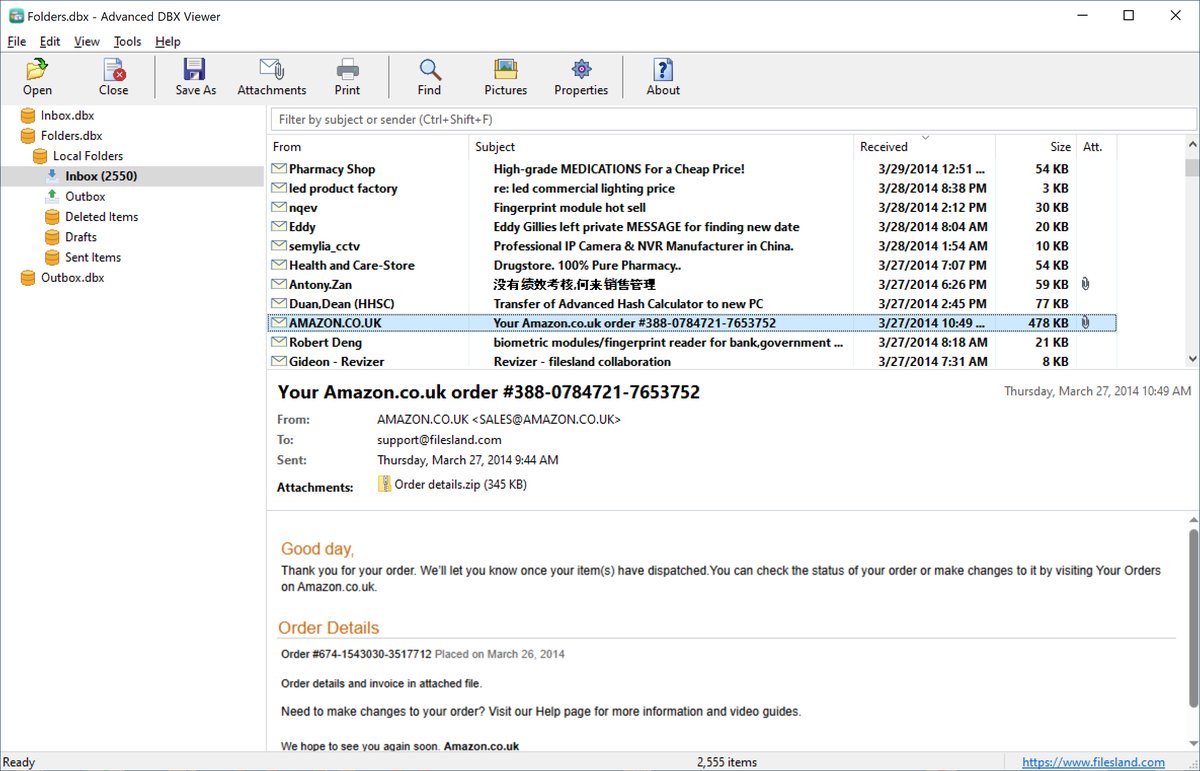
| Folder tree (left) | The folders of every open store with the Outlook Express icons for Inbox, Outbox, Sent Items, Deleted Items and Drafts. Folders with unread messages are bold, with the unread count in brackets. Recovered Items and Folders not in Folders.dbx appear here when there is something to show (see section 16). |
| Quick filter (top right) | Narrows the message list as you type. |
| Message list (top right) | The messages of the selected folder. Big folders load in the background: the first messages are shown at once. |
| Reading pane (bottom right) | Subject, sender, recipients, dates, newsgroups, the attachment strip and the message text. |
| Status bar | The number of messages in the list. |
Drag the splitters to resize the panes. Window position, splitters, column widths, column order and sort order are restored the next time you start the program. View > Toolbar and View > Status Bar show or hide those bars.
3. Reading messages
Click a message to show it in the reading pane. Double-click it or press Enter to open it in its own window; with several messages selected, each opens in a window. A message window has its own Message menu, and Esc closes it.
How messages are displayed
- HTML messages are shown by Microsoft Edge WebView2, so newsletters, tables, signatures and inline pictures look the way the sender designed them.
- Plain text messages are shown as text, with clickable web and e-mail addresses; format=flowed text is reflowed.
- uuencoded attachments, which older mail programs put inside the message text, are found and listed as normal attachments.
- Any character set: Unicode, Cyrillic, Greek, Central European, Chinese, Japanese, Korean and others, including old messages with raw 8-bit header lines.
- Newsgroup articles show their newsgroups in the header. Signed messages (S/MIME and PGP/MIME) show their text; the signature is kept when the message is saved as .eml.
Pictures from the Internet and privacy
Pictures that a message loads from the web – including tracking pixels – are blocked. A yellow bar above such a message offers Download pictures for that message. To load them always, turn on View > Download Pictures from the Internet or the Pictures toolbar button. Pictures stored inside the message are always shown.
Scripts never run; pop-ups and downloads are refused. Links open in your default browser, and the real address of a link is shown when you hover over it.
Attached messages
A message forwarded as an attachment appears in the attachment strip. Double-click it to open it in its own window, with its own attachments.
4. Opening and saving attachments
Attachments are listed in a strip between the message header and the text. Right-click an attachment for:
| Open | Opens the attachment with the program Windows uses for its file type, from a temporary read-only copy. |
| Save As | Saves the attachment to a file you choose. |
| Save All Attachments | Saves every attachment of the message into a folder (also File > Save Attachments, Ctrl+Shift+S, or the Attachments toolbar button). |
Before opening a program, script or other risky file type (.exe, .js, .vbs, .bat and similar) the program asks for confirmation. To save the attachments of many messages at once, see section 13.
5. Searching for messages
Quick filter
Click the box above the message list or press Ctrl+Shift+F and type. Only messages whose subject or sender contains the text stay in the list. Clear the box to see all messages again.
Find Messages
Choose Edit > Find Messages (Ctrl+E) or click Find. To search one folder and its subfolders, right-click the folder and choose Find in This Folder, or use Edit > Find in Selected Folder.
| Option | Meaning |
|---|---|
| Find messages that contain | The word or phrase to look for |
| Match case / Whole words only | Exact capitalization; no matches inside longer words |
| Subject | Look in the subject line |
| People | Look in names and addresses: sender and recipients, sender only, or recipients only |
| Message text | Look in the body of every message (slower) |
| Attachment names | Find messages with an attachment whose name contains the text |
| All open files | Search every open store and file in one go |
| All folders of the selected file | Search one store, including Recovered Items once recovery has run |
| Selected folder and its subfolders | Search one branch of the tree |
| Date from … to | Only messages from this period |
| Only messages with attachments | Skip messages without attachments |
| Size in KB, at least … at most | Only messages in this size range |
The results replace the message list, with a Folder column for each message. When several files are searched, the folder starts with the name of the file it came from (for example Folders.dbx (Backup2004)), so identical folder names from different backups can be told apart. The search text may be left empty to search by the conditions alone – for example, every message larger than 2,000 KB. The last search options are remembered.
Highlighted search hits
Messages opened from the results show every occurrence of the search text highlighted in yellow, and the reading pane scrolls to the first one. The subject, From, To and Cc lines and matching attachment names are highlighted as well.
6. Columns, sorting and date groups
Click a column header to sort by it; click again to reverse the order. Right-click the headers, or use View > Columns, to choose the columns: From, Subject, Received, Size, Attachment, To, Cc, Sent, Importance, Flag and Categories. Drag a header to move a column; drag its edge to resize it.
View > Group by Date divides the list into Today, Yesterday, Earlier This Week, Last Week, Earlier This Month, Last Month and Older.
Unread messages are bold. Select several messages with Ctrl+click or Shift+click, or all with Ctrl+A, before saving, exporting or printing.
7. Saving and printing a single message
Select a message and choose File > Save Message As (Ctrl+S). Choose the format in Save as type:
| Format | Result |
|---|---|
| E-mail message (.eml) | The original message exactly as Outlook Express stored it, with all attachments. Opens in Outlook, Thunderbird and Windows Mail. |
| Web page (.html) | One HTML file with the header and the text; pictures embedded. Attachments are not included. |
| Text (.txt) | The header lines and the plain text. |
| PDF (.pdf) | A PDF document that looks like the message on screen. |
File > Print (Ctrl+P) prints the message with a header block – subject, from, sent, to, cc and attachment names – above the text.
8. Exporting messages and folders
Export saves many messages in one operation. Start it with:
- File > Export Selected Messages (Ctrl+Shift+E), or right-click selected messages – the messages selected in the list.
- File > Export Folder, or right-click a folder – a whole folder, optionally with its subfolders. Select the top-level entry to export the whole store.
| Format | Result |
|---|---|
| E-mail messages (.eml) | One file per message, with attachments and attached messages |
| Web pages (.html) | One file per message with its pictures |
| Text files (.txt) | One file per message: header lines and plain text |
| PDF documents (.pdf) | One PDF per message |
| MBOX mailbox (.mbox) | One mailbox file per folder, for Thunderbird, Apple Mail and other MBOX programs |
| Outlook messages (.msg) | One Outlook message per message, with recipients and attachments |
| Outlook personal folders (.pst) | One Unicode PST file with the whole folder tree (see section 9) |
Export options
- Include subfolders – also export everything below the selected folder.
- Recreate the folder structure – a folder on disk for every folder of the store.
- File dates from the messages – each exported file gets the sent date as its creation date and the received date as its modification date, so files sort by message date in Explorer.
- Forensic manifest and log – see section 17.
Exports run in the background with a progress bar and a Cancel button.
9. Moving Outlook Express mail to Outlook (PST)
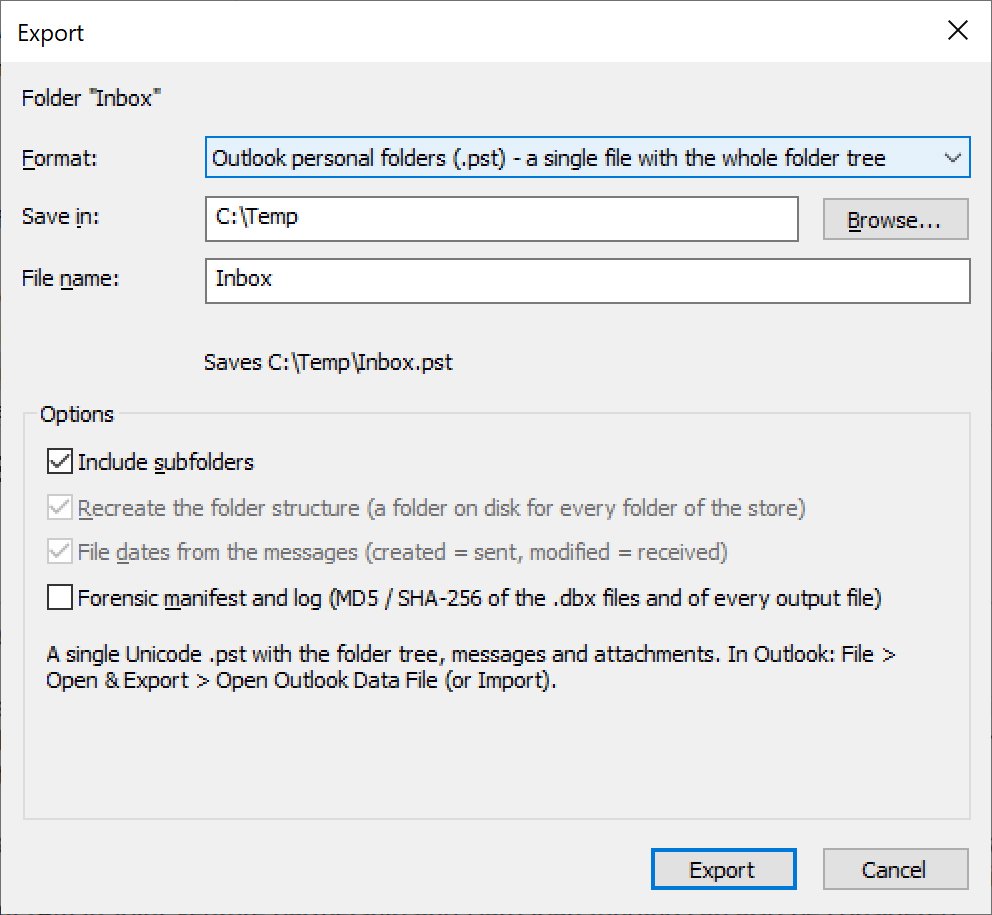
Current versions of Outlook cannot import Outlook Express mail any more. Advanced DBX Viewer writes an Outlook data file itself, without Outlook and without MAPI:
- Select the top-level entry of the store (or any folder) in the folder tree.
- Choose File > Export to Outlook PST, or File > Export Folder and pick Outlook personal folders (.pst) as the format.
- Choose the destination folder and the name of the PST file; leave Include subfolders checked to export the whole tree.
- Click Export.
- In Outlook choose File > Open & Export > Open Outlook Data File to open the new file, or Import/Export to copy its contents into your mailbox.
The PST file is a single Unicode file with the folder tree, the messages and their attachments.
10. File name patterns
Exports that create one file per message name the files with a pattern you can edit, for example {date}_{from}_{subject}. Available tokens:
{date} {time} | Date and time of the message |
{year} {month} {day} | Parts of the date |
{subject} {from} {to} | Subject, sender and recipients |
{folder} {type} | Folder name and item type |
{index} {id} | Running number and message identifier |
Characters that Windows does not allow in file names are replaced, long names are shortened to stay within the Windows path limit, and duplicate names are numbered.
11. Saving messages as PDF
File > Save Selected as PDF creates one PDF for each selected message. File > Export Folder as PDF, or right-click a folder and choose Export as PDF, does the same for a whole folder and its subfolders. The PDFs are produced by WebView2 and look like the message on screen; pictures from the Internet are included only when Download Pictures from the Internet is on. A progress window shows how far the job is and lets you cancel it.
12. Exporting the message list to CSV
File > Export List to CSV saves the messages of the current list – or only the selected ones – as a CSV file that opens in Excel. It is a quick way to build an inventory of a mailbox for a report or an eDiscovery review. Columns include folder, subject, sender, To / Cc / Bcc, sent and received dates, size, importance, read status, flag, categories, number and names of attachments, Message-ID, and the origin, source file and file offset of each message. The file is UTF-8, so names in any language are kept.
13. Extracting attachments in bulk
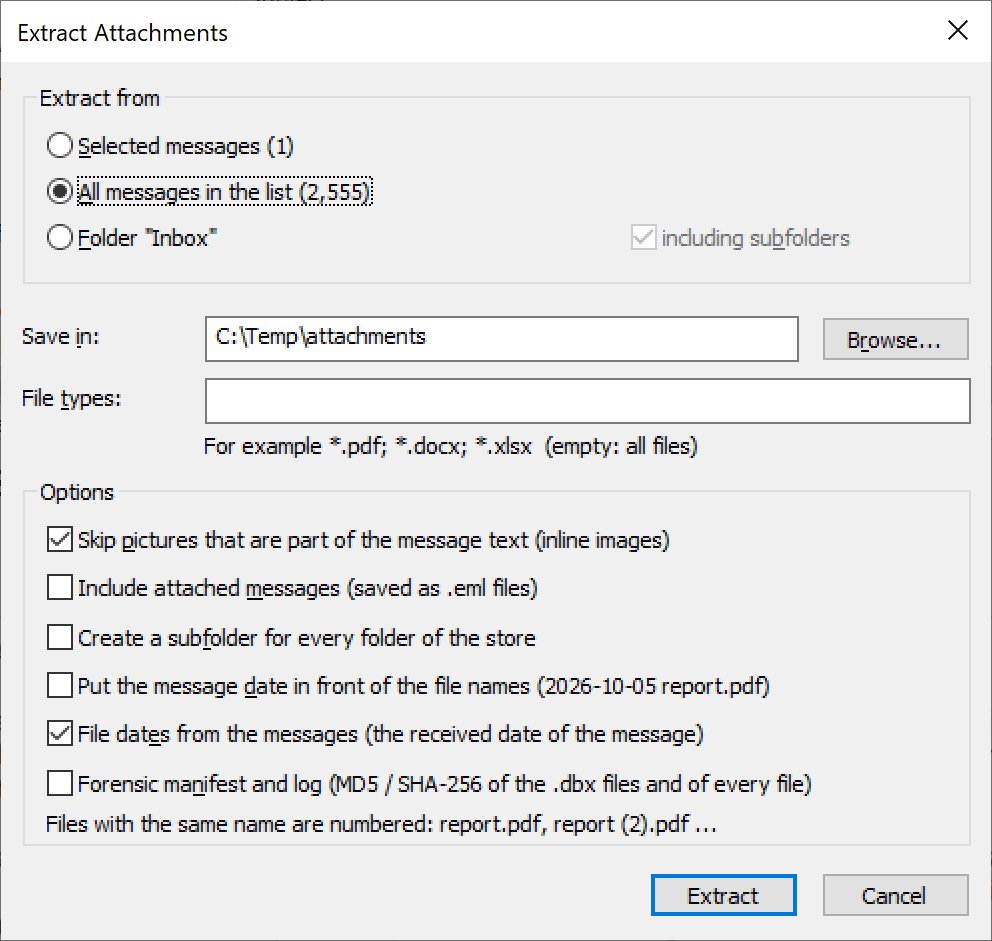
Tools > Extract Attachments (also on the message and folder right-click menus) saves the attachments of many messages at once.
- Extract from: the selected messages, all messages in the list, or a folder – optionally including its subfolders.
- File types: for example
*.pdf; *.docx; *.xlsx; leave empty for all files. - Skip pictures that are part of the message text – leaves out logos and inline images.
- Include attached messages – saves forwarded messages as .eml files.
- Create a subfolder for every folder of the store.
- Put the message date in front of the file names, e.g. 2005-10-05 report.pdf.
- File dates from the messages – each file gets the received date of its message.
- Forensic manifest and log – see section 17.
Files with the same name are numbered: report.pdf, report (2).pdf and so on.
14. Outlook Express address books (.wab)
Outlook Express kept its contacts in the Windows Address Book, a .wab file (usually in Application Data\Microsoft\Address Book). Open it with File > Open, or keep it next to the .dbx files – it is then found automatically. A Contacts node appears in the folder tree:
- The list shows contacts and groups with name, e-mail, company and phone numbers; the reading pane shows every field of the selected contact.
- Deleted contacts that are still in the file are found and shown in gray.
- File > Export Contacts, or right-click the list and choose Export Contacts / Export Selected Contacts: a CSV file with Outlook’s column names (for import into Outlook or Gmail), one vCard file with all contacts, or one vCard file per contact.
15. Internet headers and message properties
View > Internet Headers (Ctrl+H) shows the complete header of the message as it was received, including the Received lines that trace its route.
View > Message Properties (Alt+Enter, toolbar Properties) shows three things: the index fields that Outlook Express stored for the message in the .dbx file, every header field (decoded and as stored), and the MIME structure of the message. Double-click a MIME part to see its header and content. Copy puts the list on the clipboard. The Properties window also shows where the message came from: indexed, salvaged from a damaged file, recovered, or attached, with its file offset.
16. Deleted messages and damaged files
Recover deleted messages
When a message is deleted in Outlook Express, its text stays in the .dbx file until the folder is compacted. Tools > Recover Deleted Messages scans every file of the store for such messages, and for messages that are in a file but missing from its index. They are listed in a Recovered Items folder, where you can read, search and export them like any other message.
Folders missing from Folders.dbx
.dbx files that are in the store folder but not listed in Folders.dbx – left behind by a damaged or rebuilt folder list – are shown under Folders not in Folders.dbx.
Damaged files
Outlook Express files often break: they stop working at 2 GB, get cut short when copied, or lose their index. Advanced DBX Viewer reads such files without trying to repair them:
- A folder file with a damaged header or index, or one that was cut off, is searched for message data; the messages found are listed as salvaged. The last message of a cut-off file keeps the part that is still there.
- A damaged Folders.dbx: the folder tree is rebuilt from the folder records found in the file.
- Tools > File Information lists every problem found.
17. Hashes, manifest and export log
For legal and forensic work the program documents what it read and what it wrote.
- Tools > File Information shows details of the open store and the MD5 and SHA-256 of every source file (Folders.dbx, folder files, address books).
- The export and extraction option Forensic manifest and log writes two extra files into the destination folder: a manifest (CSV) with one line per exported message or attachment – origin, source file, file offset, Message-ID, dates, output file and its MD5 and SHA-256 – and a log (text) with the user, computer, time, options, and the size, time and hashes of the source files.
- File dates from the messages keeps the original message dates on the exported files.
18. Toolbar, menus and shortcuts
Toolbar
| Open | Open Folders.dbx, a folder file or an address book |
| Close | Close the store selected in the folder tree |
| Save As | Save the message as EML, HTML, text or PDF |
| Attachments | Save the attachments of the message |
| Print the message | |
| Find | Find messages |
| Pictures | Download pictures from the Internet (on / off) |
| Properties | Index fields, header fields and MIME structure of the message |
| About | Version and registration information |
Keyboard shortcuts
| Keys | Command |
|---|---|
| Ctrl+O | Open a file |
| Ctrl+F4 | Close the selected store |
| Ctrl+S | Save message as |
| Ctrl+Shift+S | Save attachments |
| Ctrl+Shift+E | Export selected messages |
| Ctrl+P | |
| Ctrl+E | Find messages |
| Ctrl+Shift+F | Quick filter |
| Ctrl+A | Select all |
| Enter | Open the message in a new window |
| Alt+Enter | Message properties |
| Ctrl+H | Internet headers |
| Esc | Close a message window |
| F1 | Online help |
Right-click menus
Messages: Open, Save As, Export Selected Messages, Save as PDF, Export to CSV, Save Attachments, Extract Attachments, Print, Properties, Internet Headers, Select All. Folders: Find in This Folder, Export Folder, Export as PDF, Extract Attachments, Close. Attachments: Open, Save As, Save All Attachments. Contacts: Export Contacts, Export Selected Contacts, Select All.
19. Solving common problems
Where are my Outlook Express files?
On the old PC, look in Documents and Settings\<user>\Local Settings\Application Data\Identities\{…}\Microsoft\Outlook Express (Windows XP and 2000). In Outlook Express itself, Tools > Options > Maintenance > Store Folder shows the exact path. On a backup drive, search for Folders.dbx.
HTML messages are shown as plain text
The Microsoft Edge WebView2 Runtime is missing. It is part of Windows 10 and 11 but can be absent on trimmed systems. Install the Evergreen runtime from Microsoft and restart the program.
Pictures in a newsletter are missing
Internet pictures are blocked for your privacy. Click Download pictures in the yellow bar or turn on View > Download Pictures from the Internet.
A folder shows fewer messages than expected
Run Tools > Recover Deleted Messages and check Tools > File Information for problems in the file. Look under Folders not in Folders.dbx as well.
“The folder is still being loaded”
Exports of the whole list wait until a large folder has finished loading. Wait until the status bar shows the full count and try again.
Exported file names are cut short
Windows limits the length of a path. Export to a folder near the root of the drive, such as C:\Export, or use a shorter file name pattern.
20. Requirements and licensing
| Operating system | Windows 10 and 11 |
| Supported files | Outlook Express 5 and 6 .dbx files (Folders.dbx and folder files) and Windows Address Book (.wab) files |
The free trial has every feature and runs for 30 days. Each start shows how many days are left: Continue keeps evaluating, Register opens the order page. After you order, an unlocking key file is e-mailed to you; it turns the trial into the full version. Questions about ordering or registration: order@ashkon.com.