
RebootEx 3.0.2
RebootEx User Guide
This guide covers everything RebootEx can do: one-click shutdown, restart and log off, a daily scheduled shutdown set on a clock face, permanent Autologon and one-time automatic sign-in, shutting down other computers on your network, and the command-line tool you can call from batch files, scripts and the Windows Task Scheduler.
Contents
- What RebootEx does
- Installing RebootEx
- The main window
- Scheduled shutdown
- Permanent Autologon
- One-time sign-in after Shutdown or Restart
- Shutting down a remote computer
- The tray icon
- Command-line reference
- Command-line examples and Task Scheduler
- Exit codes
- Security notes
- Troubleshooting - questions and answers
- Where RebootEx keeps its settings
- Registration and support
1. What RebootEx does
RebootEx has two parts that work together:
- The RebootEx window (
RebootExWin.exe) - the program you see on the screen and in the notification area. It gives you buttons for the power actions, the clock for the scheduled shutdown, the Autologon settings and remote shutdown. - The command-line tool (
rebootex32.exeandrebootex64.exe) - does the actual work for the window, and can be used on its own from a command prompt, a batch file or a scheduled task.
RebootEx runs on Windows 7, 8, 8.1, 10 and 11, 32-bit and 64-bit.
2. Installing RebootEx
Run the setup program and follow the steps. By default RebootEx is installed into
C:\Program Files (x86)\RebootEx, with shortcuts in the Start menu. Setup can also:
- put a RebootEx icon on the desktop;
- add the RebootEx folder to the system PATH. A small
rebootex.cmdlauncher is installed with this option, so typingrebootexat any command prompt runs the build that matches your Windows (64-bit or 32-bit).
Both command-line builds write the 64-bit Windows registry correctly, so either one can be used on
64-bit Windows; rebootex64.exe is the natural choice there.
Evaluation (trial) version
RebootEx can be evaluated free of charge for 10 days. After you order, you receive a key file that turns the trial into the full version. Help > About shows the version and who the copy is registered to.
Starting with Windows
RebootEx adds itself to the programs that start when you sign in to Windows, and starts hidden in the notification area, so a scheduled shutdown is never missed. Turn this off or on with Options > Start RebootEx with Windows (a check mark shows when it is on). Only one copy of RebootEx runs at a time.
Uninstalling
Use Settings > Apps (or Control Panel > Programs and Features). The
uninstaller also removes the start-with-Windows entry and the RebootEx settings folder. It does
not turn off a permanent Autologon - if you want Windows to ask for a password again,
click Disable in the Autologon dialog (or run rebootex -disable) before you
uninstall. See section 5.
3. The main window
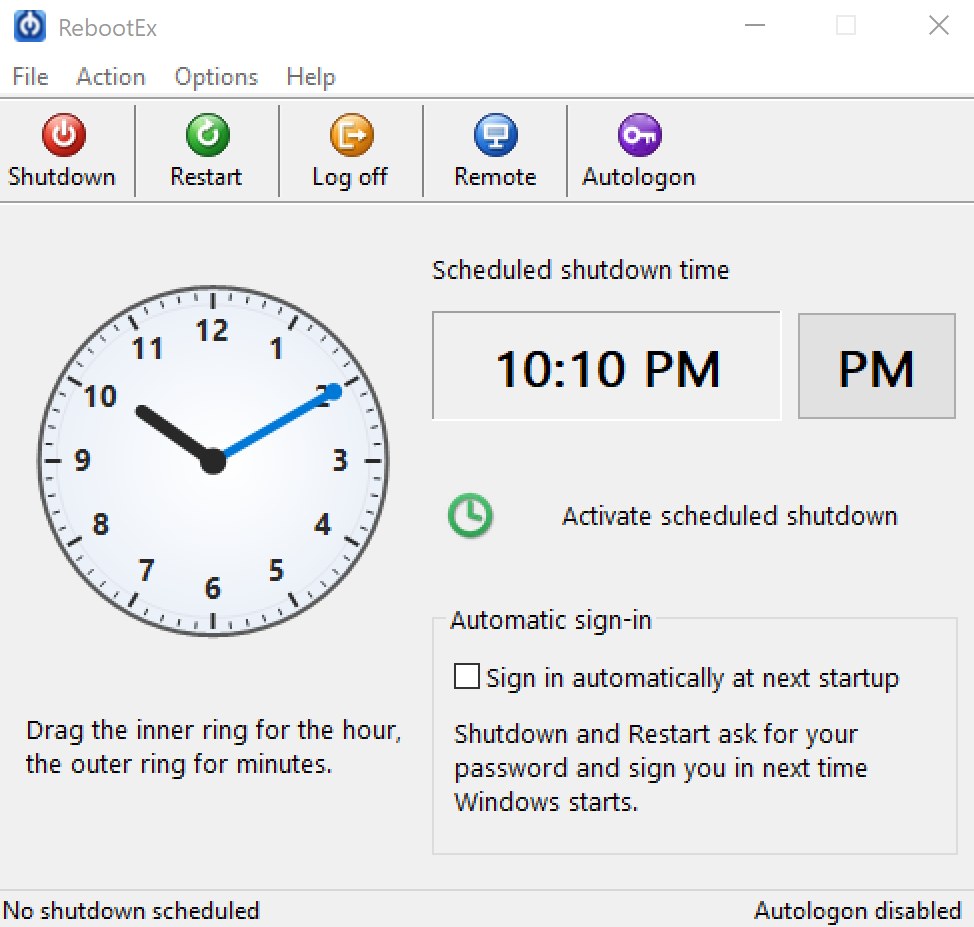
The power and sign-in commands are on the toolbar, one click away. The same commands are on the Action menu.
| Button | What it does |
|---|---|
| Shutdown | Closes Windows and turns the computer off. Programs are asked to close; a program that stops responding is closed without saving, so the shutdown cannot hang. |
| Restart | Restarts the computer. |
| Log off | Signs the current user out of Windows. |
| Remote | Shuts down another computer on your network. See section 7. |
| Autologon | Turns permanent automatic sign-in on, changes its account or turns it off. See section 5. |
If Sign in automatically at next startup is checked, Shutdown and Restart first ask for the password of the account to sign in to (see section 6).
Status bar
The bar at the bottom of the window has two parts:
- on the left, the scheduled shutdown: "No shutdown scheduled", or for example "Shutdown scheduled at 12:02 AM tomorrow (in 21 h 37 min)";
- on the right, automatic sign-in: "Autologon enabled" with the account, or "Autologon disabled". When a one-time sign-in is waiting for the next start, that account is shown as well.
The status bar refreshes every 15 seconds, so changes made with other tools (Sysinternals Autologon, netplwiz, the command line) also appear.
Menus
| Command | What it does |
|---|---|
| File > Hide | Hides the window to the notification area. Closing or minimizing the window, or pressing Esc, does the same - RebootEx keeps running so a scheduled shutdown still happens. |
| File > Exit | Quits RebootEx. A scheduled shutdown does not happen while RebootEx is not running. A permanent Autologon stays on. |
| Action | Shutdown, Restart, Log off, Remote Shutdown, Activate/Deactivate Scheduled Shutdown and Enable Autologon. A check mark next to Enable Autologon shows that automatic sign-in is on. |
| Options > Start RebootEx with Windows | Starts RebootEx, hidden in the tray, each time you sign in. |
| Help > Contents | Opens the built-in help. |
| Help > About | Shows the version and registration. |
4. Scheduled shutdown
RebootEx can turn the computer off at the same time every day - overnight to save energy, or after backups and downloads have finished.
- Set the time on the clock: drag the inner ring to set the hour and the outer ring to set the minutes. The time appears in large digits in the Scheduled shutdown time box.
- Click the AM / PM button next to the time to switch between morning and evening.
- Click Activate scheduled shutdown (or Action > Activate Scheduled Shutdown).
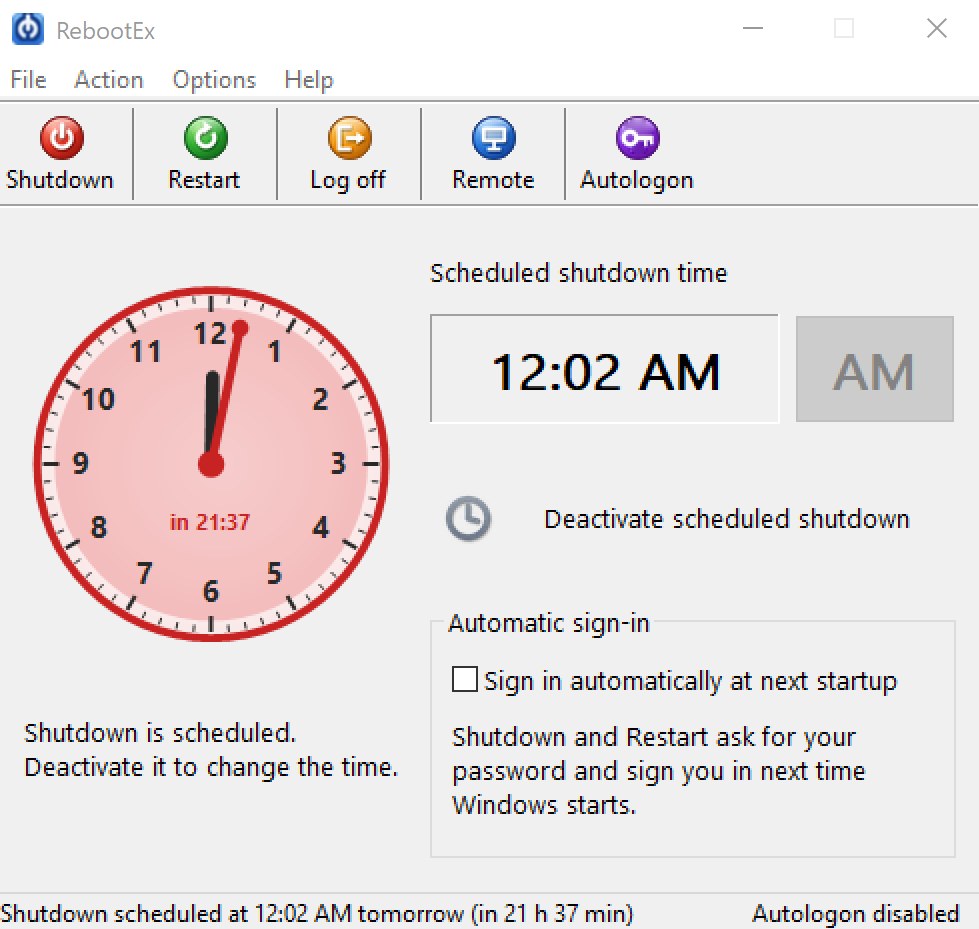
While a shutdown is scheduled, the clock gets a red rim, a red wedge covers the time left, and the clock face shows a countdown (for example "in 21:37"). The hands are locked; click Deactivate scheduled shutdown to change the time or to cancel. The schedule is saved and is active again the next time RebootEx starts.
The 25-second warning
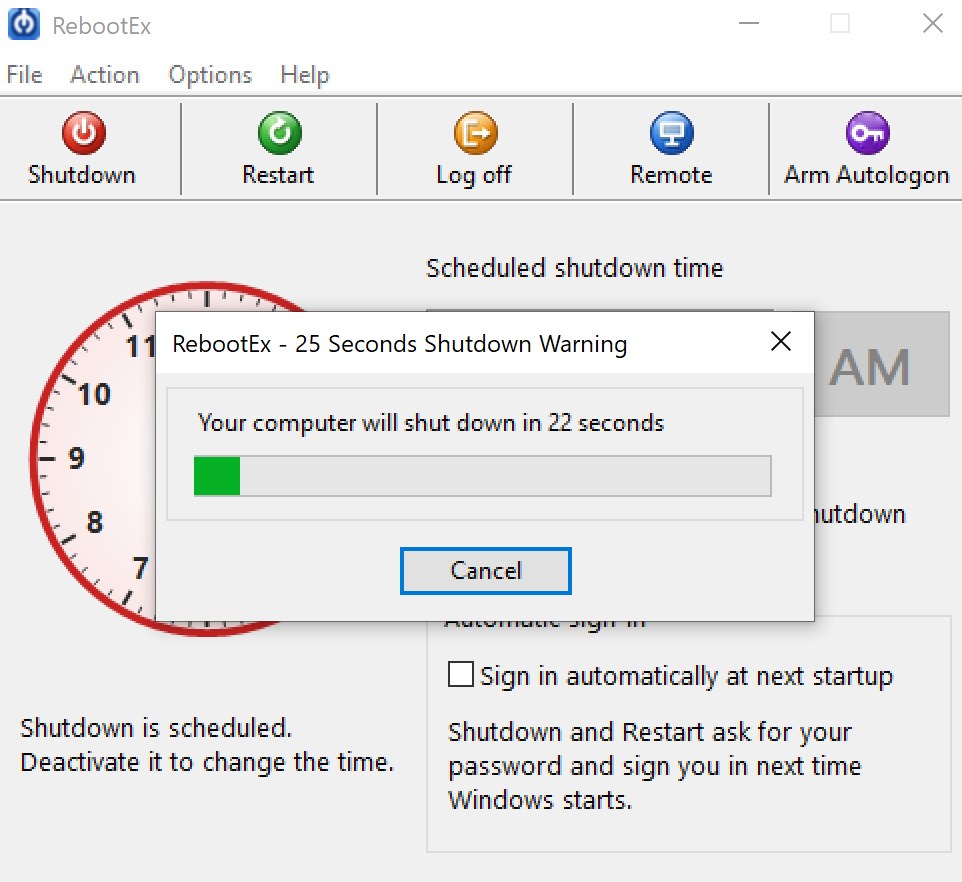
At the scheduled time RebootEx shows a 25-second warning on top of all other windows, even when its own window is hidden in the tray. Click Cancel to skip this shutdown; the schedule stays active for the next day. If nobody clicks Cancel, all programs are closed and the computer is powered off.
Save your work. A scheduled shutdown closes programs without asking them to save, so unsaved documents are lost if you are away when the warning appears.
5. Permanent Autologon
Autologon makes Windows sign in to an account automatically every time it starts - after a restart from RebootEx or the Start menu, after Windows Update, after a power failure - until you turn it off. It works the same way as Sysinternals Autologon. Nothing is restarted when you turn it on.
It stays on
Autologon is a Windows setting, not something RebootEx has to keep running. Once you enable it:
- it survives every restart and shutdown - you do not have to set it up again;
- it keeps working when RebootEx is closed, not set to start with Windows, or even uninstalled;
- it stays on until you click Disable, run
rebootex -disable, or turn it off with another tool.
A one-time sign-in for a different account can still be used while Autologon is on; RebootEx puts the Autologon settings back afterwards.
Turning Autologon on
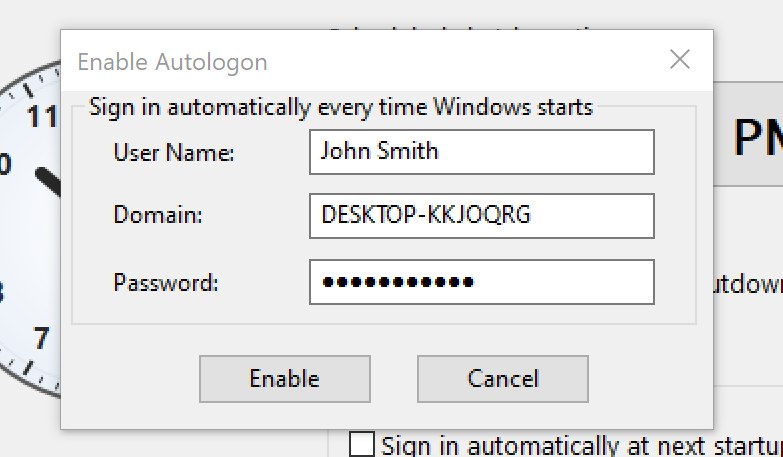
- Click Autologon on the toolbar (or Action > Enable Autologon).
- The Enable Autologon dialog opens with the user name and domain of your current account filled in. For a local account the domain is the computer name. You can type another account.
- Type the password and click Enable.
- Windows asks for administrator permission (UAC), because the automatic sign-in settings are stored for the whole computer. Click Yes.
RebootEx first checks the user name and password with Windows. If they are wrong, it tells you and changes nothing, so a typo can never leave you at the sign-in screen after the next restart. The password is stored as a protected Windows LSA secret - not as plain text in the registry - and RebootEx itself does not keep a copy.
When Autologon is on, Action > Enable Autologon shows a check mark and the status bar shows "Autologon enabled" with the account.
Changing the account or the password
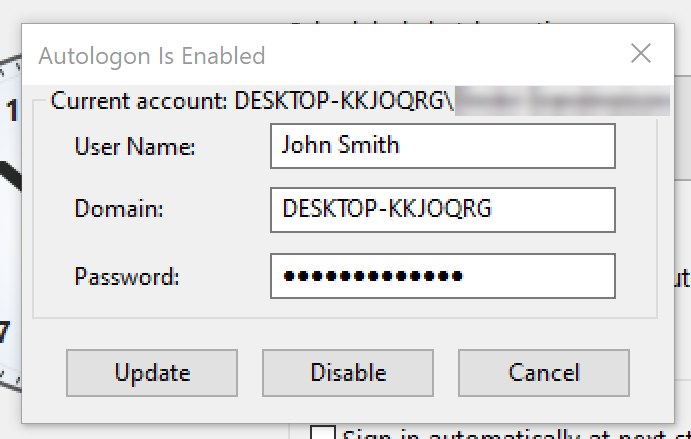
When Autologon is already on, the Autologon button opens the Autologon Is Enabled dialog. Its top line shows the account Windows currently signs in to.
| Button | What it does |
|---|---|
| Update | Stores new credentials. Type the password (and another user name or domain, if you like) and click Update - for example after you changed your Windows password. The new password is checked before it is saved. |
| Disable | After you confirm, turns automatic sign-in off and deletes the stored password. Windows asks for a password at the next start; the user name stays as the default on the sign-in screen. |
| Cancel | Closes the dialog without changes. |
Disable works whichever tool turned automatic sign-in on - RebootEx, Sysinternals Autologon or netplwiz - and RebootEx also recognizes automatic sign-in set up by those tools.
Tip: hold down Shift while Windows starts to skip the automatic sign-in once, for example to sign in to another account.
When Windows ignores Autologon
Automatic sign-in does not work when:
- Windows passwordless sign-in is on ("For improved security, only allow Windows Hello sign-in for Microsoft accounts" in Settings > Accounts > Sign-in options). RebootEx warns when it detects this, but does not change that security setting for you;
- the account signs in with a PIN only (a Microsoft account without a usable password);
- BitLocker asks for a PIN at start-up.
6. One-time sign-in after Shutdown or Restart
Sometimes you want the computer to sign in by itself only once - for example after installing updates on a server, so that its programs start again without anybody typing a password.
- Check Sign in automatically at next startup.
- Click Shutdown or Restart.
- Enter the user name, domain and password of the account to sign in to, and confirm the UAC prompt.
With Restart, Windows signs in as part of the restart. With Shutdown, it signs in the next time you turn the computer on. The sign-in is used once; then your previous settings are restored - including a permanent Autologon, which takes over again from the following start. Log off does not use this option.
From the command line, -logon does the same together with a restart or shutdown, and
-arm prepares a one-time sign-in without restarting (see section 9).
7. Shutting down a remote computer
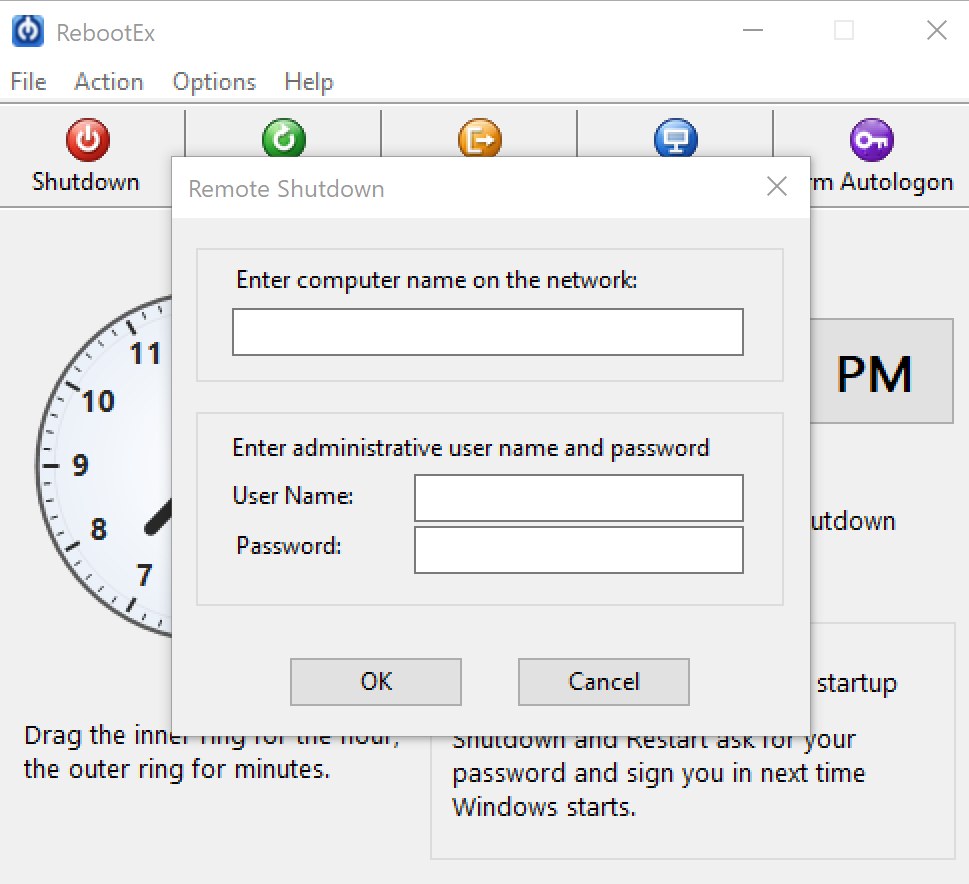
- Click Remote (or Action > Remote Shutdown).
- Enter the computer's network name, for example
OFFICE-PC(a leading\\is optional). - Enter the user name and password of an administrator on that computer. If your own account is an administrator there, you can leave them empty.
- Click OK.
The remote computer shows a shutdown notice and turns off after 30 seconds; open programs are closed
without saving. Someone at that computer can cancel within the 30 seconds by running
shutdown /a. If the shutdown cannot be started, RebootEx shows the Windows error message.
Remote shutdown needs file and printer sharing (remote administration) allowed through the remote computer's firewall.
"Access is denied" with a local administrator account
If the remote computer is not in a domain and you sign in to it with a local administrator account (or a Microsoft account, which Windows treats the same way here), the remote shutdown usually fails with Access is denied even though the user name and password are right. The cause is UAC remote token filtering:
- When a local administrator connects over the network, Windows removes the administrator rights from that connection.
- The right to shut a computer down from the network ("Force shutdown from a remote system",
SeRemoteShutdownPrivilege) is given only to Administrators by default, so the filtered connection does not have it. - Domain administrator accounts and the built-in
Administratoraccount are not filtered, and work without changes.
To allow local administrator accounts, run this once from an elevated command prompt on the remote computer (the one you want to shut down), then restart that computer:
reg add HKLM\SOFTWARE\Microsoft\Windows\CurrentVersion\Policies\System /v LocalAccountTokenFilterPolicy /t REG_DWORD /d 1 /f
This gives every local administrator account full administrator rights over the network, not just
for shutdown, so use it only on computers in a network you trust. To undo it, run the same command
with /d 0, or delete the value:
reg delete HKLM\SOFTWARE\Microsoft\Windows\CurrentVersion\Policies\System /v LocalAccountTokenFilterPolicy /f
The same applies to the command line (rebootex \\PC -reboot -u user -p password), which
returns exit code 6.
8. The tray icon
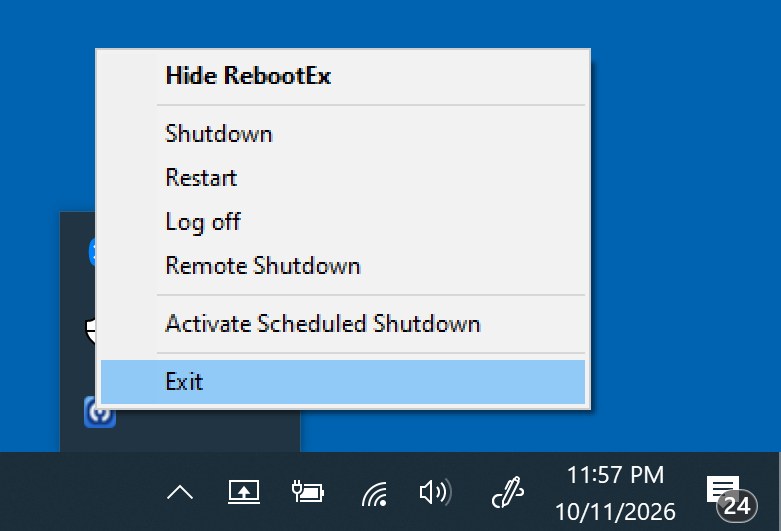
While RebootEx runs, its icon is in the notification area of the taskbar. Click the icon to show or hide the window. Right-click it for a menu:
- Show RebootEx / Hide RebootEx (in bold) - the same as clicking the icon;
- Shutdown, Restart, Log off, Remote Shutdown - the same as the toolbar buttons;
- Activate Scheduled Shutdown / Deactivate Scheduled Shutdown;
- Exit - quits RebootEx.
If the icon is hidden in the overflow area, click the ^ arrow next to the clock, or drag the icon onto the taskbar to keep it visible. If Windows Explorer restarts, the icon comes back by itself.
9. Command-line reference
Run rebootex without arguments to see a summary of the options. Options are not case
sensitive and may start with - or /. Put a user name that contains spaces in double
quotes. In this section rebootex stands for rebootex64.exe,
rebootex32.exe or the rebootex.cmd launcher.
Power actions
| Option | What it does |
|---|---|
-reboot | Restarts the computer. |
-shutdown | Shuts Windows down to the point where it is safe to turn the power off; the power stays on. |
-poweroff | Shuts down and turns the power off. |
-logoff | Signs the current user out. |
Only one of these four can be used at a time. They work from a normal (non-elevated) command prompt.
Automatic sign-in
| Option | What it does |
|---|---|
-enable <user> [<domain>] <password>-enable [<domain>\]<user> |
Permanent Autologon: Windows signs in to this account at every start until it is
turned off. The second form asks for the password without showing it. Running -enable again
replaces the account or password. Can be combined with -reboot, -shutdown or
-poweroff; not with -lock, -logoff or a remote computer. |
-disable | Turns automatic sign-in off, whichever tool turned it on, and deletes the stored password. A pending one-time sign-in is cancelled too. Cannot be combined with other actions. |
-logon <user> [<domain>] <password> | One-time
sign-in after the restart or shutdown given with it. Previous settings are restored after that
sign-in. Add -lock after the password to lock the computer right after the automatic sign-in. |
-arm <user> [<domain>] <password>-arm [<domain>\]<user> |
Prepares a one-time sign-in for the next start without restarting. Restart whenever
you like, or add -reboot, -shutdown or -poweroff. The second form asks
for the password. -lock works here too. |
-disarm | Cancels a one-time sign-in prepared by RebootEx that has not been used yet. It never touches a permanent Autologon. |
For all sign-in options:
- they must be run from an elevated command prompt (Run as administrator), because the settings are stored for the whole computer;
- if no domain is given, the computer name is used (a local account), unless the user name is in
user@domainform; -enableand-armcheck the user name and password with Windows first and stop with exit code 8 if Windows rejects them;- the password is stored as a protected LSA secret, not in clear text;
- a password that starts with
-or/, or contains", should be entered at the password prompt (-enable user/-arm user) rather than on the command line.
Additional switches
| Option | What it does |
|---|---|
-killifhung | Lets programs close normally, and closes those that do not finish in time, without saving. |
-killall | Ends all programs at once, without giving them a chance to save. Do not
combine with -killifhung. |
-wait <seconds> | Waits the given number of seconds before acting. |
-quiet | Shows only error messages. |
Remote computers
| Option | What it does |
|---|---|
\\<computer> | Performs the action on another computer on the network. |
-u <user> -p <password> | Administrator account on that computer. |
A remote -logon or -arm is possible, but it cannot check the password and, because
LSA secrets are local to each computer, stores it as plain text in the remote registry (RebootEx warns
you). Nothing is installed on the remote computer.
Helper service (optional)
| Option | What it does |
|---|---|
-install | Installs the RebootEx helper service (runs as LocalSystem, starts only when needed). |
-uninstall | Removes the helper service. |
Both need an elevated prompt. The service is a convenience for administrators; it only accepts requests from SYSTEM and fully elevated administrators, so it never lets a standard user change the automatic sign-in settings.
RebootEx window
| Option | What it does |
|---|---|
RebootExWin.exe -s | Starts the RebootEx window hidden in the notification area (used by the start-with-Windows entry). |
10. Command-line examples and Task Scheduler
| Command | Result |
|---|---|
rebootex -poweroff -killifhung | Closes programs (forcing those that hang) and turns the computer off. |
rebootex -poweroff -wait 300 | Turns the computer off in 5 minutes. |
rebootex -reboot -killall | Ends all programs immediately and restarts. |
rebootex -enable MYPC\Kiosk | Asks for the password of the local account Kiosk and turns on permanent Autologon for it. |
rebootex -enable "John Smith" CORP Secret123 -reboot | Turns on permanent Autologon for John Smith of domain CORP and restarts. |
rebootex -disable | Turns automatic sign-in off. |
rebootex -arm Admin | Asks for the password and prepares a one-time sign-in for the next start. |
rebootex -reboot -logon "John Virgo" CORP SecretWord -lock -wait 10 -quiet | Waits 10 seconds and restarts; John Virgo of domain CORP is signed in once and the computer is locked. |
rebootex -shutdown -logon UserName Password | Shuts down; the next time the computer is turned on, UserName is signed in once. |
rebootex \\OFFICEPC -reboot -u Administrator -p SecretWord | Restarts the computer OFFICEPC. |
Daily shutdown with the Task Scheduler
To turn the computer off every day at 11 PM, run this once from a command prompt:
schtasks /create /tn "RebootEx" /tr "\"C:\Program Files (x86)\RebootEx\rebootex64.exe\" -poweroff -killifhung" /sc daily /st 23:00
The full path works whether or not the RebootEx folder is on the PATH. A task that uses
-logon, -arm, -enable or -disable must be set to
Run with highest privileges.
Checking the result in a batch file
rebootex -enable Kiosk KioskPassword
if errorlevel 8 echo Wrong user name or password & exit /b 8
if errorlevel 1 echo Autologon was not enabled & exit /b 1
rebootex -reboot -wait 30
11. Exit codes
| Code | Meaning |
|---|---|
0 | Success. |
1 | Wrong or missing arguments. |
2 | A required Windows privilege could not be obtained. |
3 | The shutdown, restart or log off could not be started. |
4 | The automatic sign-in settings could not be written. |
5 | The helper service could not be installed or controlled. |
6 | The remote operation failed. |
7 | The operation needs administrator rights (run the prompt as administrator). |
8 | Windows rejected the user name or password (-enable, -arm):
wrong password, or the account is disabled, locked out or expired. |
12. Security notes
- With Autologon on, anyone who can turn the computer on is signed in to that account. Use it only on computers that are physically secure, such as servers, kiosks and display PCs; otherwise prefer the one-time sign-in.
- Passwords are stored as a protected LSA secret, readable only with administrator rights - the same method Windows and Sysinternals Autologon use. RebootEx never writes a password into its own settings.
- Passwords typed on a command line can show up in shell history and process listings. Use the prompting
forms
-enable userand-arm userwhen you type commands by hand. - Locking the computer after a one-time sign-in (
-lock) keeps the desktop protected while your programs start.
13. Troubleshooting - questions and answers
Windows still asks for a password after I enabled Autologon.
Check Settings > Accounts > Sign-in options: if "only allow Windows Hello sign-in for Microsoft accounts" is on, Windows ignores automatic sign-in. A PIN-only Microsoft account or a BitLocker start-up PIN also prevent it. Make sure the status bar shows "Autologon enabled".
I changed my Windows password and Autologon stopped working.
Click Autologon, type the new password and click Update.
I already use Sysinternals Autologon. Can I use RebootEx with it?
Yes. RebootEx shows that automatic sign-in is on, can update or disable it, and a one-time sign-in from RebootEx restores the Sysinternals settings afterwards.
What happens if I schedule a one-time sign-in for another user while Autologon is on?
After the next start, the one-time account is signed in. From the following start on, the Autologon account is used again.
The command line says it needs administrator rights (exit code 7).
Sign-in options write computer-wide settings. Right-click Command Prompt or Windows Terminal, choose Run as administrator and try again. Shutdown, restart and log off do not need this.
My scheduled task does not run.
Use the full path to rebootex64.exe (or rebootex32.exe) in the task, and turn on
Run with highest privileges if the task uses a sign-in option.
The scheduled shutdown did not happen.
RebootEx must be running (in the tray) at the scheduled time. Check that the schedule is active (red clock, status bar) and that Options > Start RebootEx with Windows is checked.
Remote shutdown reports "Access is denied" or "The network path was not found".
Use an administrator account of the remote computer, check the computer name, and allow file and printer sharing / remote administration through its firewall. If you use a local (non-domain) administrator account and still get "Access is denied", UAC remote token filtering is almost certainly the cause - see "Access is denied" with a local administrator account.
Can I redistribute RebootEx with my product?
If your license allows it, you may distribute the registration key file with your product and apply it during installation. Please read the license agreement, or contact us about bulk licenses.
14. Where RebootEx keeps its settings
| What | Where |
|---|---|
| Scheduled shutdown time and state | %APPDATA%\Ashkon Software\RebootEx\rebootex.ini |
| Start with Windows | The Run key of your user account (HKEY_CURRENT_USER) |
| Automatic sign-in | The Windows Winlogon key under HKEY_LOCAL_MACHINE; the
password as an LSA secret |
15. Registration and support
| Register (buy a license) | Order RebootEx online - $24.95, site license $299.95 |
| Built-in help | Help > Contents |
| Program version | Help > About |
| Product page | RebootEx |
| Contact | Contact Us - questions about ordering: order@ashkon.com |