
GetNetworkInfo
GetNetworkInfo User Guide
GetNetworkInfo scans your local network, lists every device it can reach and works out what each one is – who made it, what it is called, what kind of device it is, which model and operating system it likely runs, and which ports it has open. It can also display your own PC’s network configuration together with your public IP address. This guide explains the commands, every column of the device list and each option in Settings.
Contents
- Getting started in four steps
- What happens during a scan
- Understanding the device list
- How GetNetworkInfo recognizes devices
- The Device Details window
- Your PC’s network settings and public IP
- Adjusting the scan in Settings
- Keeping the manufacturer list current
- Menus, shortcuts and context commands
- Saving and printing the list
- Solving common problems
- Requirements and licensing
1. Getting started in four steps
- In the Network adapter box, pick the adapter that is attached to the network you want to examine – for instance
Wi-Fi - 10.0.0.242orEthernet - 192.168.1.20. The box only offers adapters that are connected and have an IPv4 address. Plugged in a cable or switched Wi-Fi networks after starting the program? Choose Action > Refresh Network Adapters to update the box. - Look at the Scan range. GetNetworkInfo fills it in from the adapter’s subnet; on a big subnet it limits itself to 1024 addresses surrounding your PC (you can raise that limit in Settings). To scan something else, type a range in one of the formats shown below.
- Press Scan or F5; pressing Enter inside the range box works too. To cancel, press Stop or Esc.
- Watch the list fill up. Just below the adapter box you will also see your PC’s IP address, subnet mask, default gateway, DNS server, plus the Wi-Fi network name and speed.
Accepted range formats:
192.168.1.1 - 192.168.1.254
192.168.1.0/24
192.168.1.10-50
2. What happens during a scan
Scanning happens in two phases.
- Discovery. GetNetworkInfo sends an ARP request to each address in the range, 64 addresses in parallel, and adds a row the moment a device replies. Because devices on one network rely on ARP to talk to each other at all, they can’t refuse to answer it. That is why PCs and phones whose firewall drops ping still show up.
- Identification. Every device found is then examined, 16 in parallel, using the techniques described in section 4. Its row is completed piece by piece as replies come back.
Progress appears in the status bar, and when the scan ends the status bar reports how many devices were found.
3. Understanding the device list
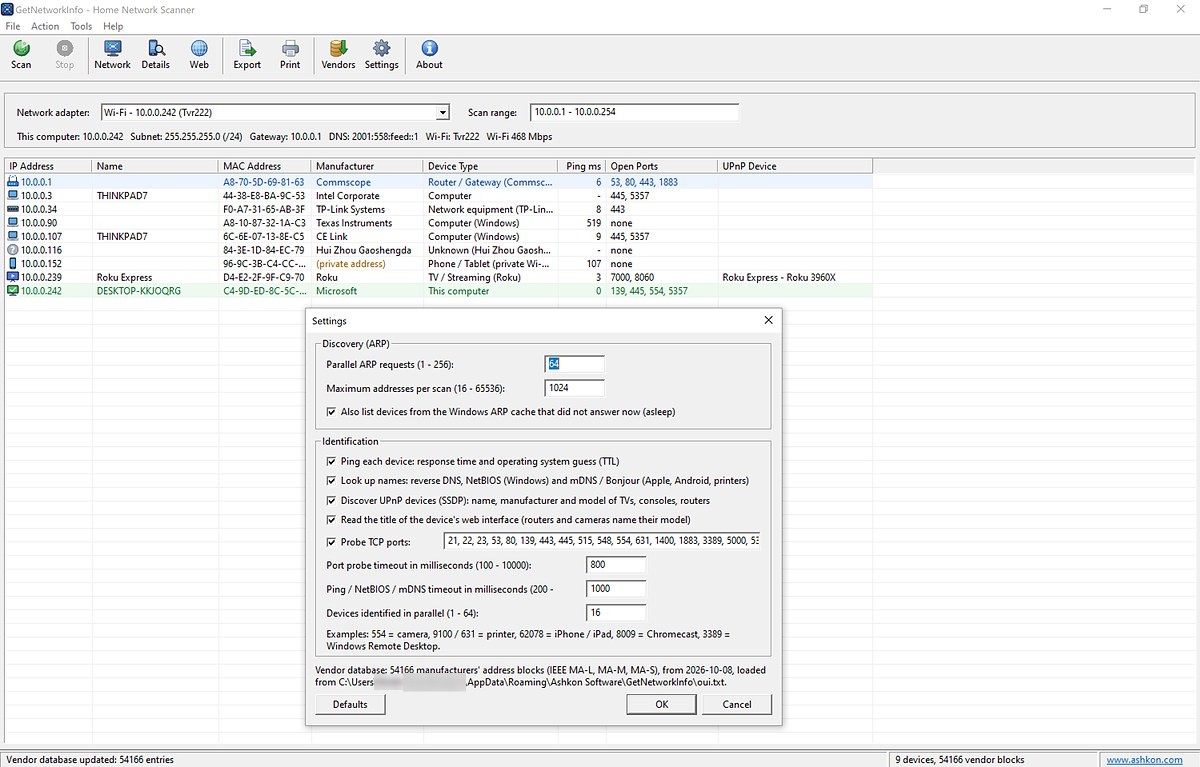
One row stands for one device. Colors and icons make the key devices easy to spot:
- Blue – the router (default gateway).
- Green – the PC you are running GetNetworkInfo on.
- Gray – a device listed in the Windows ARP cache, meaning it was on the network a short while ago, that gave no answer this time. Typically this is a sleeping phone or laptop.
- The icon at the start of each row indicates the kind of device: router, computer, phone, TV, printer and others.
To sort, click a column header. Not every column is visible at first: right-click any header, or open Tools > List Columns, to choose which ones appear. The table below marks the columns visible by default.
| Column | Visible by default | Contents |
|---|---|---|
| IP Address | Yes | The device’s IPv4 address. |
| Name | Yes | The most useful name available, chosen in this order of preference: UPnP friendly name, mDNS/Bonjour name, NetBIOS name, DNS name. |
| MAC Address | Yes | The hardware address of the device’s network adapter. |
| Manufacturer | Yes | The company to which the MAC address block is registered. The text (private address) indicates a randomized MAC (see Private MAC addresses). |
| Device Type | Yes | The most probable kind of device, followed by its brand or model in parentheses. |
| OS (from TTL) | No | An operating system family estimated from the TTL value in the ping reply. |
| Ping ms | Yes | Round-trip ping time in milliseconds, or “-” when the device ignores ping. |
| Open Ports | Yes | Those TCP ports from your port list that accepted a connection, or “none”. |
| UPnP Device | Yes | The friendly name and model taken from the device’s UPnP description. |
| Web Interface | No | The page title of the device’s built-in website and the name of the web server software. |
| Host Name (DNS) | No | The reverse DNS name – in most homes, the name assigned by the router. |
| NetBIOS Name | No | The Windows or Samba computer name. |
| Workgroup | No | The Windows workgroup or domain. |
| mDNS Name | No | The Bonjour/mDNS name, such as Johns-iPhone.local. |
| Organization | No | The complete registered name of the organization that holds the MAC address block. |
| Discovered By | No | Whether the device was found through an ARP reply or through the Windows ARP cache. |
4. How GetNetworkInfo recognizes devices
No one technique can name every device, so the program uses several and merges what they report. You can switch each of them off in Settings.
| Technique | What it reveals |
|---|---|
| MAC address | Who made the network adapter, looked up in the IEEE registry. Available for any device that replies to ARP. |
| Ping (ICMP) | Response time, plus the reply’s TTL: 64 points to Linux, Android, iOS or macOS; 128 to Windows; 255 to network equipment. |
| Reverse DNS | The name handed out by the router’s DHCP/DNS server, e.g. Galaxy-S24.lan. |
| NetBIOS | Computer name and workgroup for Windows PCs and Samba servers, over UDP port 137. |
| mDNS / Bonjour | Names of iPhones, iPads, Macs, printers, Chromecasts and Linux machines, over UDP port 5353. |
| UPnP / SSDP | From the device description of smart TVs, Roku players, Xbox consoles, routers, Sonos speakers, NAS drives and cameras: friendly name, manufacturer, model, model number and serial number. |
| TCP ports | Which ports are open hints at the device’s role: 554 – camera; 9100, 631 or 515 – printer; 62078 – iPhone/iPad; 8009 – Chromecast; 3389 or 445 – Windows; 548 – Mac; 1400 – Sonos; 8060 – Roku; 32400 – Plex. |
| Web interface | The page title, login prompt and server name of the device’s web page. Routers and cameras often state their model there. |
A set of rules turns all these clues into one Device Type: Router / Gateway, Computer, Phone / Tablet, TV / Streaming, Game console, IP camera, Printer, NAS / Storage, Smart speaker, Smart home / IoT, Network equipment, or Unknown. Treat the type as an educated guess – the Device Details window explains how it was reached.
Private MAC addresses
Instead of their real hardware address, iPhones running iOS 14 or newer, Android phones running Android 10 or newer and many Windows laptops present a random “private Wi-Fi address” that differs from network to network. Since no manufacturer owns such an address, the Manufacturer column reads (private address). In practice these are nearly always phones or tablets, and the mDNS or DNS name or the open ports usually say more about them.
5. The Device Details window
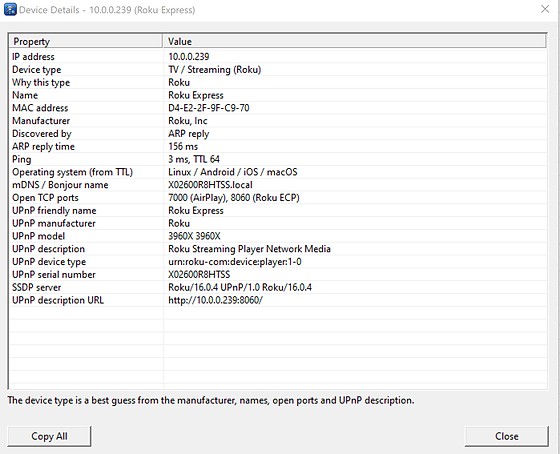
To open it, double-click a row, select a row and press Enter, or press Details on the toolbar. It gathers everything GetNetworkInfo learned about the device:
- IP address, MAC address and manufacturer;
- device type together with Why this type;
- how the device was discovered, with the ARP reply time;
- ping time, TTL and the operating system estimate;
- all names that were found;
- open ports and what each one means;
- the complete UPnP description – friendly name, manufacturer, model, description, device type, serial number, SSDP server and description URL;
- for the router, its DHCP server and DNS server roles.
Two buttons are available: Copy All puts the whole text on the clipboard, and Open Web Page, which appears only when the device has a web interface, opens that interface in your browser.
6. Your PC’s network settings and public IP
Press Network on the toolbar, or choose Action > Network Information, to review how this computer is connected. The window shows:
- General: computer name, NetBIOS name, DNS domain, workgroup or domain, user name and Windows version.
- Public IPv4 address and Public IPv6 address: how your connection appears to the Internet, obtained from
api.ipify.org. This is the address your Internet provider gives your router, not your PC’s local address. - Each connected adapter: description; connection type (Ethernet, Wi-Fi or mobile broadband); status; MAC address; IPv4 and IPv6 addresses; subnet mask; default gateway; DNS servers and DNS suffix; whether DHCP is used, the DHCP server and the lease expiry time; link speed; MTU; interface index.
- Wi-Fi adapters, additionally: SSID (network name), Wi-Fi standard, signal quality and channel.
Copy All places this information on the clipboard – handy when your Internet provider’s support team asks for details.
7. Adjusting the scan in Settings
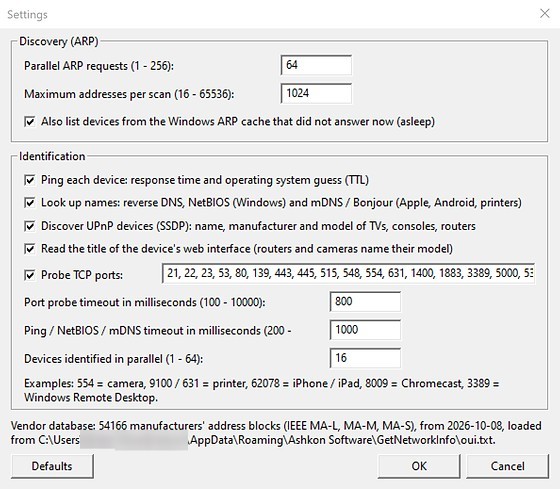
Open the dialog with Settings on the toolbar or Tools > Settings. Your choices are stored and apply to every later scan; Defaults brings back the original values.
Discovery (ARP)
| Option | Range | Default | Effect |
|---|---|---|---|
| Parallel ARP requests | 1–256 | 64 | Number of addresses queried simultaneously; larger numbers finish sooner. |
| Maximum addresses per scan | 16–65536 | 1024 | The biggest range GetNetworkInfo will scan. Raise it for a large office network such as a /16. |
| Also list devices from the Windows ARP cache that did not answer now | – | – | Includes recently seen but sleeping devices, drawn in gray. |
Identification
- Ping each device – needed for the Ping ms and OS (from TTL) columns.
- Look up names – reverse DNS, NetBIOS and mDNS/Bonjour lookups.
- Discover UPnP devices (SSDP) – retrieves the name, manufacturer and model of TVs, consoles, routers and other UPnP devices.
- Read the title of the device’s web interface – supplies the Web Interface column.
- Probe TCP ports – a comma-separated list of the ports tried on every device. You may include ranges like
8000-8100, for a total of up to 1024 ports. Out of the box the list holds 31 ports chosen to help recognize home devices. - Port probe timeout (100–10000 ms, default 800) – how long to wait for a port to accept a connection.
- Ping / NetBIOS / mDNS timeout (200–10000 ms, default 1000) – how long to wait for those replies. A slow or crowded Wi-Fi network may need a higher value.
- Devices identified in parallel (1–64, default 16).
At the bottom of the dialog you can see the number of manufacturer address blocks currently loaded, the date of that data and the file it came from.
8. Keeping the manufacturer list current
The program ships with a copy of the IEEE registry of MAC address blocks – over 54,000 assignments in all three sizes: MA-L (24-bit), MA-M (28-bit) and MA-S (36-bit). When several prefixes match an address, the longest one is used.
Because the IEEE hands out new blocks every week, you may want a fresh copy now and then. Press Vendors on the toolbar or choose Tools > Update Vendor Database; GetNetworkInfo downloads the current registry, roughly 6 MB, from standards-oui.ieee.org. It stores the file as %APPDATA%\Ashkon Software\GetNetworkInfo\oui.txt and uses that copy from then on.
9. Menus, shortcuts and context commands
| Where | Commands |
|---|---|
| File | Export Device List, Print Device List, Exit |
| Action | Scan Network (F5), Stop Scan (Esc), Network Information, Refresh Network Adapters, Device Details, Open Device Web Page, Copy IP Address, Copy MAC Address, Clear List |
| Tools | Settings, List Columns, Update Vendor Database |
| Help | Register Now, Contents, Ashkon Software Web Site, About GetNetworkInfo |
| Right-click on a device | Device Details, Open Web Page, Copy IP Address, Copy MAC Address, Export This List, Print This List, Clear List |
| Notification area (tray) icon | Scan Network, Show, Exit |
10. Saving and printing the list
Export writes the currently visible columns either to a CSV file, which Excel can open, or to a tab-separated text file. The proposed file name includes the scan’s date and time, so saving after each scan builds up a record of what has been on your network over time.
Print sends the list to a printer, with the scanned range shown in the heading.
11. Solving common problems
A device I know is there doesn’t appear
With the screen off, phones put their Wi-Fi to sleep. Wake the phone and scan again, or leave the ARP cache option enabled so recently seen devices are still listed. ARP can’t reach devices on a guest Wi-Fi network or a different subnet; connect this PC to that network and run the scan from there.
Device Type says Unknown
In that case only the manufacturer could be determined, so open Device Details for more. If the maker is a module vendor – Espressif, Tuya or Texas Instruments, for example – the device is most likely a smart plug, a light bulb or another smart home gadget.
I don’t recognize a device
Match its MAC address against the labels on your own hardware or against the client list in your router’s admin pages. If it still belongs to nobody you know, change your Wi-Fi password.
The Ping ms column shows “-”
The device’s firewall is dropping ping, which Windows does by default. ARP found the device anyway.
Scans take a long time
Most of the time goes into waiting for devices that never answer. Disable the identification techniques you don’t need, trim the port list or reduce the timeouts.
I’m connected through a VPN
Select your Wi-Fi or Ethernet adapter in the Network adapter box rather than the VPN adapter.
12. Requirements and licensing
GetNetworkInfo runs on Windows 7, 8, 8.1, 10 and 11 (32-bit and 64-bit) on a PC connected to the network by Ethernet or Wi-Fi. Scanning works without administrator rights. Internet access is used only to look up your public IP address and to update the vendor database.
You can try GetNetworkInfo free for 30 days. To keep using it afterwards, buy a license for $19.95 – choose Help > Register Now in the program, or use the Buy now button on this page.
Need help? See the GetNetworkInfo product page or contact us. Questions about ordering: order@ashkon.com.