
WinTraceRoute
WinTraceRoute User Guide
WinTraceRoute maps the path your traffic takes to a remote host. It lists each router along the way, measures how quickly it replies, counts lost probes and identifies the network that owns it. This guide covers running a trace, understanding every column of the results, each option in the Settings dialog and saving your results.
Contents
- Getting started in four steps
- Running a trace
- What each column tells you
- Finding the real problem on a route
- Adjusting the Settings dialog
- Saving results to a file
- Requirements and licensing
1. Getting started in four steps
- In the Enter Host Name or IPv4 / IPv6 Address field, type where you want to go: a name like
example.com, an IPv4 address like93.184.215.14or an IPv6 address like2606:2800:21f:cb07::1. - Press Trace. Routers show up in the list one by one as WinTraceRoute finds them.
- Look along the rows for loss or rising delay (see section 4 for how to read them).
- If you need to share the results, press Export to write them to a text file.
2. Running a trace
There are three toolbar buttons that start a trace:
- Trace follows the Address Family option from Settings. Out of the box that option is Automatic, which means the program picks IPv4 or IPv6 based on the addresses the host has.
- Trace IPv4 and Trace IPv6 override that choice, but only for the trace you are starting now.
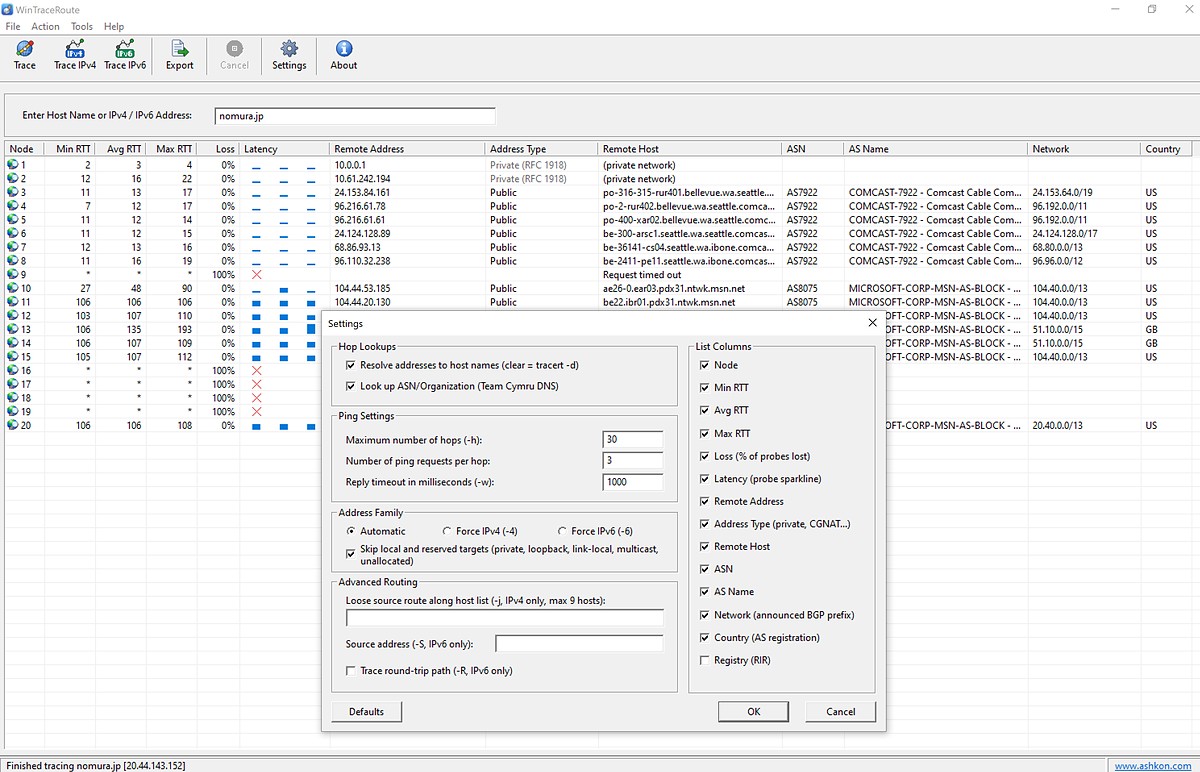
To stop a trace before it finishes, press Cancel. After a trace completes, the status bar at the bottom of the window displays the host name together with the IP address it traced.
3. What each column tells you
One row equals one router (hop) on the path. The final row is the target host itself.
| Column | Meaning |
|---|---|
| Node | The hop’s position, counted from 1. Hop 1 is normally the router in your own home or office. |
| Min / Avg / Max RTT | Round-trip time in milliseconds: the quickest probe, the mean of all probes and the slowest probe. |
| Loss | Share of probes sent to the hop that never came back, as a percentage. |
| Latency | A mini bar chart with one bar per probe. Higher bars mean slower answers; a red cross means the hop gave no answer. |
| Remote Address | The hop’s IPv4 or IPv6 address. |
| Address Type | Whether the address is Public, Private (RFC 1918), CGNAT (address space shared by carriers) or some other special-purpose range. |
| Remote Host | The name returned by a reverse DNS lookup. Many router names contain a city or airport code that hints at the router’s location. |
| ASN | The Autonomous System number of the owning network, e.g. AS7922. |
| AS Name | The organization running that network. |
| Network | The BGP prefix that covers the address, e.g. 24.153.64.0/19. |
| Country | Where the AS is registered. This is not always where the router physically sits. |
| Registry | The Regional Internet Registry responsible for the address: ARIN, RIPE NCC, APNIC, LACNIC or AFRINIC. |
Private and CGNAT addresses have no public ownership records, so the ASN-related columns are left blank for those hops.
4. Finding the real problem on a route
Traceroute output is easy to misread. Keep these points in mind:
- A single silent hop is usually harmless. When a row reads “Request timed out”, shows * for RTT and 100% loss, that router simply didn’t answer in time. Plenty of routers drop or throttle traceroute probes while still passing ordinary traffic, so a quiet hop partway along the path rarely matters.
- Real trouble carries forward. Genuine loss or extra delay persists on every later hop all the way to the destination. Focus on the earliest hop where it appears.
- Distance adds delay. RTT naturally jumps between hops located in different cities or countries – that’s just how far the signal has to go. Use the AS Name and Remote Host columns to spot the point where your provider passes traffic on to another network.
- Timeouts at the very end may mean the target host, or a firewall in front of it, is blocking probes. Run the trace again with a longer reply timeout, or switch to the other address family.
5. Adjusting the Settings dialog
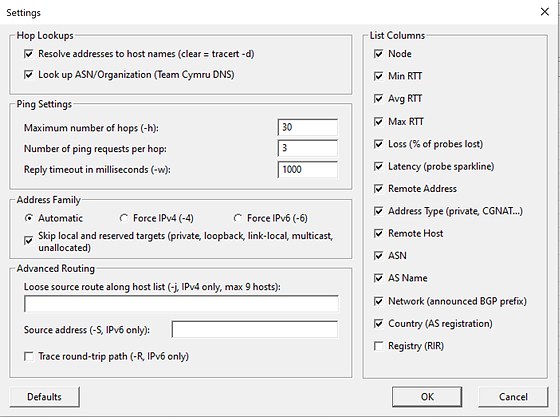
Open the dialog with the Settings toolbar button. Where a setting matches an option of the built-in Windows tracert command, that switch is printed in parentheses beside it. Press Defaults at any time to return everything to its original value.
Hop lookups
| Resolve addresses to host names | Populates the Remote Host column. Turn it off (equivalent to tracert -d) to speed up the trace. |
| Look up ASN/Organization | Populates ASN, AS Name, Network, Country and Registry using the Team Cymru DNS service. |
Ping settings
| Setting | tracert switch | Default | Notes |
|---|---|---|---|
| Maximum number of hops | -h | 30 | The trace gives up after this many hops. Set it too low and a far-away host may never be reached. |
| Number of ping requests per hop | – | 3 | Extra probes make RTT and loss figures more reliable, at the cost of a slower trace. |
| Reply timeout in milliseconds | -w | 1000 | How long each reply is awaited. Too short a value makes slow routers appear unresponsive. |
Address family
- Choose Automatic, Force IPv4 (
-4) or Force IPv6 (-6). This decides which family the Trace button uses. - Skip local and reserved targets prevents tracing to private, loopback, link-local, multicast and unallocated addresses.
Advanced routing
| Option | tracert switch | Works with | What it does |
|---|---|---|---|
| Loose source route along host list | -j | IPv4 | Up to 9 hosts the packets are asked to travel through. Be aware that many networks discard source-routed packets. |
| Source address | -S | IPv6 | The local IPv6 address to send probes from – useful when your PC has more than one. |
| Trace round-trip path | -R | IPv6 | Follows the route out to the destination and back again. |
List columns
Tick the columns you want to see; there are 14 in total. Turning off the ones you don’t need keeps the list readable on a small display.
6. Saving results to a file
Press Export on the toolbar and WinTraceRoute writes the most recent trace to a text file. This is handy when you open a ticket with your Internet service provider or hosting company and want to include the evidence.
7. Requirements and licensing
- Operating system: Windows 7, 8, 8.1, 10 and 11 (32-bit and 64-bit).
- Network: working IPv4 or IPv6 connectivity. Tracing over IPv6 needs an IPv6 Internet connection.
- License: you can try the program free for 30 days. A license costs $19.95 – buy one with the Buy now button on this page or via Help > Register in the program.
Need help? See the WinTraceRoute product page or contact us. Questions about ordering: order@ashkon.com.