
Advanced PST Viewer
Advanced PST Viewer User Guide
Advanced PST Viewer reads Microsoft Outlook data files – .pst and .ost – on a PC that has no Outlook installed. This guide walks through opening a file, reading and searching mail, saving attachments, exporting messages, contacts and calendars to other formats, and recovering deleted items.
Contents
- Opening a PST or OST file
- Layout of the program window
- Reading messages
- Contacts, calendar items and other item types
- Opening and saving attachments
- Searching for messages
- Columns, sorting and date groups
- Saving and printing a single message
- Exporting messages and folders
- File name patterns
- Saving messages as PDF
- Exporting the message list to CSV
- Extracting attachments in bulk
- Internet headers and message properties
- Recovering deleted items
- Toolbar, menus and shortcuts
- Solving common problems
- Requirements and licensing
1. Opening a PST or OST file
Advanced PST Viewer works with every kind of Outlook data file: Personal Folders files (.pst) and Offline Folders files (.ost), in the old ANSI format of Outlook 97–2002 and the Unicode format of Outlook 2003 through Microsoft 365, including OST files of Outlook 2013 and later.
- Choose File > Open (Ctrl+O) or click Open on the toolbar.
- Pick the file. The dialog starts in the last folder you used, or in Documents\Outlook Files, where Outlook keeps its PST files by default.
- The folder tree of the file appears on the left. Click Inbox or any other folder to list its messages.
There are other ways to open a file as well:
- Drag a .pst or .ost file from Windows Explorer onto the program window.
- Pick it from the recent files list at the bottom of the File menu.
- Right-click the file in Explorer and choose Open with > Advanced PST Viewer. The installer adds this command if you leave the Open with option checked; Outlook stays the default program for PST files.
- Pass the file name on the command line:
AdvancedPstViewer.exe "D:\Mail\archive.pst".
Several files at once
Each file you open is added to the folder tree as another top-level entry, so you can browse an old archive and a current mailbox side by side. To close one file, select it (or any of its folders) and choose File > Close (Ctrl+F4), or right-click its top-level entry and choose Close. File > Close All closes every open file.
Your files are never changed
Files are opened read-only and in shared mode. Nothing is ever written to a PST or OST file, and a file that Outlook has open can usually be opened at the same time. Password-protected PST files open without asking for the password.
2. Layout of the program window
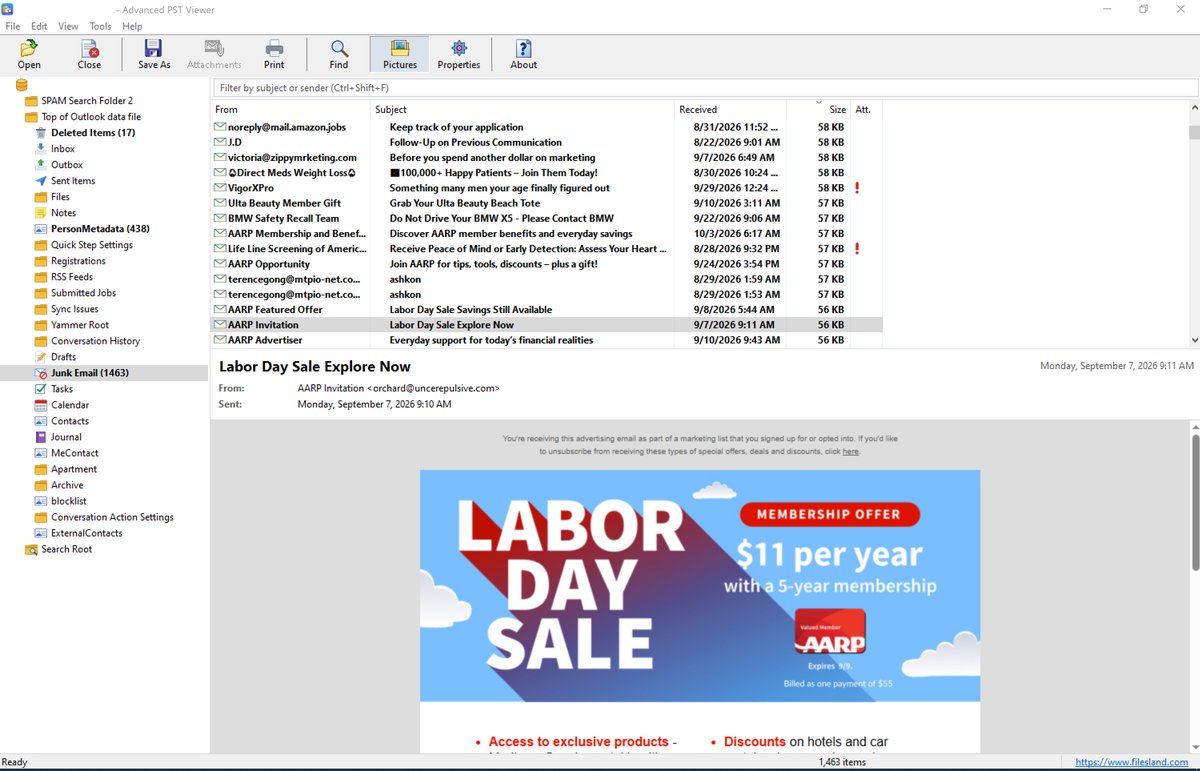
| Folder tree (left) | The folders of every open file, with Outlook’s icons for Inbox, Sent Items, Deleted Items, Contacts, Calendar, Tasks and the other special folders. A folder with unread messages is shown in bold with the unread count in brackets. Orphan Items and Recovered Items appear here when the file contains them (see section 15). |
| Quick filter (top right) | A box above the message list that narrows the list as you type. |
| Message list (top right) | The items of the selected folder. Large folders are loaded in the background: the first messages appear at once and the rest are added while you work. |
| Reading pane (bottom right) | The selected message: subject, sender, recipients and date, a strip with its attachments, and the message text. |
| Status bar | The number of items in the list. |
Drag the splitters to resize the panes. The window position, the splitter positions, the column widths and order and the sort order are restored the next time you start the program. View > Toolbar and View > Status Bar show or hide those bars.
3. Reading messages
Click a message to show it in the reading pane. Double-click it, or press Enter, to open it in a window of its own; select several messages first to open each of them. A message window has its own Message menu, and Esc closes it.
How the message text is shown
- HTML messages are displayed by Microsoft Edge WebView2, the engine of the Edge browser, so newsletters, tables, signatures and inline pictures look the way the sender designed them.
- RTF messages (common in older Outlook mail and in Exchange) are converted to HTML with their fonts, colors, bold and italic text, links and pictures. When the RTF actually wraps an HTML message, the original HTML is restored.
- Plain text messages are shown as text; web and e-mail addresses become clickable links.
Messages in the older ANSI files use the code page they were written in, so Cyrillic, Greek, Asian and other non-Latin text displays correctly.
Pictures from the Internet and privacy
Many messages load pictures from the web, and some of those pictures are tracking pixels that tell the sender when the message was opened. Advanced PST Viewer does not load them unless you ask: a yellow bar at the top of such a message offers Download pictures for that message only. To always load them, turn on View > Download Pictures from the Internet (or the Pictures toolbar button). Pictures that are stored inside the message are always shown.
Scripts in messages never run, and pop-ups and downloads are refused. A click on a link opens it in your default web browser; hover over a link to see its real address in the status line of the reading pane before you click.
Attached messages
A message that was forwarded as an attachment appears in the attachment strip. Double-click it to open it in its own window, with its own attachments.
4. Contacts, calendar items and other item types
Outlook data files hold more than e-mail. Advanced PST Viewer shows each kind of item with the fields that matter for it:
| Item | What you see |
|---|---|
| Contacts | Full name, company, job title, department, up to three e-mail addresses, business, home and mobile phone, business fax, address, web page and birthday, plus the notes |
| Appointments and meetings | Location, start and end, and whether the event is all-day or recurring, plus the description |
| Tasks | Start date, due date, status (Not started, In progress, Completed, Waiting on someone else, Deferred) and percent complete |
| Notes, journal entries, distribution lists, posts and reports | Their header fields and text |
Contacts can be exported as vCard files and calendar items and tasks as iCalendar files (see section 9).
5. Opening and saving attachments
The attachments of the selected message are listed in a strip between the header and the message text. Right-click an attachment for these commands:
| Open | Opens the attachment in the program Windows uses for that file type. A temporary read-only copy is used, so the original stays untouched. |
| Save As | Saves the attachment to a file you choose. |
| Save All Attachments | Saves every attachment of the message to a folder (also File > Save Attachments, Ctrl+Shift+S). |
Before opening a program, script or other file type that could harm your computer (.exe, .js, .vbs, .bat and similar), the program asks for confirmation. Open such files only when you trust the sender.
Some attachments are only links to files that were never stored in the data file; for these the program tells you that the file is not available. To save the attachments of many messages at once, see section 13.
6. Searching for messages
Quick filter
Click the box above the message list, or press Ctrl+Shift+F, and type. The list immediately shrinks to the messages whose subject or sender contains the text. Clear the box to see all messages again. The quick filter works on the folder that is currently listed.
Find Messages
For a search across the whole file, choose Edit > Find Messages (Ctrl+E) or click Find on the toolbar. To search one folder and its subfolders, right-click the folder and choose Find in This Folder.
| Option | Meaning |
|---|---|
| Find messages that contain | The word or phrase to look for |
| Match case / Whole words only | Exact capitalization; no matches inside longer words |
| Subject | Search the subject line |
| People | Search names and addresses: From and recipients, From (sender) only, or To, Cc, Bcc only |
| Message text | Search the body of each message; slower, because every message has to be read |
| Attachment names | Find messages with an attachment whose file name contains the text |
| All folders / Selected folder and its subfolders | Where to search |
| Date from … to | Only messages from this date range |
| Only messages with attachments | Skip messages without attachments |
| Size in KB, at least … at most | Only messages in this size range |
The results replace the message list, with an extra column showing the folder of each message. You can leave the search text empty and use only the conditions – for example, all messages larger than 5,000 KB, or all messages with attachments from last year. The program remembers your last search options.
Highlighted search hits
When you open a message from the search results, every occurrence of the search text is highlighted in yellow, and the reading pane scrolls to the first one. The subject, the From, To and Cc lines and matching attachment names are highlighted too. The highlighting is not printed.
7. Columns, sorting and date groups
Click a column header to sort by that column; click it again to reverse the order. To choose which columns are shown, right-click a column header or open View > Columns. Available columns are From, Subject, Received, Size, Attachment, To, Cc, Sent, Importance, Flag and Categories. Drag a header to move a column and drag its edge to change the width.
View > Group by Date splits the list into the groups Outlook uses: Today, Yesterday, Earlier This Week, Last Week, Earlier This Month, Last Month and Older.
Unread messages are shown in bold. Select several messages with Ctrl+click or Shift+click, or all of them with Ctrl+A, before you save, export or print.
8. Saving and printing a single message
Select a message and choose File > Save Message As (Ctrl+S). Pick the format in the Save as type list:
| Format | What you get |
|---|---|
| E-mail message (.eml) | A standard e-mail file with the text, inline pictures, attachments and attached messages, and the original Internet headers. Double-click it to open it in Outlook, Thunderbird or Windows Mail. |
| Web page (.html) | A single HTML file with the header and the text; pictures are embedded in the file. Attachments are not included. |
| Text (.txt) | The header lines and the plain text of the message. |
| PDF (.pdf) | A PDF document that looks like the message on screen. |
To print, choose File > Print (Ctrl+P). The printout starts with a header block – subject, from, sent, to, cc and the names of the attachments – followed by the message text.
9. Exporting messages and folders
Export saves many messages at once. Start it in one of three ways:
- File > Export Selected Messages (Ctrl+Shift+E) – the messages selected in the list.
- File > Export Folder, or right-click a folder and choose Export Folder – a whole folder, optionally with all its subfolders. Select the top-level entry of a file to export the whole mailbox.
- Right-click selected messages and choose Export Selected Messages.
Export formats
| Format | Result |
|---|---|
| E-mail messages (.eml) | One file per message, with attachments and attached messages. Opens in Outlook, Thunderbird and Windows Mail. |
| Web pages (.html) | One file per message with the header, text and pictures. Attachments are not included. |
| Text files (.txt) | One file per message with the header lines and plain text. |
| PDF documents (.pdf) | One PDF per message (see section 11). |
| MBOX mailbox (.mbox) | One mailbox file per folder, with all messages and attachments. Import it in Thunderbird with the ImportExportTools NG add-on, or in Apple Mail with File > Import Mailboxes. |
| vCard / iCalendar | Contacts become vCard 3.0 files (.vcf); appointments, meetings and tasks become iCalendar files (.ics) with recurrence and its exceptions, reminders, organizer and attendees. They import into Outlook, Google Contacts and Calendar, and Apple Contacts and Calendar. Other items in the folder are saved as .eml. |
Export options
| Save in | The destination folder. It is created if it does not exist. |
| File names | A pattern for the file names (see section 10). An example name is shown below the box. |
| Include subfolders | When you export a folder, export its subfolders as well. |
| Recreate the folder structure | Create a folder on disk for every folder of the data file, so Inbox\Projects ends up in Export\Inbox\Projects. Turn it off to put all files in one folder. |
| Combine contacts and calendar items | For vCard / iCalendar: write one .vcf file with all contacts and one .ics file with all calendar items of each folder, instead of one file per item. A single combined file is the easiest to import into Google or Apple. |
When the export is done, the program reports how many items were saved and offers to open the destination folder. Your choices are remembered for the next export.
10. File name patterns
The File names box of the Export dialog builds each file name from tokens in curly braces. Choose one of the ready-made patterns from the list or type your own.
| Token | Replaced with |
|---|---|
{date} | Date of the message, 2026-10-05 |
{time} | Time of the message |
{year}, {month}, {day} | Parts of the date |
{subject} | Subject |
{from} | Sender |
{to} | First recipient |
{folder} | Name of the folder the message is in |
{type} | Item type (message, contact, appointment …) |
{index} | Running number of the item in the export |
{id} | Internal identifier of the item in the data file |
The default is {date}_{from}_{subject}. Characters that Windows does not allow in file names (< > : " / \ | ? *) are replaced, names that would be too long for Windows are shortened, and duplicate names are numbered.
11. Saving messages as PDF
PDF files are made by Microsoft Edge WebView2, so they look exactly like the message in the reading pane.
- File > Save Selected as PDF – one PDF per selected message.
- File > Export Folder as PDF, or right-click a folder and choose Export as PDF – every message of the folder and its subfolders.
- The PDF format in the Export dialog gives you the file name patterns and folder options as well.
A progress window shows the message being converted; Cancel stops after the current message. Whether pictures from the Internet are included follows the View > Download Pictures from the Internet setting.
12. Exporting the message list to CSV
File > Export List to CSV writes the messages of the list – or only the selected messages – to a CSV file that opens in Excel. It is a quick way to build a report of a mailbox or to review a file for eDiscovery. Search results can be exported the same way.
The CSV file contains one row per item with these columns: folder, item type, subject, sender name and address, To, Cc, Bcc, sent and received date and time (UTC), size, importance, read status, flag, categories, number of attachments and their names, Internet Message-ID, message class and item ID. The file is saved as UTF-8, so names and subjects in any language display correctly in Excel.
13. Extracting attachments in bulk
Tools > Extract Attachments saves the attachments of many messages in one step – for example, every PDF invoice ever received in a mailbox.
| Extract from | Selected messages, All messages in the list (for example, search results), or a Folder, optionally including subfolders |
| Save in | The destination folder |
| File types | Only these types, for example *.pdf; *.docx; *.xlsx. Leave it empty to save all files. |
| Skip pictures that are part of the message text | Leaves out logos and other inline images |
| Include attached messages | Saves forwarded messages as .eml files |
| Create a subfolder for every folder of the data file | Keeps the attachments of each mail folder apart |
| Put the message date in front of the file names | 2026-10-05 report.pdf – handy for sorting by date |
Files with the same name are numbered: report.pdf, report (2).pdf and so on, so nothing is overwritten.
14. Internet headers and message properties
View > Internet Headers (Ctrl+H) shows the transport headers of a received message: the Received lines of every mail server it passed through, the Message-ID, the return path and, when the receiving server added them, the SPF, DKIM and DMARC results. Use it to trace where a message came from or to check whether it is a phishing attempt.
View > Message Properties (Alt+Enter) lists every MAPI property stored for the item – including named properties – with its name, type and value. Copy puts the whole list on the clipboard. This is the raw data Outlook works with, useful for troubleshooting and forensic work.
Tools > File Information shows the format of the open file (ANSI or Unicode PST, OST), its size, the number of orphan and recovered items, the code page of an ANSI file, and whether damaged structures were found.
15. Recovering deleted items
When an item is deleted in Outlook – including from the Deleted Items folder – its data often stays in the file until the space is reused. Tools > Recover Deleted Items scans the unused space of the file for such items.
- Open the file and choose Tools > Recover Deleted Items.
- Confirm the scan. For large files it can take several minutes; Cancel stops it.
- Recovered messages appear under Recovered Items in the folder tree, where you can read, save and export them like any other message.
Orphan Items is shown automatically when the file contains items that no longer belong to any folder, which often happens in damaged files. Only items that have not been overwritten can be recovered, and the file itself is not modified.
16. Toolbar, menus and shortcuts
Toolbar
| Open | Open a .pst or .ost file |
| Close | Close the file selected in the folder tree |
| Save As | Save the message as EML, HTML, text or PDF |
| Attachments | Save the attachments of the message |
| Print the message | |
| Find | Find messages |
| Pictures | Download pictures from the Internet for HTML messages (on / off) |
| Properties | Show all MAPI properties of the message |
| About | Version and registration information |
Keyboard shortcuts
| Keys | Command |
|---|---|
| Ctrl+O | Open a data file |
| Ctrl+F4 | Close the selected data file |
| Ctrl+S | Save message as |
| Ctrl+Shift+S | Save attachments |
| Ctrl+Shift+E | Export selected messages |
| Ctrl+P | |
| Ctrl+E | Find messages |
| Ctrl+Shift+F | Quick filter |
| Ctrl+A | Select all messages |
| Enter | Open the message in a new window |
| Alt+Enter | Message properties |
| Ctrl+H | Internet headers |
| Esc | Close a message window |
| F1 | This user guide |
Right-click menus
Right-click a message in the list for Open, Save As, Export, Save as PDF, Export to CSV, Save Attachments, Extract Attachments, Print, Properties and Internet Headers. Right-click a folder for Find in This Folder, Export Folder, Export as PDF, Extract Attachments and Close. Right-click an attachment for Open, Save As and Save All Attachments.
17. Solving common problems
HTML messages are shown as plain text
The Microsoft Edge WebView2 Runtime is missing. It is part of Windows 10 and 11, but can be absent on older or trimmed systems. The program offers to open the download page the first time this happens; install the Evergreen runtime from Microsoft and restart the program.
Pictures in a newsletter are missing
Pictures from the Internet are blocked for your privacy. Click Download pictures in the yellow bar, or turn on View > Download Pictures from the Internet.
“The folder is still being loaded”
Exports that work on the whole list wait until a large folder has finished loading. Wait until the status bar shows the complete count, then try again.
The file will not open
Make sure the file is not still being copied and is not locked by a backup or sync program. A file that is badly damaged may open with missing folders; check Tools > File Information, and look under Orphan Items and Recover Deleted Items for the rest of the mail.
Where is my Outlook data file?
PST files are usually in Documents\Outlook Files. OST files of Outlook 2013 and later are in %LOCALAPPDATA%\Microsoft\Outlook (paste it into the Explorer address bar). In Outlook, File > Account Settings > Data Files shows the exact location.
Can I open an OST file from another computer or a deleted account?
Yes. Advanced PST Viewer reads the OST file directly and does not need the Exchange or Microsoft 365 account it belonged to.
Exported file names are cut short
Windows limits the length of a full path. Choose a destination folder close to the root of the drive, such as C:\Export, or a shorter file name pattern.
A password-protected PST file
It opens like any other file; no password is needed.
18. Requirements and licensing
| Operating system | Windows 7, 8, 8.1, 10 and 11, 32-bit and 64-bit |
| Required components | Microsoft Edge WebView2 Runtime for HTML display and PDF output (included in Windows 10 and 11). Outlook, MAPI and an Exchange account are not required. |
| Supported files | Outlook .pst and .ost files, ANSI and Unicode, from Outlook 97 to Microsoft 365 |
The free trial has every feature and runs for 30 days. Each start shows how many days are left: Continue keeps evaluating, Register opens the order page. After you order, an unlocking key file is e-mailed to you; it turns the trial into the full version. Questions about ordering or registration: order@ashkon.com.
PST and OST files are read with libpff (LGPL-3.0), Copyright © Joachim Metz. The license terms are installed with the program in License.txt.