
Keywords Search Tool
Keywords Search Tool User Guide
Keywords Search Tool shows you the phrases real people type into search engines. It passes your keyword to the autocomplete (suggestion) services of several search engines and sites, gathers what they return and merges everything into a single ranked list. This guide explains every command, option and output format in the program.
Contents
- Getting started in five steps
- Typing or importing seed keywords
- Picking a region
- How deep to search: the Mode setting
- Where suggestions come from
- Understanding the results list
- Narrowing the list with filters
- Expanding on a result
- Turning keywords into ready-to-use text
- Copying, saving and exporting
- Toolbar, menus and shortcuts
- Tips and solutions to common problems
- Requirements and licensing
1. Getting started in five steps
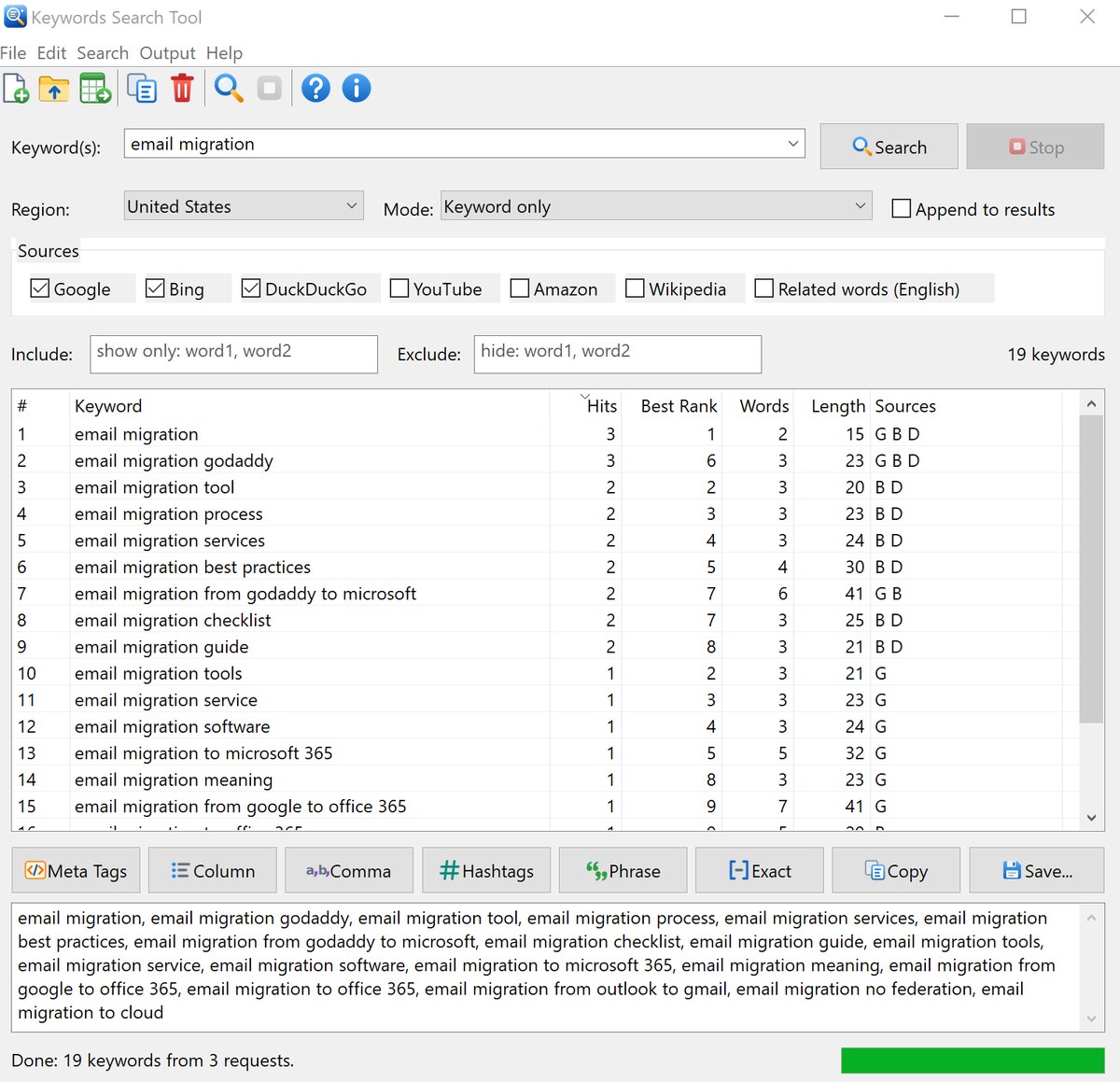
- Enter a word or phrase in the Keyword(s) box – email migration, for instance.
- Under Region, choose the country your visitors are in.
- For a quick first run, keep Mode at Keyword only.
- Click Search or hit Enter. Results fill the list while they are still coming in.
- Pick an output button such as Meta Tags or Comma, then press Copy or Save.
2. Typing or importing seed keywords
The Keyword(s) box holds the starting word or phrase you want to research. Broad, short keywords bring back many more suggestions than long, narrow ones. Any language is accepted.
- More than one keyword – put a semicolon between them, as in
email migration; mailbox migration; pst import. The program runs them one after another and pools all suggestions in the same list. - Loading keywords from a file – choose File > Import Seed Keywords (Ctrl+O) and open a text or CSV file of up to 10 MB containing one keyword on each line. In a CSV file, a first line titled “keyword” is treated as a header and ignored. The imported keywords go into the Keyword(s) box; press Search to run them all.
- Recent keywords – the drop-down part of the Keyword(s) box remembers your 20 most recent entries.
3. Picking a region
What a search engine suggests depends on where the searcher is and which language they use, so one keyword gives different phrases in the US, the UK or Germany. Choose the country your site targets; every source is then queried for that country’s language and market.
| Region | Language | Sources |
|---|---|---|
| United States, United Kingdom, Canada, Australia, India | English | Every source works |
| Germany | German | No Related words (that source is English-only) |
| France | French | |
| Italy | Italian | |
| Spain, Mexico | Spanish | |
| Netherlands | Dutch | |
| Poland | Polish | |
| Brazil | Portuguese | |
| Japan | Japanese | |
| Russia, Ukraine | Russian, Ukrainian |
Amazon has no store for Russia or Ukraine, so Amazon is not queried when either of those regions is selected.
4. How deep to search: the Mode setting
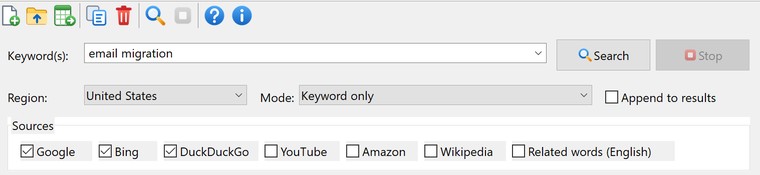
A single autocomplete request yields roughly ten suggestions. To dig up more, the program can send many variants of your keyword. Mode controls how many:
| Mode | Requests per source | Variants sent for “coffee” |
|---|---|---|
| Keyword only | 1 | coffee |
| A-Z expansion | 37 | coffee, then coffee a through coffee z and coffee 0 through coffee 9 |
| Questions | 14 | coffee, how coffee, what coffee, why coffee, where coffee, can coffee, should coffee … |
| Prepositions & comparisons | 16 | coffee, coffee for, coffee with, coffee without, coffee near, coffee vs, coffee best, coffee free, coffee online … |
| Full | around 65 | every variant from the modes above |
The total number of requests grows with each extra source and each extra keyword. Because the program waits briefly between requests to avoid being blocked, A-Z and Full runs take noticeably longer. When a run would exceed 300 requests, you are told the exact count and asked to confirm first.
Watch the progress bar and status bar while the search runs. Press Stop or Esc whenever you like; anything already found remains in the list.
5. Where suggestions come from
Tick the services to query. By default Google, Bing and DuckDuckGo are on. Rest the mouse pointer on any check box for a brief explanation. Each source has a one-letter code that appears in the results.
| Source | Code | Good for |
|---|---|---|
| G | Google Search autocomplete – the most common web searches | |
| Bing | B | Bing autocomplete |
| DuckDuckGo | D | DuckDuckGo autocomplete |
| YouTube | Y | YouTube search autocomplete – ideas for video titles and tags |
| Amazon | A | Amazon product search autocomplete – terms for products and web shops |
| Wikipedia | W | Wikipedia article titles – topics, names and entities |
| Related words | R | Words and phrases with similar meaning; English-language regions only |
6. Understanding the results list
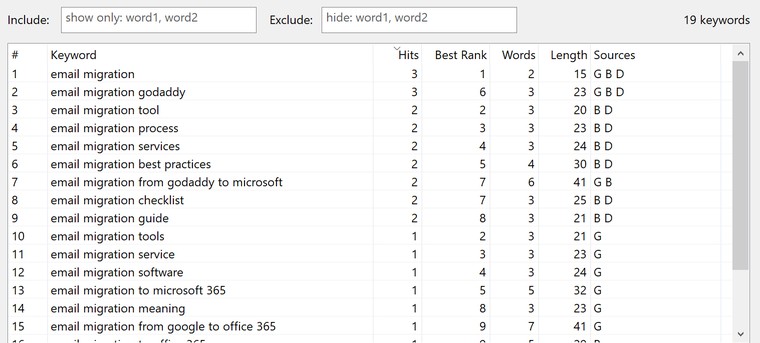
Duplicates are merged: a phrase appears once no matter how many sources or requests produced it. The keyword count is displayed at the upper right of the list.
| Column | Meaning |
|---|---|
| # | Row number. |
| Keyword | The suggested phrase. |
| Hits | How many suggestion lists contained the phrase. Something offered by several engines and for several variants is in wider use, which makes Hits a handy popularity indicator. |
| Best Rank | The highest spot the phrase reached in any suggestion list; 1 means it was the top suggestion. |
| Words | Word count. Phrases with three or more words are “long-tail” keywords, which face less competition and attract more specific visitors. |
| Length | Character count – helpful when writing page titles and ad headlines. |
| Sources | Codes of every source that returned the phrase, e.g. G B D. |
Initially the list is ordered by Hits, highest first. Click any column heading to sort on it, and click again to flip the direction. Ties are broken by Best Rank.
7. Narrowing the list with filters
Two boxes above the list filter it instantly while you type:
- Include – keeps only phrases containing one or more of the words you list. Use commas between words, such as
free, online. - Exclude – hides phrases containing any listed word – brand names, say, or
jobs, salary.
With a filter active, the counter reads “showing X of Y keywords”. Copying, exporting and every output format work only on the rows currently visible. To get rid of rows permanently, select them and press Del or the toolbar’s Delete button.
8. Expanding on a result
Want more ideas built around one of the results? Double-click it, or select it and press Enter, or right-click it and pick Search Selected Keywords. Multiple rows can be selected together. If Append to results is ticked, the new suggestions are added to what is already listed rather than replacing it – a simple way to build up a large keyword collection a step at a time.
Open in Google, found on the right-click menu and as Search > Open Selected in Google, opens Google results for the selected phrases in your browser, at most five at once, so you can check which sites already rank for them.
9. Turning keywords into ready-to-use text
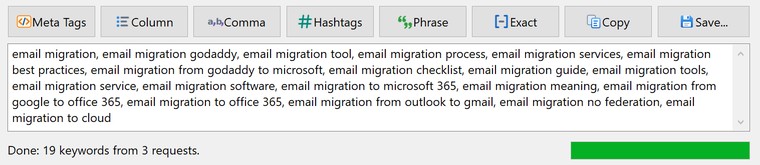
The buttons under the list convert the visible keywords into text placed in the output box. The Output menu offers the same commands.
| Button | Produces | Sample |
|---|---|---|
| Meta Tags | An HTML keywords meta tag | <meta name="keywords" content="coffee, coffee beans"> |
| Column | Each keyword on its own line | coffee coffee beans |
| Comma | Keywords separated by commas | coffee, coffee beans |
| Hashtags | Social media hashtags | #coffee #coffeebeans |
| Phrase | Phrase-match keywords for Google Ads and Microsoft Ads | "coffee" "coffee beans" |
| Exact | Exact-match keywords for Google Ads and Microsoft Ads | [coffee] [coffee beans] |
To build a hashtag, the program strips spaces and punctuation, and repeated hashtags are dropped. Feel free to edit the output box before copying. Output > Clear Output empties it.
10. Copying, saving and exporting
| Copy (next to the output box) | Puts the output box text on the clipboard. |
| Save… | Writes the output box text to a text or HTML file. |
| Export Results to CSV | On the File menu and the toolbar (Ctrl+S). Writes every column – Keyword, Hits, Best Rank, Words, Length and Sources – to a CSV file that Excel opens properly, non-English keywords included. |
| Export Results to Text | On the File menu. Writes the keywords to a text file, one per line. |
| Copy Selected Keywords | Ctrl+C in the list, or from the right-click menu. |
| Copy All Keywords | The toolbar’s Copy button or Ctrl+Shift+C: every visible keyword, one per line. |
11. Toolbar, menus and shortcuts
Toolbar buttons
| New | Begins a fresh search, clearing the keyword, filters, output and results (Ctrl+N). |
| Import | Loads seed keywords from a text or CSV file (Ctrl+O). |
| Export | Saves results as CSV (Ctrl+S). |
| Copy | Copies every visible keyword (Ctrl+Shift+C). |
| Delete | Removes the selected keywords (Del). |
| Search | Runs the search (Enter or F5). |
| Stop | Halts a running search (Esc). |
| Help | Opens the online help (F1). |
| About | Displays the version number. |
Menu commands
| Menu | Commands |
|---|---|
| File | New Search, Import Seed Keywords, Export Results to CSV, Export Results to Text, Save Output Text, Exit |
| Edit | Copy Selected Keywords, Copy All Keywords, Select All, Delete Selected, Clear Results |
| Search | Search Now, Stop, Search Selected Keywords, Open Selected in Google |
| Output | HTML Meta Tags, Column List, Comma Separated List, Hashtags, Phrase Match, Exact Match, Copy Output, Save Output Text, Clear Output |
| Help | Online Help, About Keywords Search Tool |
Keyboard shortcuts
| Keys | Action |
|---|---|
| Enter, F5 | Search; inside the results list, Enter searches the selected rows instead |
| Esc | Stop searching |
| Ctrl+N | Start a new search |
| Ctrl+O | Import seed keywords |
| Ctrl+S | Export results as CSV |
| Ctrl+Shift+C | Copy every visible keyword |
| Ctrl+A, Ctrl+C, Del | In the results list: select all, copy the selection, delete the selection |
| F1 | Online help |
12. Tips and solutions to common problems
Nothing was found
Use a shorter, broader keyword, switch to a different region, or tick additional sources.
Every request failed
Your Internet connection, firewall or proxy settings are the likely cause – check them.
Only some requests failed
The status bar reports the number of failures and the most recent error. Services sometimes throttle repeated queries for a while (HTTP 429). Give it a few minutes, or cut down the number of sources or choose a lighter mode.
Picking the best keywords
- Phrases with a high Hits value that several sources returned (G B D) are the most widely searched.
- Long-tail phrases of three words or more are easier to rank for and draw better-targeted visitors.
- Questions mode is a fast way to collect ideas for articles and FAQ pages.
The suggestions come from public autocomplete services and shift over time. The program does not report exact monthly search volumes.
13. Requirements and licensing
Keywords Search Tool runs on Windows 7, 8, 8.1, 10 and 11 (32-bit and 64-bit) and needs an Internet connection. Between sessions it remembers your keyword history, region, mode, chosen sources, the Append to results setting, and the window’s size and position.
The program is freeware – no trial period and no registration.
Need help? See the Keywords Search Tool product page or contact us.