
Advanced Hash Calculator
Advanced Hash Calculator User Guide
Advanced Hash Calculator works out a hash value or checksum for the contents of every file you put in its list. You build the list, pick an algorithm and start the calculation – the results appear next to each file. This guide explains each command, from adding files to exporting the results and using the Hash tab in Windows file properties.
Contents
- Getting started in four steps
- Building the file list
- Running the calculation
- Choosing the algorithm and format
- Copying and saving results
- The Hash tab in file Properties
- Requirements and licensing
1. Getting started in four steps
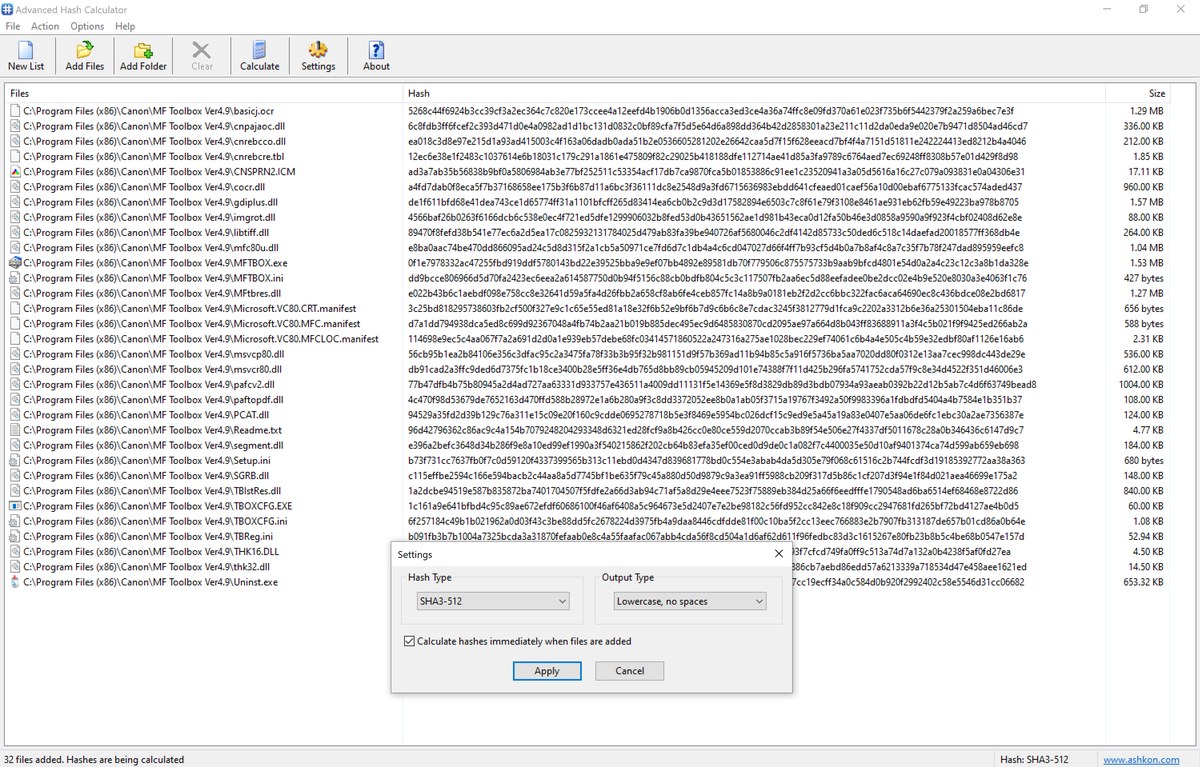
- Press Add Files (Ctrl+O) or Add Folder on the toolbar – or simply drag items from Windows Explorer into the window.
- Open Settings and pick the Hash Type you need, for example SHA-256.
- Press Calculate (Ctrl+H). Each file’s value shows up in the Hash column as soon as it is done.
- Right-click a row to copy its value, or send the entire list to Notepad.
2. Building the file list
Ways to add files
- Add Files – on the toolbar, under File > Add Files, or with Ctrl+O. A standard dialog lets you pick one file or several at a time.
- Add Folder – on the toolbar or under File > Add Folder. Every file inside the chosen folder is added, including files in nested subfolders at any depth.
- Drag and drop – drop files or folders from Windows Explorer straight onto the list.
A big folder is read in the background while you keep working; watch the status bar to follow its progress. To cancel loading, press Ctrl+X.
List columns
| Files | The complete path of each file. |
| Hash | The calculated value, in the format chosen in Settings. |
| Size | How big the file is. |
Cleaning up the list
- To take some files out, select them, then press Clear on the toolbar or right-click and pick Remove Item.
- New List (Ctrl+N) empties the list completely.
- Ctrl+A selects every file in the list.
3. Running the calculation
To process the whole list, press Calculate on the toolbar, choose Action > Calculate Hash or hit Ctrl+H. Want only a few files? Select them, right-click and pick Calculate Hash from the menu.
The work is split across five threads running side by side, and every row’s Hash cell is filled in the moment that file is finished. To cancel, use Action > Stop or Ctrl+X.
4. Choosing the algorithm and format
To open the settings, press Settings on the toolbar or choose Options > Settings.
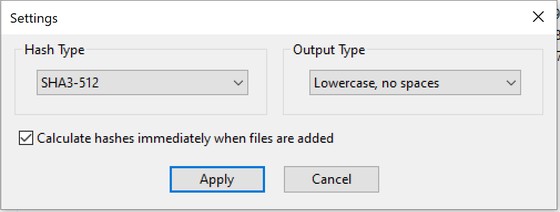
| Hash Type | Any of the 32 algorithms the program supports – CRC32, CRC32C, CRC64, Adler-32, MD2, MD4, MD5, SHA-1, SHA-2, SHA-3, BLAKE2b, BLAKE2s, BLAKE3, xxHash, MurmurHash3, FNV-1a, RIPEMD-160, Tiger, Tiger2, Whirlpool, GOST, Streebog and SM3. Each one is described in Supported hash algorithms. |
| Output Type | Lowercase or uppercase letters, optionally with a space inserted after each pair of characters. |
| Calculate hashes immediately when files are added | Turned on, new files are hashed right away. Turned off, nothing is calculated until you press Calculate. |
Switching to a different hash type or output type empties the Hash column. Press Calculate again to get values that match the new settings.
5. Copying and saving results
The right-click menu
Right-click any file in the list to see these commands:
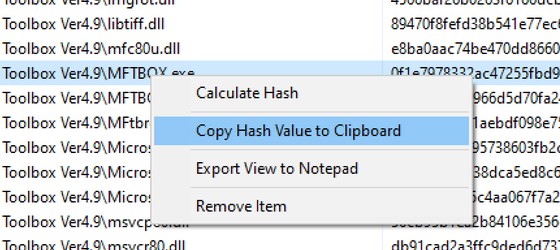
| Command | What it does |
|---|---|
| Calculate Hash | Hashes only the files you have selected. |
| Copy Hash Value to Clipboard | Places that file’s value on the clipboard. |
| Export View to Notepad | Opens Notepad with a text file listing every file name together with its value. |
| Remove Item | Takes the selected files off the list. |
Exporting the full list
You can also export everything with Action > Export Data. In the resulting report, every line holds a file path and then its value. The text is written in UTF-8, so names in any language come through intact.
File Info window
Double-clicking a row opens File Info. Its full path and hash are shown as text you can select and copy.
6. The Hash tab in file Properties
An optional extra adds a Hash tab to the Windows file Properties dialog, so you can get MD5, SHA-256 or SHA-512 for a single file without starting the main program.
- Right-click the file in Explorer and choose Properties.
- Switch to the Hash tab.
- Pick a format under Output Type, then press Get MD5, Get SHA-256 or Get SHA-512. With big files, a progress bar tracks the work.
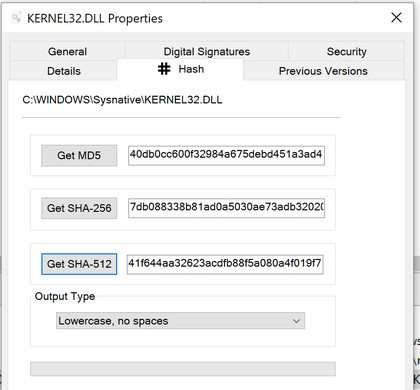
The tab is installed only if you tick “Add Hash page to the file Properties dialog” during setup. Any algorithm other than these three requires the main program.
7. Requirements and licensing
Advanced Hash Calculator runs on Windows 7, 8, 8.1, 10 and 11 (32-bit and 64-bit). Between sessions it keeps track of the window size and position, column widths, and the chosen hash type and output type. When you uninstall it, the program, the Hash tab in file Properties and all saved settings are deleted.
You can try Advanced Hash Calculator free for 30 days. To continue after that, a license costs $19.95 – choose Help > Register in the program, or use the Buy now button on this page.
Need help? See the Advanced Hash Calculator product page or contact us. Questions about ordering: order@ashkon.com.