
Advanced Cookie Manager
Advanced Cookie Manager User Guide
Advanced Cookie Manager finds the cookie databases of Google Chrome, Microsoft Edge, Mozilla Firefox, Brave and Opera on your PC and lets you look inside them, search them, save them to a file and remove the cookies you don’t want. This guide covers version 3.01 – from the first scan to deleting cookies, exporting them and fixing common problems.
Contents
- Your first look at your cookies
- Layout of the program window
- What each cookie column means
- Finding the cookies you want
- Inspecting and copying a cookie
- Removing cookies
- Saving cookies to CSV or JSON
- Why Chrome and Edge values are hidden
- Shutting down running browsers
- Cookies of other Windows users
- Cookie file locations by browser
- Toolbar, menus and shortcuts
- Solving common problems
- Requirements and licensing
1. Your first look at your cookies
As soon as it opens, the program searches the computer for the cookie file of each Chrome, Edge, Firefox, Brave and Opera profile and lists what it finds in a tree on the left side of the window. Scanning and viewing are read-only: your cookies stay untouched unless you delete something yourself.
- In the left panel, expand the browser you are interested in.
- Pick one of its Cookie File entries. A browser has a separate cookie file for every profile.
- The right panel fills with the cookies stored in that file.
Your browser can stay open while you browse its cookies. Note that the computer allows just a single running instance of Advanced Cookie Manager.
2. Layout of the program window
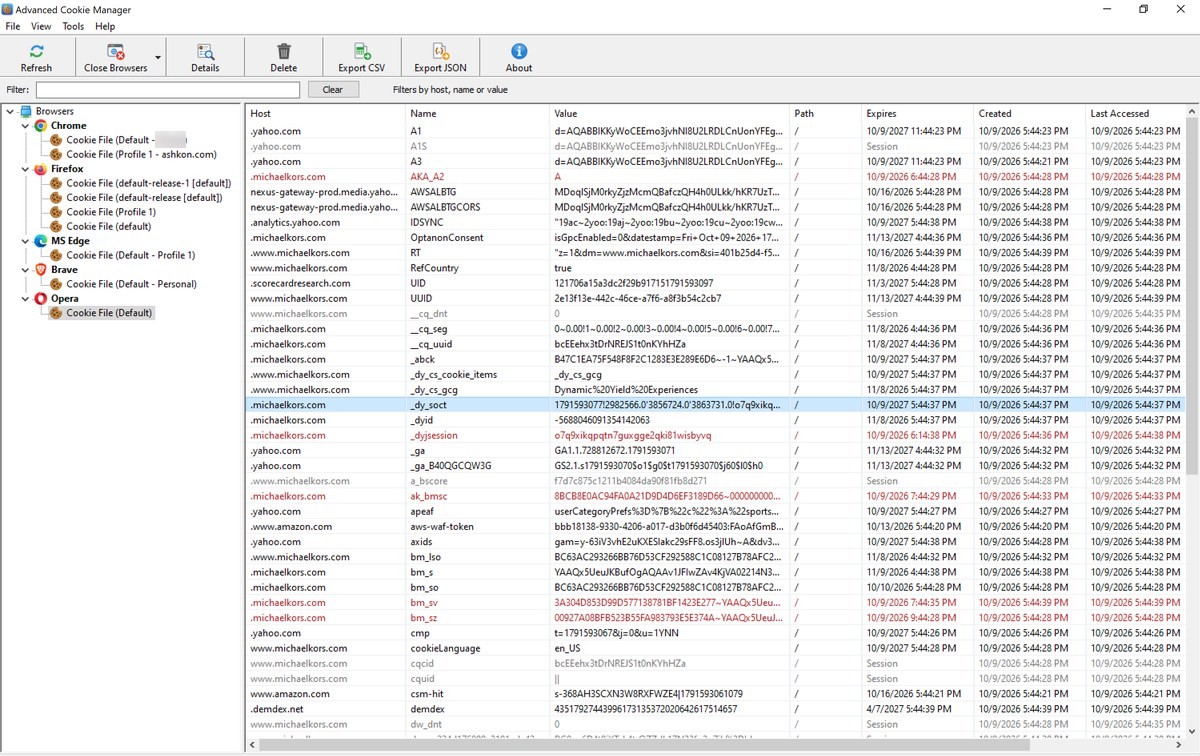
| Tree (left) | The root item is Browsers, with Chrome, Firefox, MS Edge, Brave and Opera beneath it. Each browser lists the cookie files that were located, named after their profile – for instance Cookie File (Default - John). A browser without any cookie files reads (no cookie files found). |
| List (right) | Its contents follow the tree selection. With Browsers or a single browser selected you get an overview of cookie files, with the columns Browser, Channel (Stable, Beta, Dev or Canary), User, Profile, Size, Modified and Cookie File (full path). With a cookie file selected you get its cookies, one row each. |
| Filter bar | Sits above the list and narrows it to matching cookies as you type (see Finding the cookies you want). |
| Status bar | Runs along the bottom and displays the count of cookie files or cookies, the path of the cookie file you selected, and the number of encrypted values. |
Drag the splitter between the two panels to give either one more room. On the next start the program restores the window’s size and position, the panel width, and the widths and order of the list columns.
3. What each cookie column means
When a cookie file is selected, every row of the list stands for a single cookie:
| Column | Meaning |
|---|---|
| Host | Domain of the site that owns the cookie, such as .example.com |
| Name | Name of the cookie |
| Value | The content the site saved in it; for Chrome and Edge it is encrypted (see section 8) |
| Path | Which part of the site receives the cookie – typically / |
| Expires | Expiration date and time; Session marks a cookie the browser discards on closing |
| Created | The moment the cookie was originally set |
| Last Accessed | The most recent time the browser used it |
| Secure | The browser sends it over HTTPS connections only |
| HttpOnly | Scripts running in web pages can’t access it |
| SameSite | Controls whether it goes along with requests that come from other sites |
Red rows are cookies that have already expired; grey rows are session cookies.
Loading happens in the background, so even a big cookie file won’t freeze the window. An empty file is reported as such in the list.
4. Finding the cookies you want
Filter as you type
Click in the Filter box, or press Ctrl+F, and start typing. Only cookies with that text somewhere in their host, name or value remain visible, and the status bar reports the match count – e.g. 12 of 340 cookie(s). Press Clear to bring the full list back.
Sort by any column
A click on a column header orders the list by that column; a second click flips the direction. Dates and sizes sort by their real values rather than as text.
Arrange the columns
Drag a header sideways to move its column, or drag a header’s edge to make the column wider or narrower.
5. Inspecting and copying a cookie
Select a cookie and press Details. The Cookie Details window lists its host, name, path and complete value, its expiration, creation and last-accessed dates, and its Secure, HttpOnly and SameSite settings. A Copy Value button there puts the value on the clipboard.
Right-clicking a cookie in the list offers three copy commands:
| Copy Value | Just the value |
| Copy Name=Value | The pair in name=value form |
| Copy Row | Every column of the row, tab-separated, so it pastes cleanly into a spreadsheet |
6. Removing cookies
- Pick the cookie, or several of them with Ctrl+click or Shift+click.
- Press Del, use the Delete toolbar button, or choose Delete from the right-click menu.
- Answer the confirmation prompt.
Deletion is permanent – the cookies are erased from the browser’s own cookie file and can’t be restored. If you might want them again, export them before deleting.
When the browser is open
A browser that is running locks its cookie file and keeps the cookies in memory, so anything you delete would simply be saved back. For that reason the program offers to shut the browser down first. It politely asks every browser window to close so that it can save its data. If the browser does not shut down completely, no cookies are deleted.
Cookies that were modified in the file after the list was loaded are skipped. The list is then reloaded, and a message reports how many cookies were actually removed.
7. Saving cookies to CSV or JSON
With a cookie file selected, choose Export CSV or Export JSON – on the toolbar, under the File menu or in the right-click menu. The proposed file name is made of the browser and profile names. Every cookie in the file is exported, even if a filter is currently hiding some.
| Format | Contents |
|---|---|
| CSV | Opens in Excel or any spreadsheet. Columns: Host, Name, Value, Path, Expires, Created, Last Accessed, Secure, HttpOnly, SameSite, Session, Expired. |
| JSON | An array of objects with the fields host, name, value, path, expires, created, lastAccessed, secure, httpOnly, sameSite, session and expired. |
8. Why Chrome and Edge values are hidden
Firefox keeps cookie values unencrypted, so you see them in full.
Chrome and Edge, on the other hand, encrypt every value, and their current releases use a scheme that only the browser can decrypt. Such values therefore appear as (encrypted - ...), and the status bar counts how many values in the file couldn’t be decrypted.
Everything else about these cookies – host, name, path, dates and flags – is displayed as usual. You can still tell which sites left cookies behind, and you can filter, sort, export and delete them.
9. Shutting down running browsers
Chrome, Firefox and Edge can be closed from the Tools menu or with the Close Browsers toolbar button, after you confirm. The program first asks each browser window to close so the browser can save its data; processes still running after that are terminated, and any unsaved work in them is lost. A summary then tells you how many processes were closed, how many were ended and how many are still running.
Closing MS Edge also shuts down the Edge (WebView2) runtime, which some other applications rely on.
If a process refuses to close with an “access denied” error, start Advanced Cookie Manager as administrator.
10. Cookies of other Windows users
Out of the box, only the cookie files of the Windows account you are signed in with are listed. Switch on View > Scan All User Accounts to include every other account on the PC as well; this needs administrator rights, and the choice is saved for next time.
Cookie files belonging to other people carry their user name in the User column. For those accounts, Chrome and Edge values are always displayed as encrypted.
The status bar counts any folders the scan couldn’t read; View > Scan Log lists them.
11. Cookie file locations by browser
| Browser | Cookie file |
|---|---|
| Chrome (Stable, Beta, Dev, Canary) | %LOCALAPPDATA%\Google\Chrome\User Data\<Profile>\Network\Cookies |
| MS Edge (Stable, Beta, Dev, Canary) | %LOCALAPPDATA%\Microsoft\Edge\User Data\<Profile>\Network\Cookies |
| Firefox (Microsoft Store version included) | %APPDATA%\Mozilla\Firefox\Profiles\<Profile>\cookies.sqlite |
| Brave | %LOCALAPPDATA%\BraveSoftware\Brave-Browser\User Data\<Profile>\Network\Cookies |
| Opera | %APPDATA%\Opera Software\Opera Stable\<Profile>\Network\Cookies |
There is one cookie file per browser profile. Earlier Chrome releases kept it directly inside the profile folder, and the program labels such files (legacy location). To jump to a file’s folder, right-click it in the tree and pick Open Containing Folder.
12. Toolbar, menus and shortcuts
Toolbar buttons
| Refresh | Searches the PC for browser cookie files again (F5) |
| Close Browsers | Shuts running Chrome, Firefox and Edge windows so their cookie files become readable and editable (section 9) |
| Details | Opens a window with every field of the selected cookie |
| Delete | Removes the selected cookie(s) from the browser’s cookie file (Del) |
| Export CSV | Writes all cookies of the selected cookie file to a CSV file |
| Export JSON | Writes all cookies of the selected cookie file to a JSON file |
| About | Displays the version and registration details |
Rest the pointer on any button and a brief explanation appears in the status bar.
Menus
- File: Open Containing Folder shows the selected cookie file’s folder in File Explorer; Copy Path (Ctrl+C) puts its full path on the clipboard; Export Cookies to CSV / JSON (see section 7); Exit quits.
- View: Refresh (F5) rescans; Scan All User Accounts adds the PC’s other accounts (see section 10); Scan Log reports on the latest scan, including unreadable folders; Toolbar and Status Bar toggle those bars.
- Tools: Close All Running Browsers, plus Close Chrome, Close Firefox and Close MS Edge. Each entry shows how many processes of that browser are running, or that it isn’t running.
- Help: Register Now! loads the registration page in your web browser; About Advanced Cookie Manager shows the version, copyright and registration status.
Context menus
Right-clicking a cookie file in the tree gives Open Containing Folder, Copy Path and Refresh. Right-clicking a cookie in the list gives Details, Copy Value, Copy Name=Value, Copy Row, Delete, Export to CSV and Export to JSON.
Keyboard shortcuts
| F5 | Rescan (Refresh) |
| Ctrl+F | Move to the Filter box |
| Ctrl+C | Copy the selected cookie file’s path |
| Del | Delete the selected cookie(s) |
| Ctrl+click / Shift+click | Select more than one cookie |
13. Solving common problems
A browser is absent, or shows “(no cookie files found)”
Either it isn’t installed for your account or it hasn’t saved any cookies yet. Use the browser for a while, then press Refresh.
A cookie file can’t be opened
Certain browser builds lock the file entirely. Close that browser through the Tools menu and the file is reloaded on its own.
Cookies reappear after deleting them
The browser was open and restored them from memory. Allow the program to close the browser when it offers to, and delete them again.
“The cookie database is in use by another program.”
Shut the browser down and retry.
Values read “(encrypted - ...)”
That is normal for Chrome and Edge – see section 8.
“Access denied” while closing browsers or scanning other accounts
Right-click the program’s shortcut and pick Run as administrator.
“Already running in another user session.”
Only one copy of the program may run on the PC at once. Exit the other copy, then start it again.
14. Requirements and licensing
Advanced Cookie Manager runs on Windows 7, 8, 8.1, 10 and 11 (32-bit and 64-bit) and works with Google Chrome, Microsoft Edge, Mozilla Firefox, Brave and Opera.
Without registration, every feature is available for a 30-day trial. Each time the program starts, a window shows which trial day you are on; press Continue to go on testing or Quit to leave. After day 30 an expiration notice appears and the registration page opens.
A license costs $19.95. To buy one, press Register in the startup window (the program exits and opens the registration page in your browser), choose Help > Register Now!, or use the Buy now button on this page. Once registered, the About window shows the name the copy is licensed to.
Need help? See the Advanced Cookie Manager product page or contact us. Questions about ordering: order@ashkon.com.