
Stock Predictor
Importing Stock Quotes into Stock Predictor
The Data Import wizard loads end-of-day historical quotes from plain text files into the Stock Predictor database, so you can chart them and run trading strategies on them. The Data Import/Export module is included in the Stock Predictor installer – there is nothing extra to download or install.
Any plain ASCII text file with one quote per line works, including CSV files and the files saved by Historical Quotes Downloader and Stock Quotes Pro.
Step 1. Select the data files
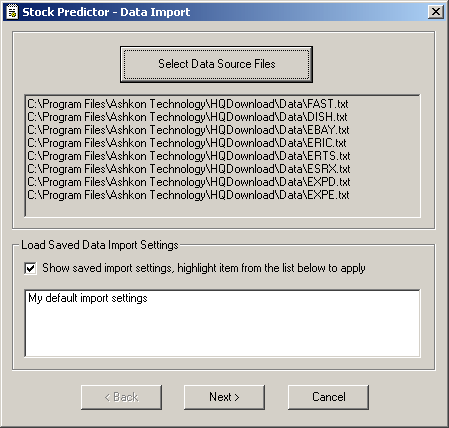
Click Select Data Source Files and choose the files to import. All files in one import must have the same format and be in the same folder. To select several files, hold Ctrl and click each file, or hold Shift and use the arrow keys.
To reuse settings you saved in an earlier import (see Step 3), check Show saved import settings under Load Saved Data Import Settings and select the settings name in the list before you continue.
Step 2. Map the columns and formats
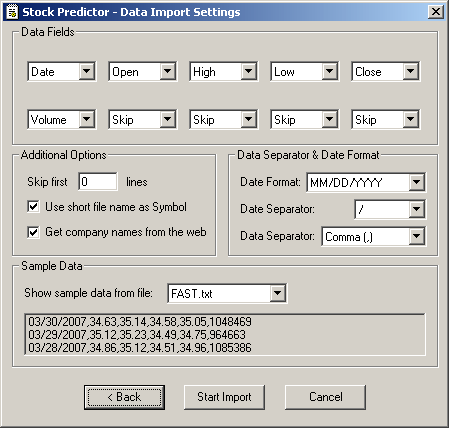
Under Data Fields, choose what each column of the file holds. Use the Sample Data preview to check which column is which. Each file must contain at least Date, Open, High, Low, Close and Volume. Set a column to Skip to leave it out of the import.
- Skip first … lines – the number of lines to ignore at the top of each file, such as a header row with column names.
- Use short file name as Symbol – uses the file name without its extension as the stock symbol, for example
MSFT.txtbecomes MSFT. - Get company names from the web – looks up the company name for each symbol, for example MSFT → Microsoft Corporation.
- Date Format, Date Separator and Data Separator – how dates are written and which character separates the columns (comma, tab, semicolon and so on).
Click Start Import when the settings match your files.
The wizard imports end-of-day (daily) data only. Intraday quotes are not supported.
Step 3. Review the results
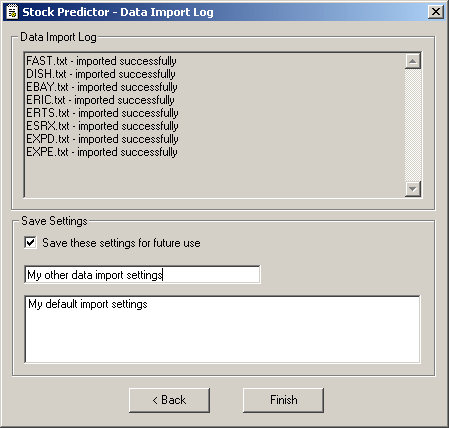
The last page shows the result of the import. To reuse the settings from Step 2 next time, check Save these settings for future use and enter a name for them.
Questions about importing data: support@ashkon.com.